











KOREOS MENT · Primeros pasos
Share data between tablets and PCs
The two ways to use the same cases on several devices: Company sync or a local server.
Este artículo aún no está traducido a su idioma: se muestra la versión en English.
En esta página
There are two ways for several devices to see the same cases and equipment:
- Option · How it works · Without a network
- Company sync · Each device keeps its own copy and exchanges records through a company shared folder (Windows PC or file server). · Keeps working and sends later
- Connect to the local server · One Windows PC keeps the database; other devices use it over the network. · Cannot save until reconnected
Company sync
- Prepare a dedicated shared folder with a company account that can read and change files (your network administrator does this).
- On the first device, sign in as an administrator and open Settings → Company sync. On Windows, choose the folder; on the tablet, enter the share’s connection details.
- Choose “Create company workspace”, give it a name and tap “Save and connect”. Create the workspace only once.
- Tap “Show invitation” and privately hand the invitation to the administrator of each authorized device.
- On the other devices, choose “Connect to an existing workspace”, use the same destination and paste the invitation. If the device already has records, choose “Merge existing data” and review the preview before confirming.
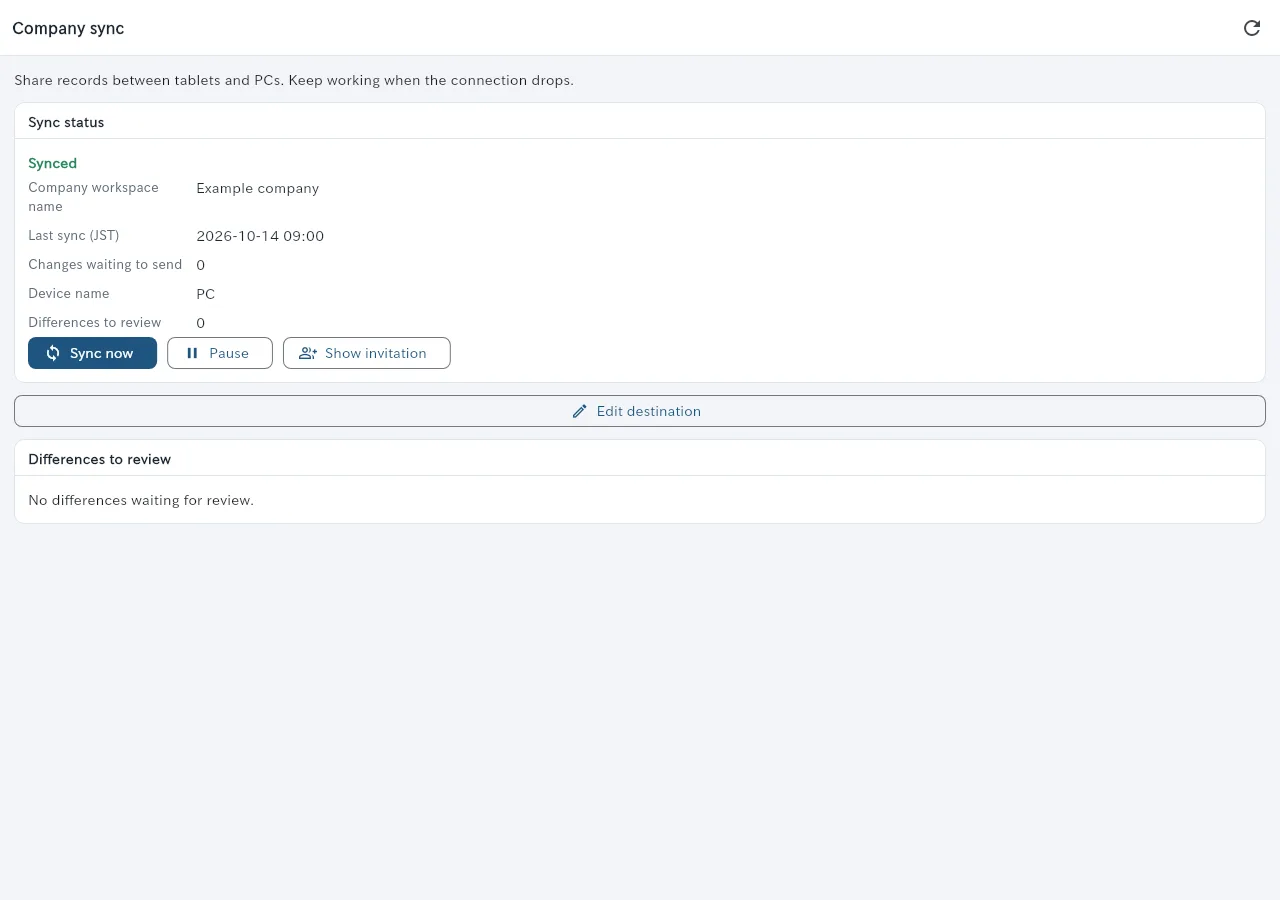
Local server
- On the Windows PC that will hold the database, open Settings → Local server and show the pairing QR.
- On the other device, choose “Connect to the local server” and scan the QR, or type the address.
- Keep that PC running: without it, connected devices cannot save.