











KOREOS HOME · Pantallas y funciones
Family member: running the week in HOME
How each person in the household uses HOME during the week: see the day on Home, add appointments, take and complete tasks, fill the shopping list and attach a photo when it helps. It works in the cloud and in device mode, except that in device mode data is not shared.
Este artículo aún no está traducido a su idioma: se muestra la versión en English.
En esta página
What this is for
How each person in the household uses HOME during the week: see the day on Home, add appointments, take and complete tasks, fill the shopping list and attach a photo when it helps. It works in the cloud and in device mode, except that in device mode data is not shared.
Step by step
- To join your family, open the Invite tab and enter the code you received. You can also sign in with Google while using the code — you will join the inviter's household instead of creating a new one. If the invitation expired or belongs to another e-mail, the screen explains what to do; your chosen language stays the same after signing in with Google.
- Open Home and check the house and profile at the top; use All or your name in the filter to see your routine.
- Use the quick actions to record without looking for menus: event, request, purchase or expense.
- In Calendar, choose the date, tap add, write a clear title and check start, end, all day and participants.
- For fixed appointments (lessons, rubbish day), choose the repetition and review the next dates before saving.
- In Tasks, open the requests for you and change the stage as it goes: To start, In progress, Waiting, Done.
- When finishing, add the record or photo requested; repeating tasks create the next occurrence by themselves.
- In the Shopping list, add what is missing with quantity and, after buying, mark the item as bought.
- To attach a photo to an event or task, open the detail, use attach and check the image does not show anything it should not.
- If something does not appear for another person, use refresh/sync and check you are in the same family.
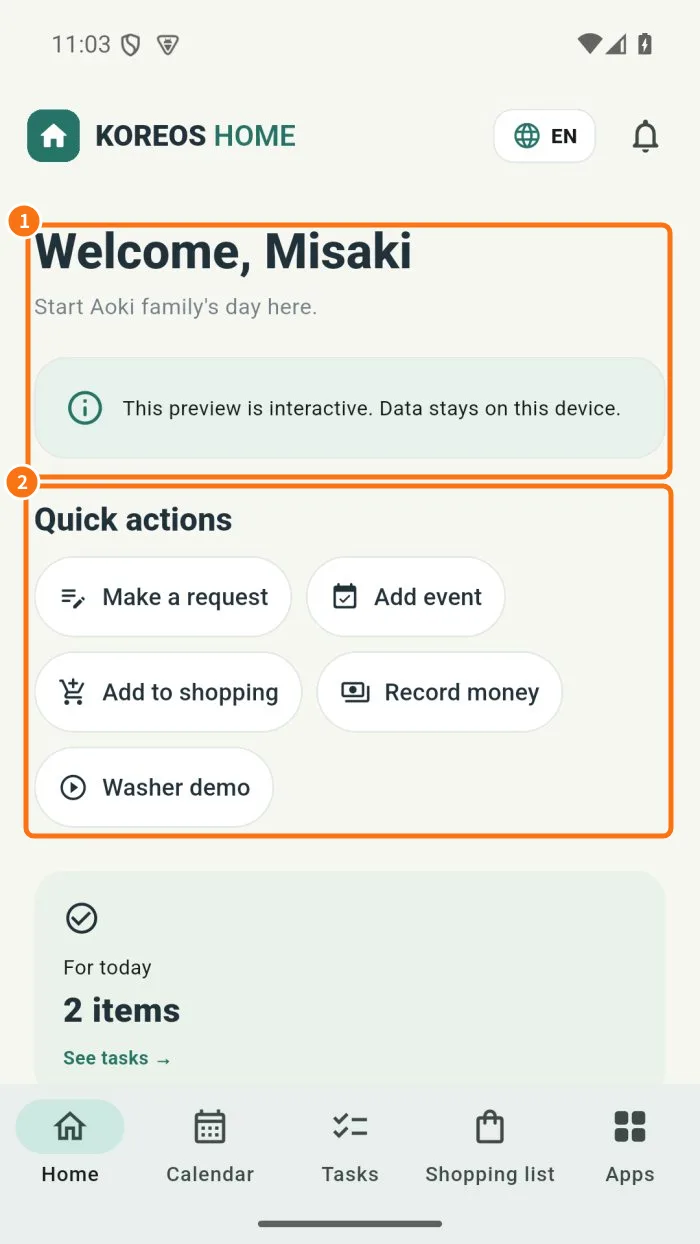
Demo screen. Numbered highlights mark the controls discussed; the image language may differ from yours.
Tip
If something goes wrong
Event on the wrong day: open it, check start, end and repetition and read the scope of the change before saving. Duplicate task: it was a repetition; open the next occurrence instead of creating another. Photo will not attach: allow camera/files for the app and wait for sync. Bought item came back: someone else edited it; refresh the list.
Related articles
- FAQ: 20 answers