











KOLOGY Software Pro · Màn hình & chức năng
Schedule and driver distribution
Compare drivers' time scores, distribute pending deliveries automatically and adjust each stop by hand.
Bài viết này chưa được dịch sang ngôn ngữ của bạn: đang hiển thị bản English.
Trong trang này
The Schedule builds the day's roster: it compares each driver's performance, suggests who should receive deliveries that still have no driver, and lets you adjust stop by stop before confirming.
Who uses it and where
Administrators and operators. In the top menu, Schedule, or on the map, Operations → Schedule.
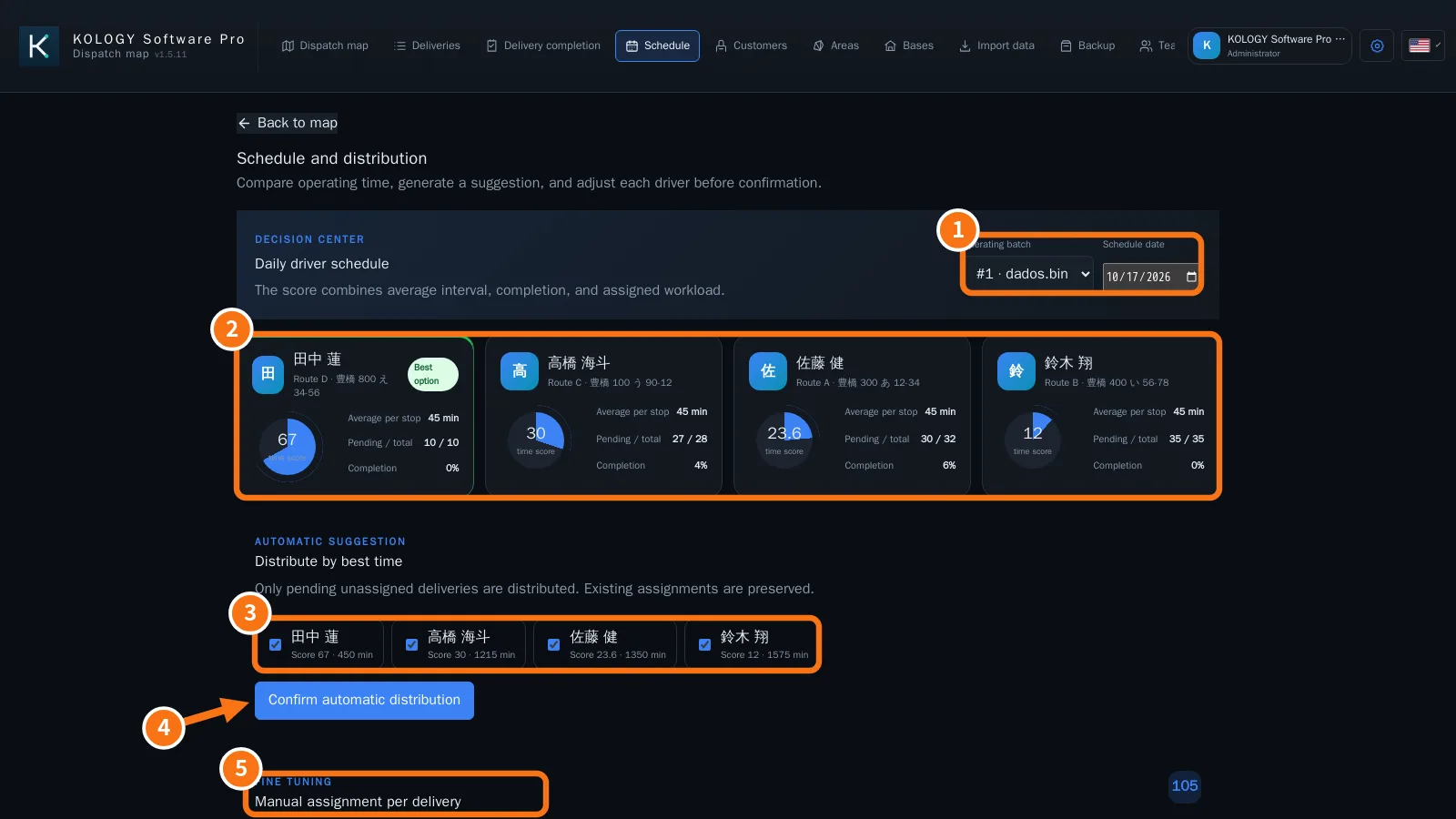
Parts of the screen
- Operating batch and Schedule date: choose them before reading the numbers.
- Driver cards (Decision center): time score, Average per stop, Pending / total and Completion. The best one gets the Best option badge. The score combines average interval between deliveries, completion and workload already assigned.
- Distribute by best time: tick the drivers to include in the suggestion.
- Confirm automatic distribution.
- Manual assignment per delivery (Fine tuning): lists deliveries with number, address, time window and route, and a Driver selector on each.
Step by step: automatic distribution
- Choose the Operating batch and Schedule date (①).
- Check the cards (②) to see who is freer or faster.
- Under Distribute by best time (③), keep only the available drivers ticked.
- Click Confirm automatic distribution (④) and confirm. “X deliveries distributed automatically.” appears.
Step by step: manual adjustment
- Scroll to Manual assignment per delivery (⑤).
- On each delivery, choose the Driver or Unassigned.
- Click Save manual assignments. “X assignments updated.” appears.
Schedule vs. Build routes
Build routes (on the map) splits the batch into territories by proximity and draws street paths. The Schedule decides who gets what by time and current workload. You can use both: routes first, then fine-tuning in the schedule.
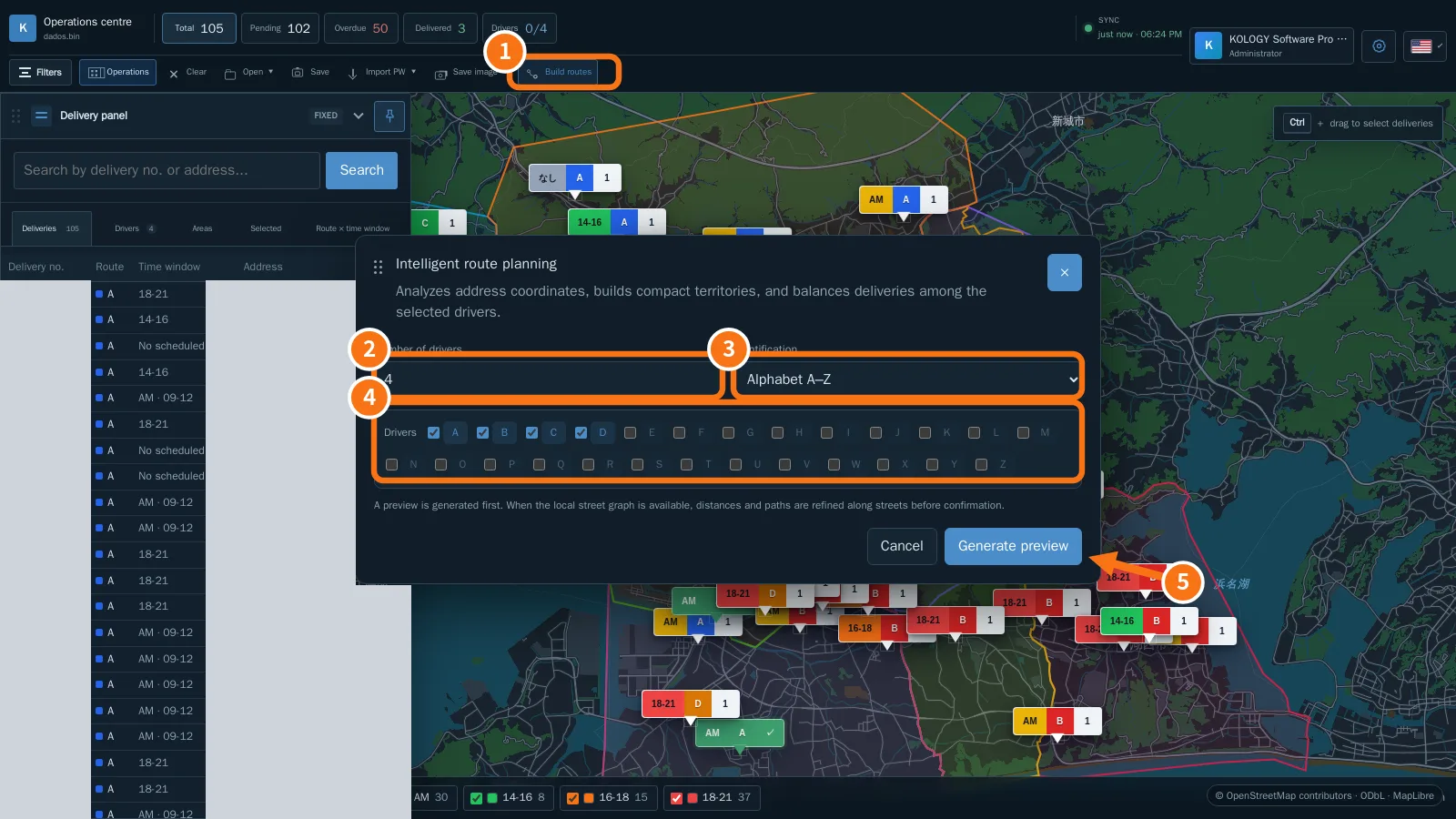
Build routes in Pro: ① button, ② number of drivers, ③ identification, ④ drivers, ⑤ Generate preview. The window can be dragged aside to see the map.
Common mistakes
- No cards appear: there are no active drivers. Register them in Team.
- “Could not update the schedule”: check batch and date and try again.
- The distribution did not touch a delivery: it already had a driver or a direct assignment.
Related questions
- Intelligent route planning
- How to assign a delivery to a specific driver
- Driver record