KOCHAT · Pantallas y funciones
KOCHAT: paste, emoji, reply mode and attachment downloads
KOCHAT: paste, emoji, reply mode and attachment downloads
Este artículo aún no está traducido a su idioma: se muestra la versión en English.
- Paste screenshots or files with Ctrl+V (Mac: ⌘V), or drag files into the conversation. Review the preview, add a caption and send. Cancel sends nothing; ordinary text paste still works. On the web, use the paperclip when the browser cannot expose copied files.
- The emoji button provides search, recent items, favorites and categories. Right-click or hold to favorite. GIFs and stickers use the licensed catalogue. The native Mac palette is also available.
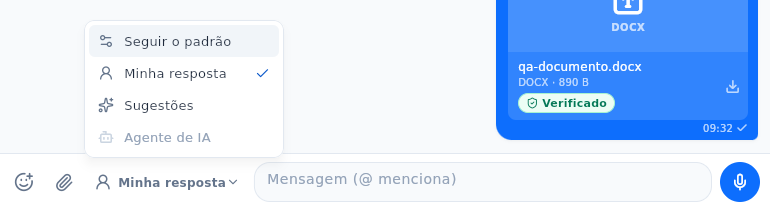
- Choose My reply, Suggestions or AI agent beside the composer. Suggestions only fills the draft for you to edit and send. AI agent sends replies marked as AI; Take over returns to manual. Preferences are stored per person and conversation on the server. Follow default uses the global setting. Automatic replies require an authorized role and a direct conversation; groups, CEO, bots, external support and unauthorized accounts show the reason they are unavailable. House engines are restricted to KOMORI staff.
- Use Download on attachments or in the viewer. Message menus also offer Open, Copy internal link, Forward and Save as/Save to. Original names and conversation access permissions are preserved. Wiki/Guide is only in Settings.
Reply mode — version 1.8.29
On a computer, click My reply beside the message field. A menu opens above the button with Follow the default, My reply, Suggestions and AI agent. A ✓ marks the current choice. Hover over a gray option to read why it is unavailable. Click outside or press Esc to close without changing anything. The button shows your selection without duplicate notices.
On a phone, tap the mode icon beside the message field. The picker still opens from the bottom, with descriptions and reasons for unavailable options. Permission rules still apply.