











KoCAD · Screens & features
Design tree, PropertyManager and part properties
The left panel: feature tree (edit, rename, roll back, suppress), PropertyManager, Configurations, DisplayManager and Layers; properties of the selected part.
On this page
What it is
The left panel has 5 tabs: FeatureManager design tree, PropertyManager, Configurations, DisplayManager and Layers & display states.
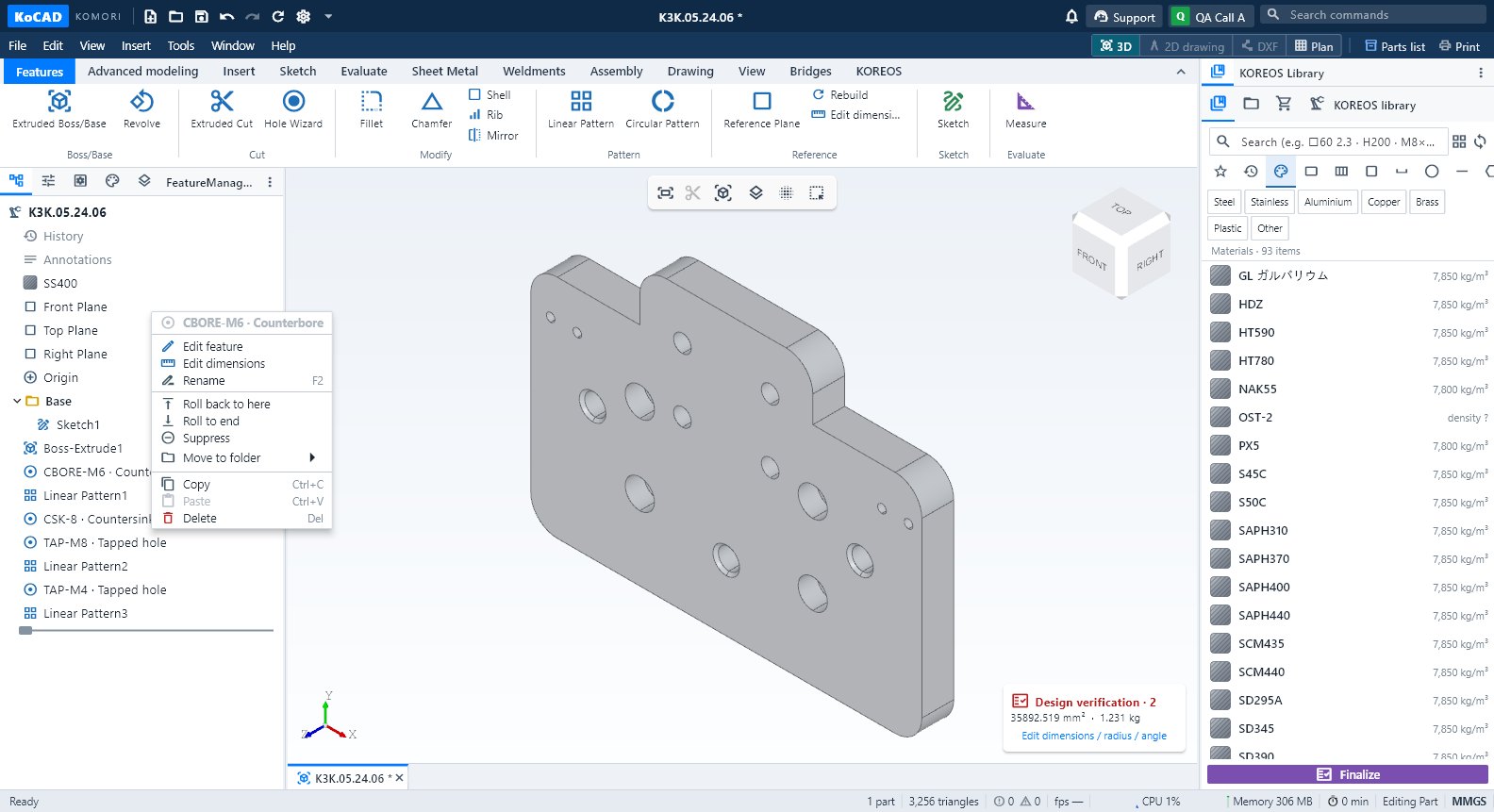
Design tree
- Shows the part, history, annotations, material, planes (front, top, right), origin and each feature in order.
- Right-click a feature: edit, edit dimensions, rename (F2), roll back, suppress, folders, copy/paste.
- Double-click a feature to open its editor; features with errors turn red.
- For a STEP assembly the tree follows the file structure; a click in 3D opens the tree down to the component.
Part properties
- Click the part (3D or tree). The properties panel shows name, material, mass, volume, area, bounding box, quantity and source file.
- Use the pencil to change the name and custom properties (品名, 図番, 材質).
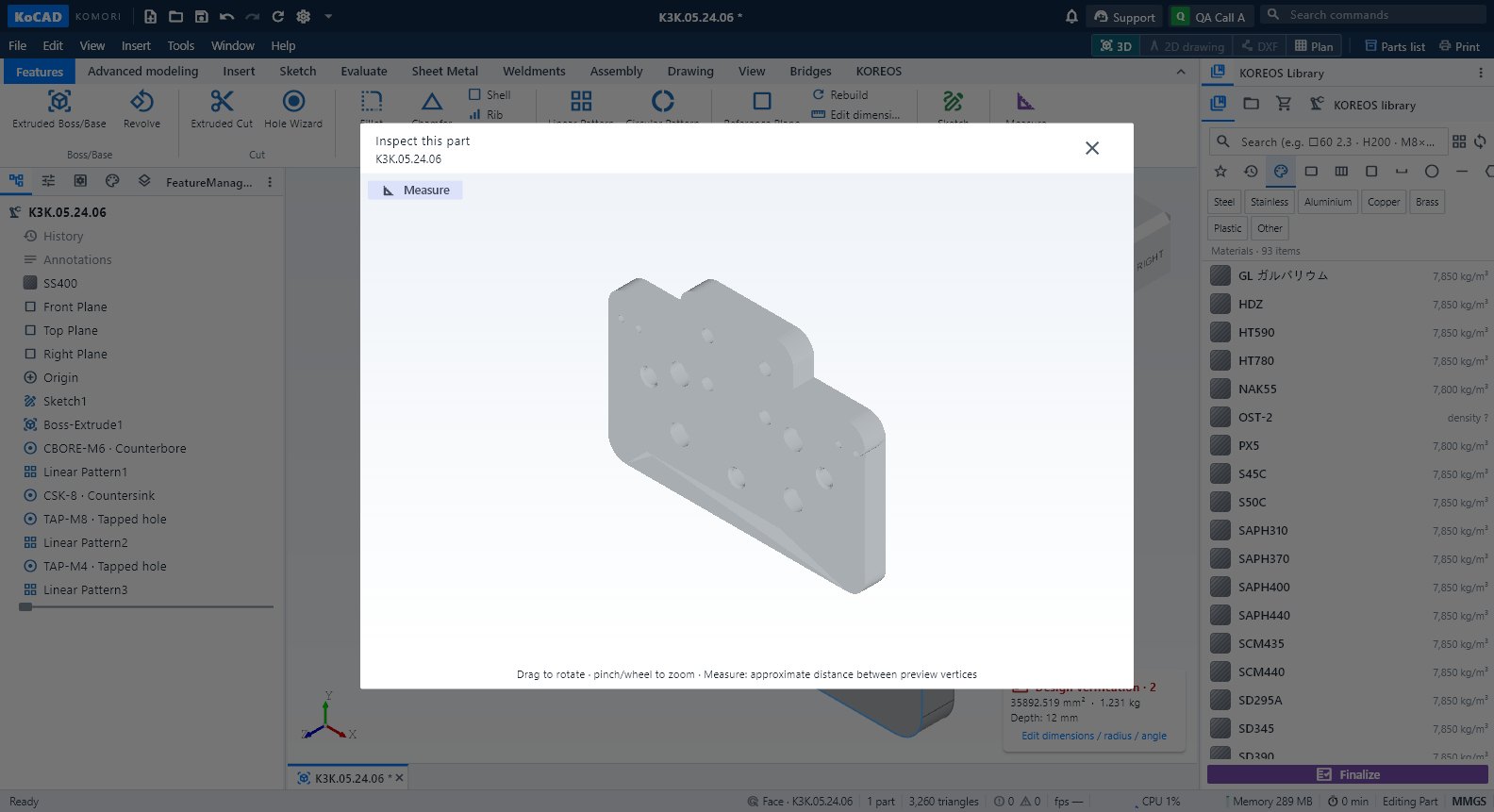
- Inspect this part (or double-click) opens an isolated preview to rotate and measure without moving the main camera.
PropertyManager
This is where each command asks for its data (depth, radius, profile…). Confirm with ✓ or cancel with ✕. A new closed sketch opens the extrude PropertyManager by itself.
Configurations, DisplayManager and Layers
- Configurations: variants of the same part (lengths, suppressed features).
- DisplayManager: colours, appearance and display states.
- Layers: colour, show/hide and lock per layer.
Common mistakes
- A feature turns red after editing another: its reference is gone. Edit it and pick the new face/edge.
- History marker in the middle: features below it are hidden. Drag the marker to the end.