











Karta · Screens & features
Manage company users
An administrator manages active accounts and team access; user limits differ from card limits.
On this page
What this is for
An administrator manages active accounts and team access; user limits differ from card limits.
Step by step
- Sign in on the web as your company administrator.
- Open Settings and Users.
- Review existing users and available seats before adding someone.
- Enter the required name, email and access details and save.
- To suspend access, verify the person and use activate/deactivate; do not share one password among colleagues.
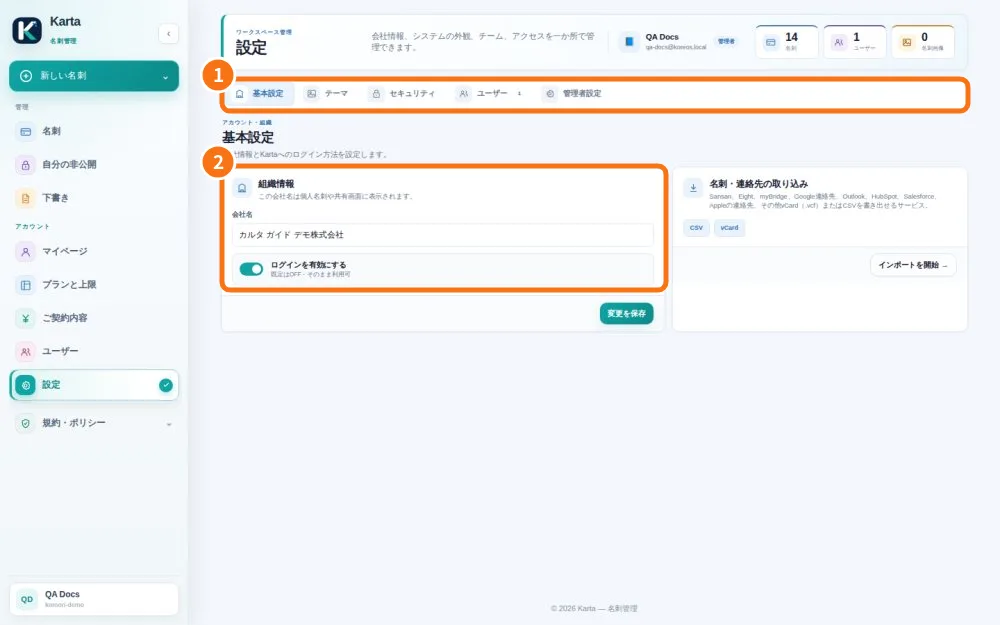
Demo screen. Numbered highlights mark the controls discussed; the image language may differ from yours.
Tip
If something goes wrong
No seats: the owner checks Plan and limits. No Users tab: confirm your permission with an administrator.
Related articles
- FAQ: 20 answers