











Karta · Screens & features
Import vCard or CSV with a preview
Import accepts contacts exported from another service and saves them only after confirmation.
On this page
What this is for
Import accepts contacts exported from another service and saves them only after confirmation.
Step by step
- Export contacts as vCard (.vcf) or CSV from the other service.
- Open Import in Karta and choose the file.
- Analyze it and inspect recognized, ignored or duplicate entries.
- Select only wanted contacts and check names, companies and emails.
- Confirm the import and verify the new cards in the list.
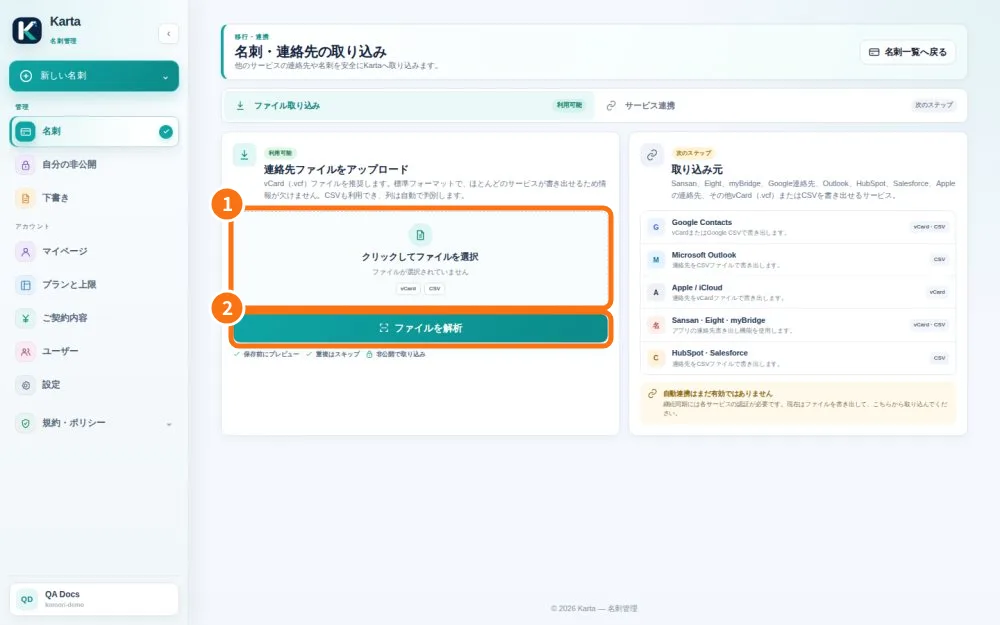
Demo screen. Numbered highlights mark the controls discussed; the image language may differ from yours.
Tip
If something goes wrong
If nothing appears after analysis, check selection and confirmation. Do not import the whole batch again without checking saved entries.
Related articles
- FAQ: 20 answers