Karta · Screens & features
Scan a card and add it
Take a photo or pick an image and text recognition fills in the details. No card in hand? Add it manually.
On this page
What this screen is for
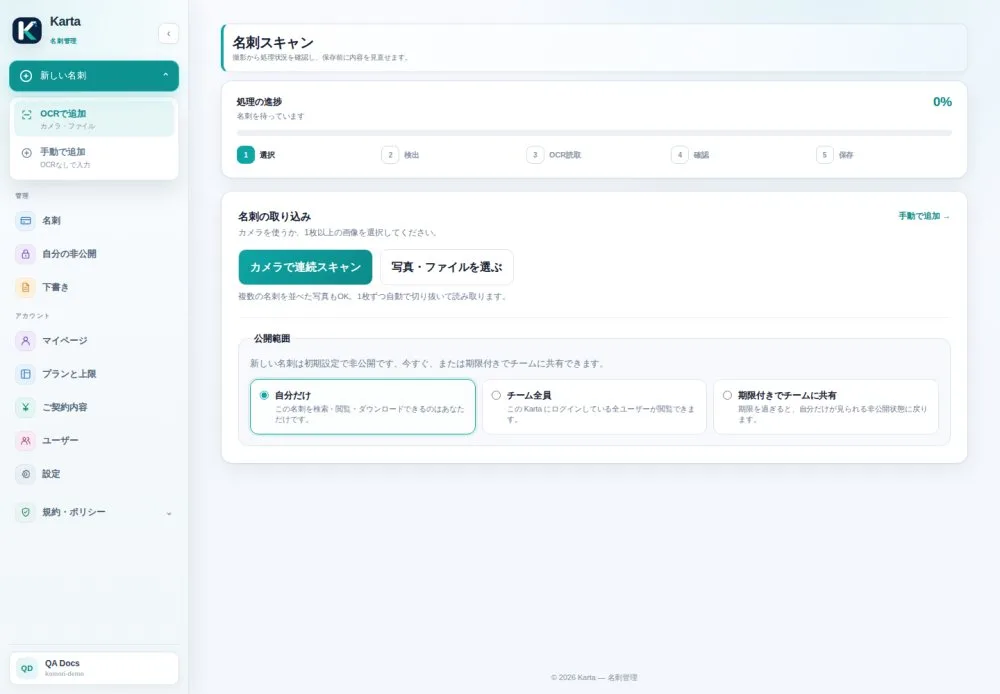
This is where new cards come into Karta. Text recognition (OCR) reads name, company, phone and email; you just check and save.
Scan with the camera or from a file
- Open New card → Add with OCR.
- Tap Continuous camera scan or Choose photo/file. You can send several cards at once, even one photo with several cards side by side.
- Follow the progress bar at the top: detect → read → review → save.
- On the review step, check each field. If the reading got something wrong, fix it before saving.
- Under Privacy, choose Only me, My team or Team until a date, then save.
Add a card manually (no OCR)
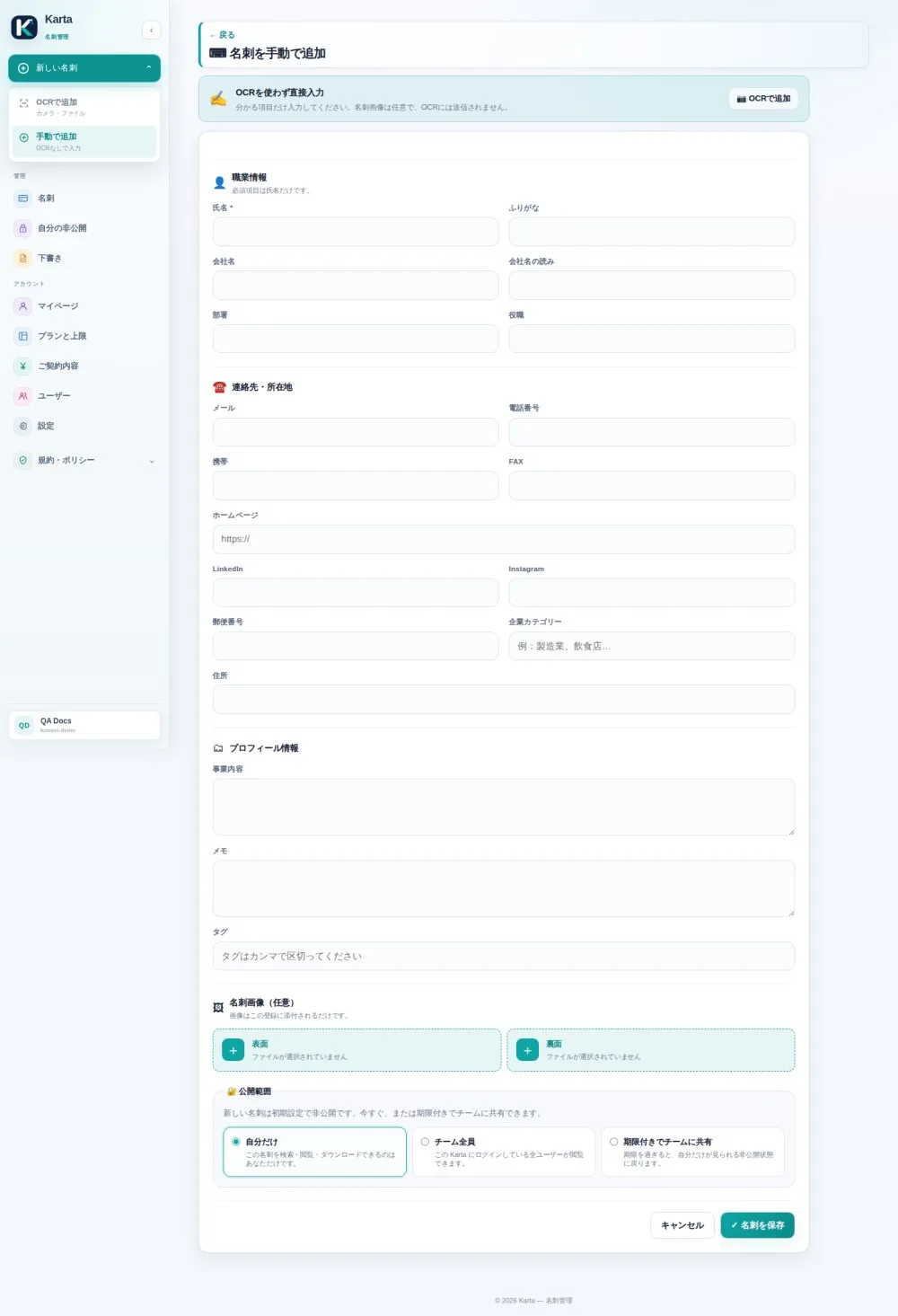
Use this when there is no physical card (a contact given over the phone or copied from an email signature) or when you prefer to type from scratch.
- Open New card → Add manually.
- Fill in the name (the only required field) and anything else you know: company, title, contacts, address, tags.
- If you like, attach images of the front and back of the card.
- Choose the privacy and save.