











K-Units · Bắt đầu
Get started with K-Units
What K-Units is, how to sign in for the first time and how to add your first item with stock.
Bài viết này chưa được dịch sang ngôn ngữ của bạn: đang hiển thị bản English.
Trong trang này
What K-Units is
K-Units tracks your stock of materials, consumables and tools, down to the place where each thing is kept. It is installed at your company (Windows PC and Android tablet): the inventory data stays on the device or on the server your company chooses, with no mandatory cloud.
Install
- Windows: use the official K-Units installer (or the portable ZIP version).
- Android tablet: the person in charge installs the app from the official file provided to your company.
- After installing, the version is shown in Settings → About.
First sign-in, step by step
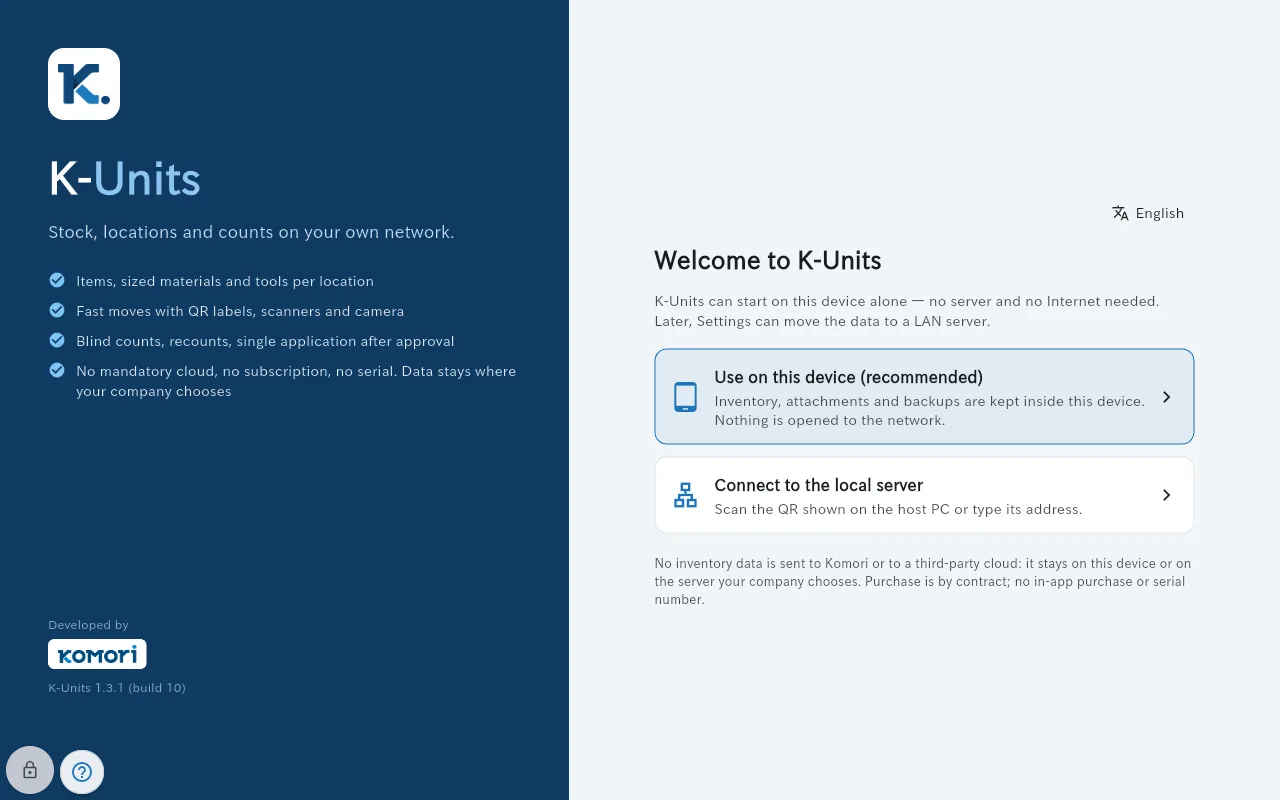
- On the first screen, tap “Use on this device (recommended)”. It is the simplest way: no Internet and no server needed.
- Check the data folder. On Android it is chosen automatically. On Windows, pick a folder on a local disk of the PC (for example C: or D:).
- Tap “Start on this device” and then “Start new inventory”.
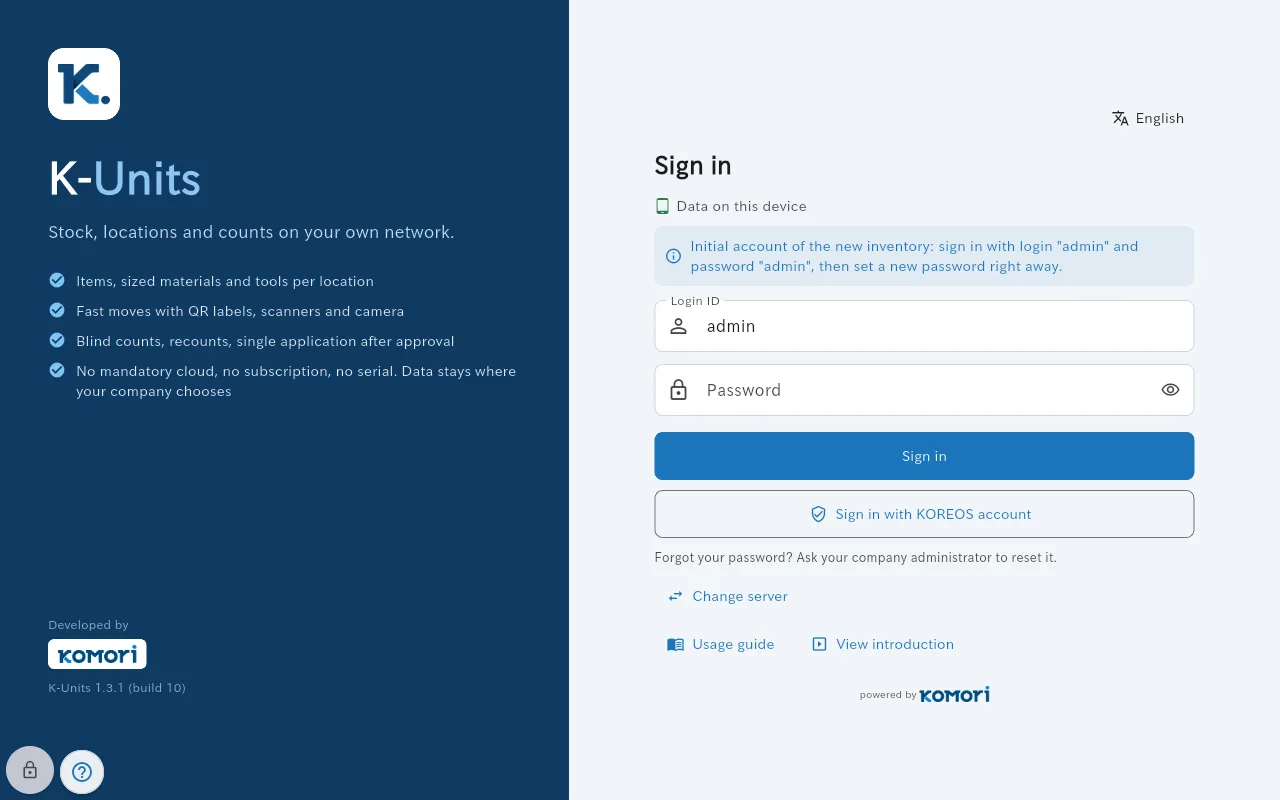
- On the sign-in screen, type login admin and password admin and tap “Sign in”. This only applies to the first access of a new inventory.
- On the “Recommended: change your password” screen, tap “Change password” and create a password with at least 8 characters, including a letter and a number. You can also tap “Not now” and change it later in Settings → Account.
First task: an item with stock
- Open Locations and tap “+” (New site). Fill in Kind, Code and Name.
- Open Stock & items, tap “+” and fill in Name, Type and Unit. Save. Adding the item does not create stock yet.
- Open the item, tap “Receive”, choose the location, enter the quantity and save.
- Done: the item record shows the On hand and Available quantities.