K-Units · Màn hình & chức năng
Stock, items, locations and QR labels
Add items and locations, record receipts, issues and transfers, and print QR labels.
Bài viết này chưa được dịch sang ngôn ngữ của bạn: đang hiển thị bản English.
Trong trang này
Stock & items
The list shows the record and balance of each material, tool or consumable. To avoid loading everything at once, choose a filter first.
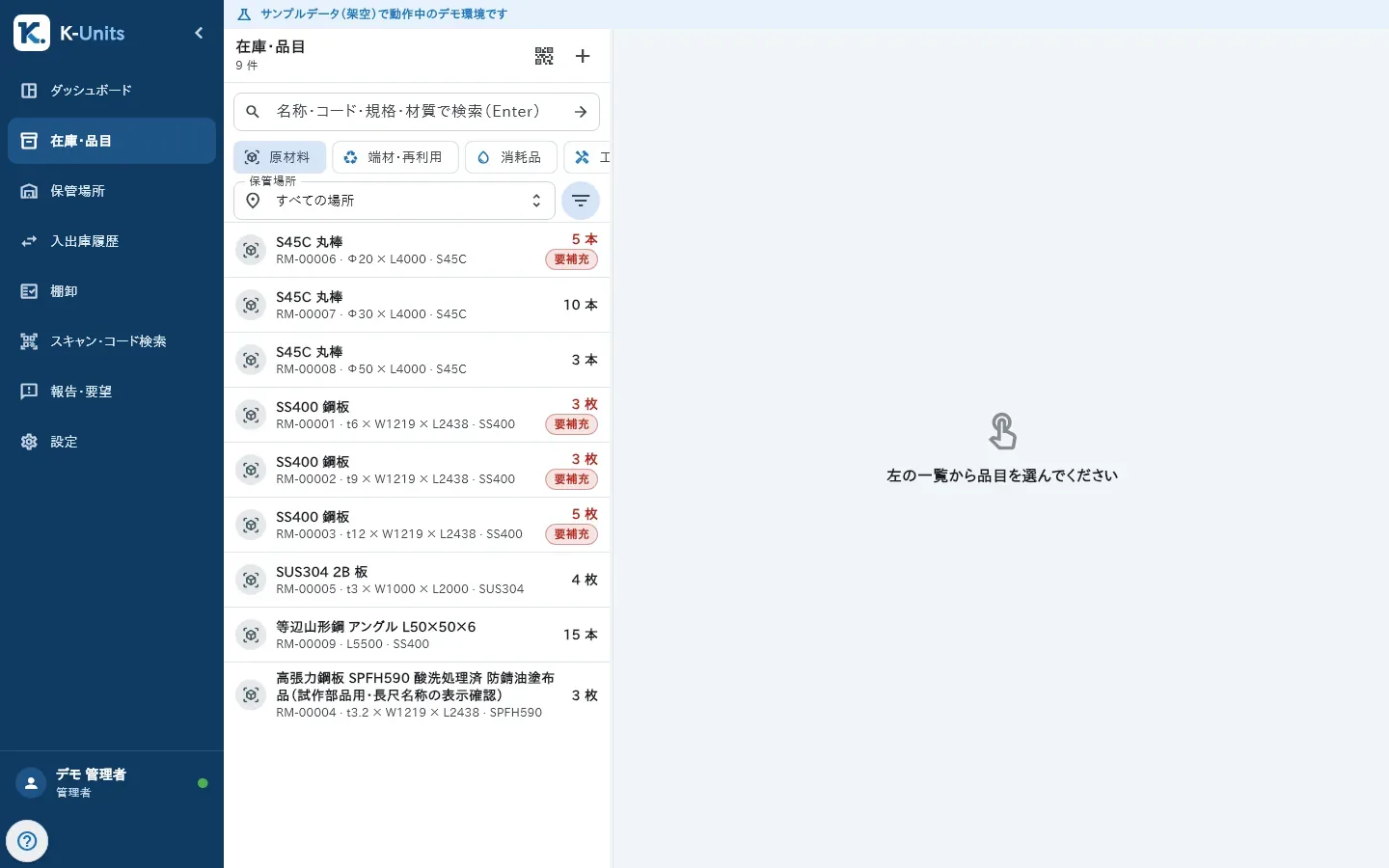
- Choose a type or a location, or type a search and press Enter. To see everything, tap “Show all”.
- To add an item, tap “+”, fill in Name, Type and Unit and save. An empty code is assigned automatically.
- Open the item: the top shows On hand, Reserved and Available, and “Stock by location” lists every place it is kept.
- Use “Receive”, “Issue” or “Transfer” with the location and quantity (reason and reference are optional).
- When the physical stock does not match, a manager uses “Adjust” with the new quantity and a reason. “Reserve” holds a quantity back until it is released or issued.
Physical locations
Locations form a tree: site, warehouse, zone, rack, shelf and bin. One item can be in several locations.
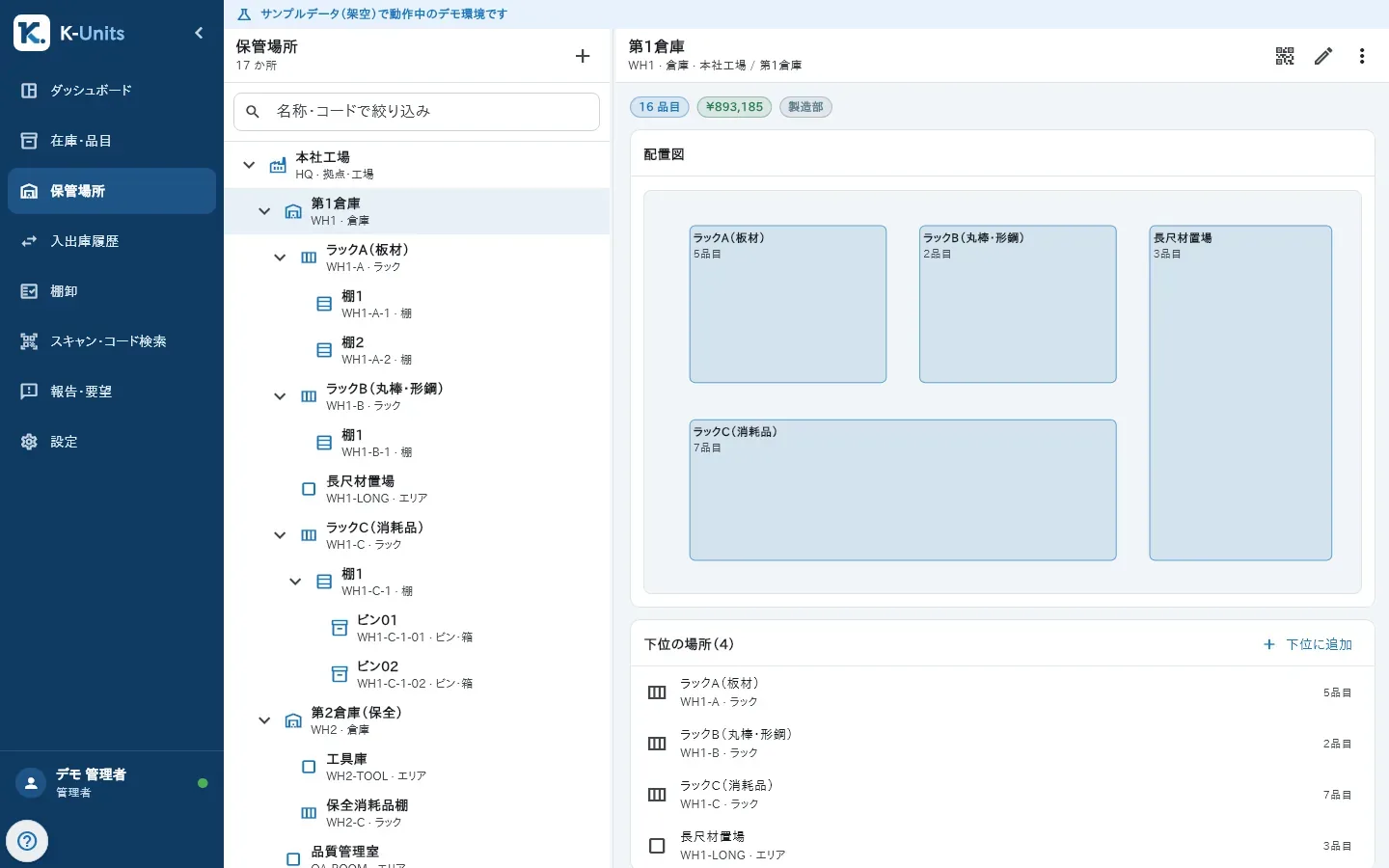
- In Locations, tap “+” (New site) and fill in Kind, Code (for example WH1-A-01) and Name.
- Select a location and use “Add sub-location” to create the levels inside it.
- Opening a location shows “Stock here” and its sub-locations.
QR labels
- In Stock & items (or Locations), tap “Pick items for labels” and select the items.
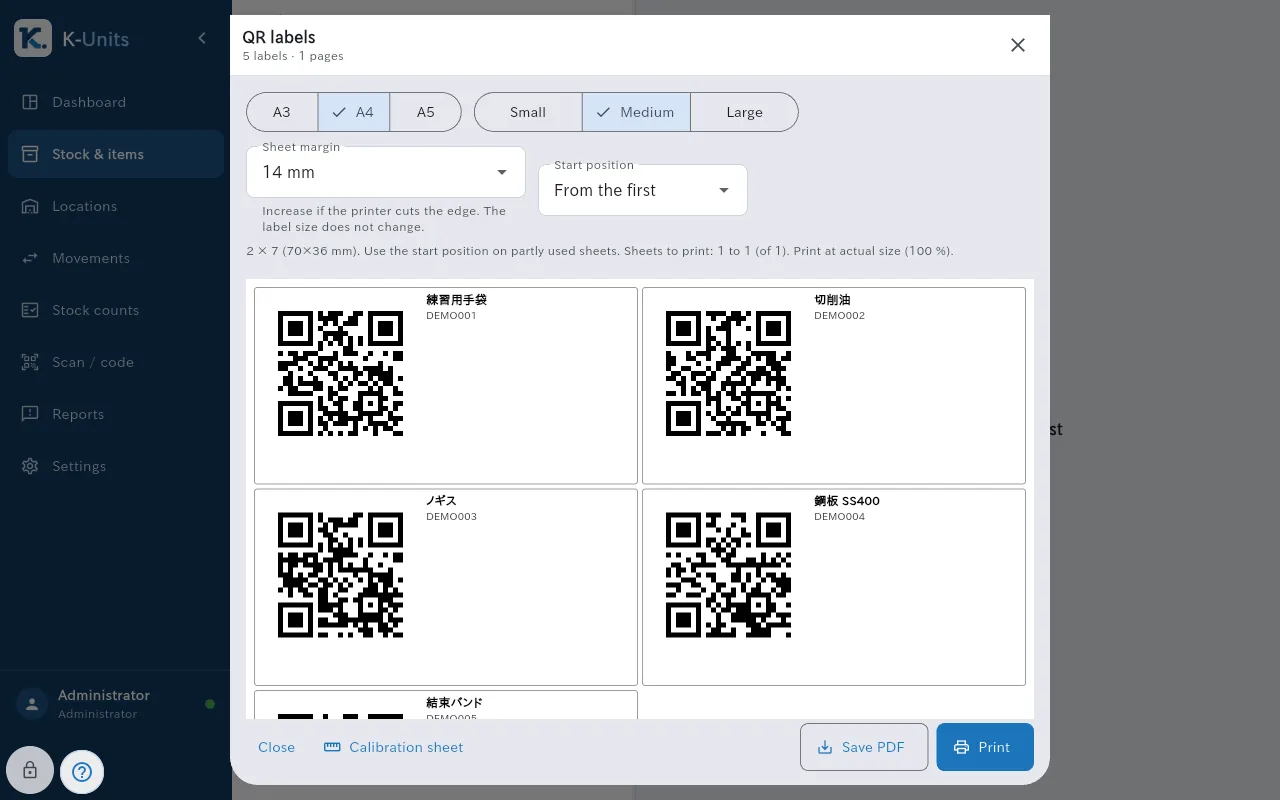
- Choose the paper (A3, A4 or A5), the size and, for a partly used sheet, the start position.
- Tap “Print” or “Save PDF”. Print at actual size (100 %), without “Fit to page”.