K-Units · Pantallas y funciones
Stock, items, locations and QR labels
Add items and locations, record receipts, issues and transfers, and print QR labels.
Este artículo aún no está traducido a su idioma: se muestra la versión en English.
En esta página
Stock & items
The list shows the record and balance of each material, tool or consumable. To avoid loading everything at once, choose a filter first.
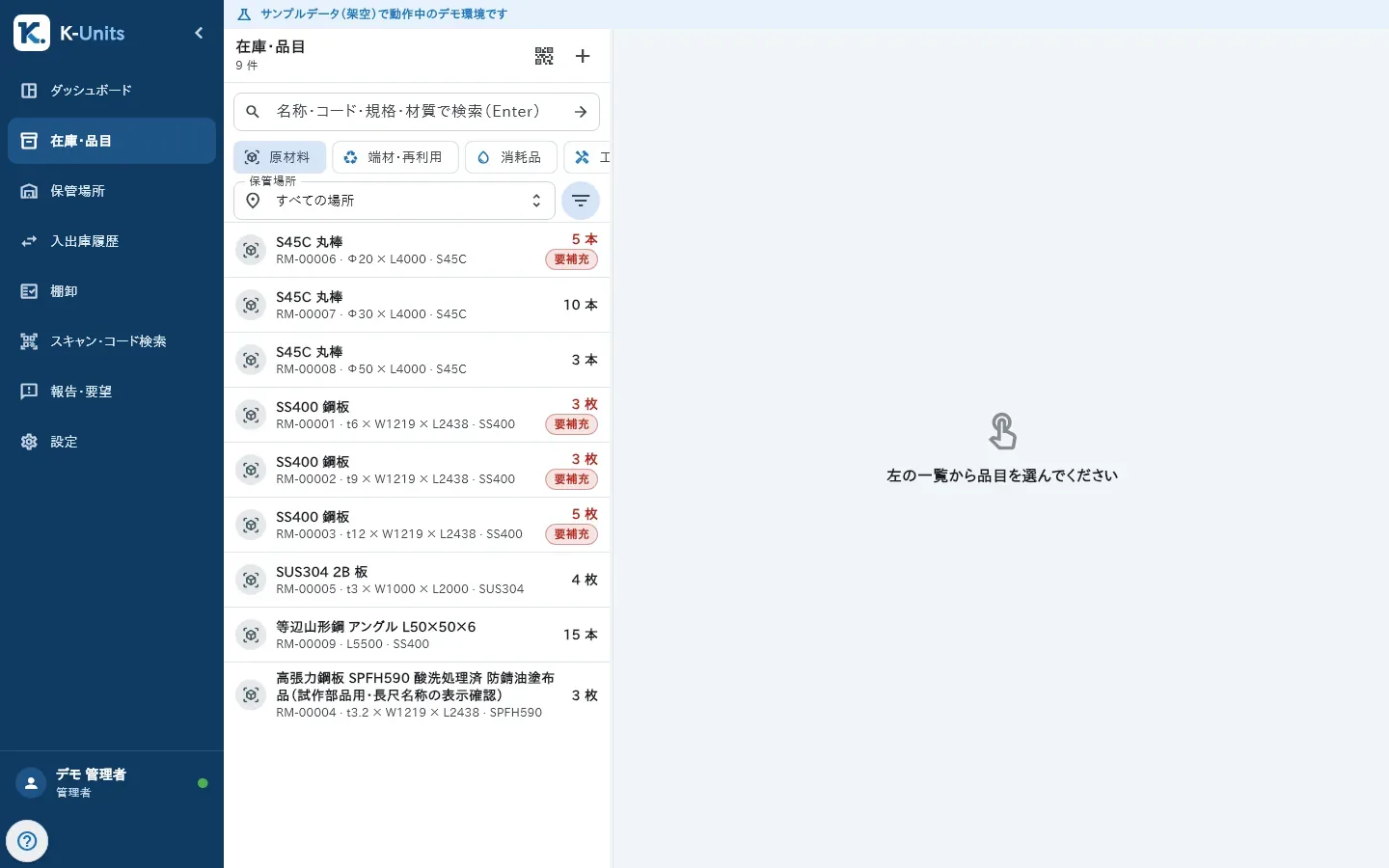
- Choose a type or a location, or type a search and press Enter. To see everything, tap “Show all”.
- To add an item, tap “+”, fill in Name, Type and Unit and save. An empty code is assigned automatically.
- Open the item: the top shows On hand, Reserved and Available, and “Stock by location” lists every place it is kept.
- Use “Receive”, “Issue” or “Transfer” with the location and quantity (reason and reference are optional).
- When the physical stock does not match, a manager uses “Adjust” with the new quantity and a reason. “Reserve” holds a quantity back until it is released or issued.
Physical locations
Locations form a tree: site, warehouse, zone, rack, shelf and bin. One item can be in several locations.
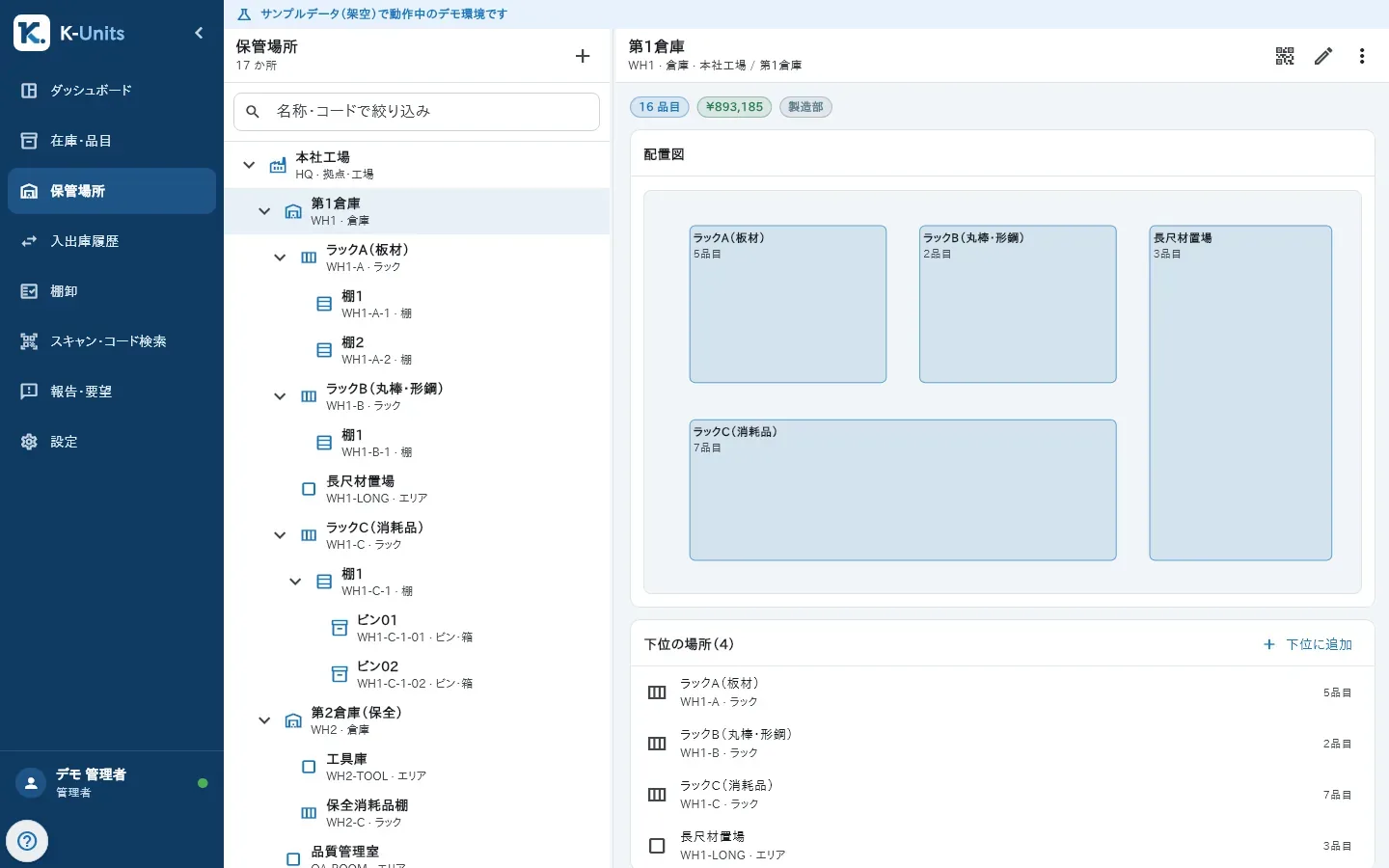
- In Locations, tap “+” (New site) and fill in Kind, Code (for example WH1-A-01) and Name.
- Select a location and use “Add sub-location” to create the levels inside it.
- Opening a location shows “Stock here” and its sub-locations.
QR labels
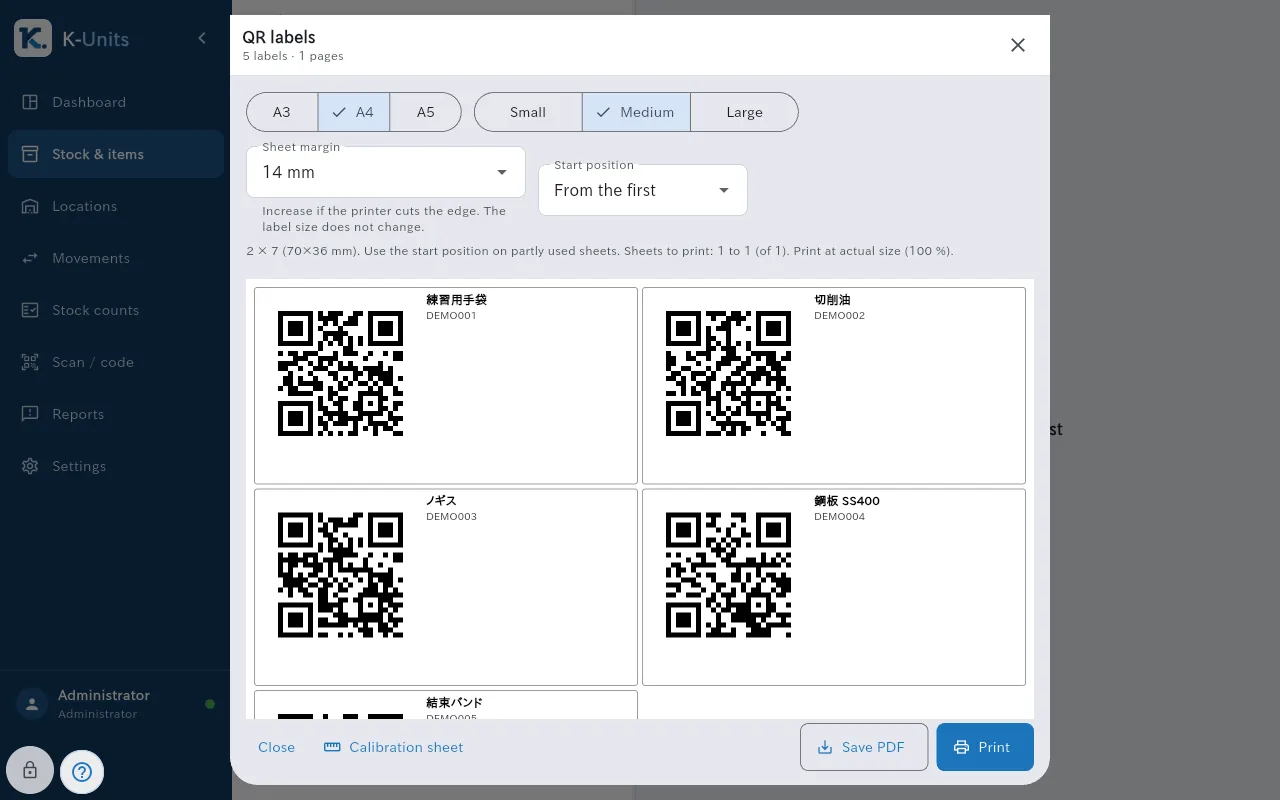
- In Stock & items (or Locations), tap “Pick items for labels” and select the items.
- Choose the paper (A3, A4 or A5), the size and, for a partly used sheet, the start position.
- Tap “Print” or “Save PDF”. Print at actual size (100 %), without “Fit to page”.