











KS
KOMORI Software catalog (KŌLOGY brand)
KOLOGY Software Pro
Full logistics on PC with cloud (KŌLOGY, KOMORI Software catalog).
Màn hình & chức năng
Tất cảDispatch map 5Schedule 1Deliveries and completion 2Drivers and completion 4Import data 1Customers 2Areas and bases 2Sign-in and profile 2Backup, updates and settings 4How to — operator 3How to — administrator 3How to — driver 1Plans and limits 1
Dispatch map
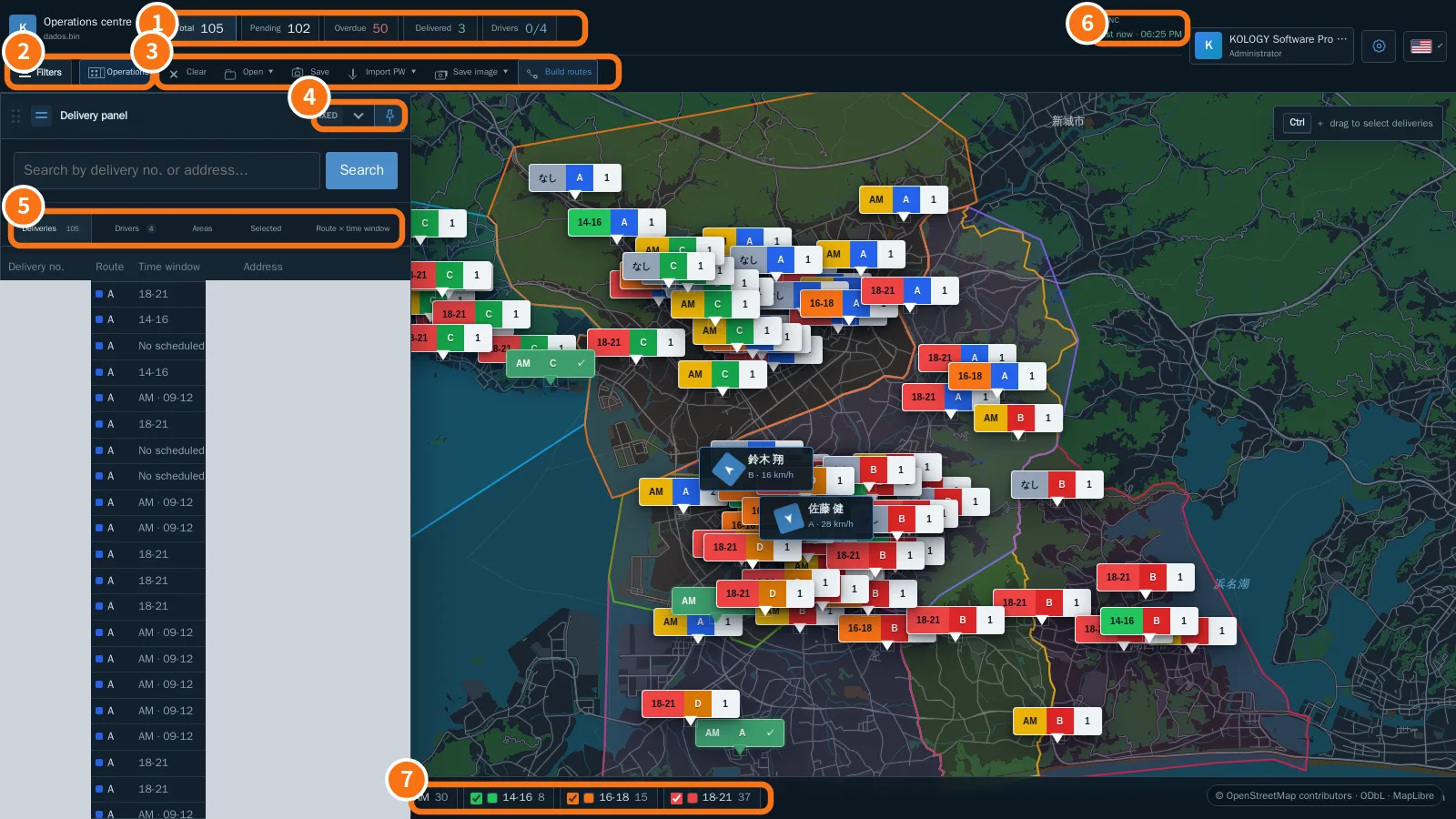 Operations centre: the Pro mapBatch indicators, Filters, the Operations menu, fixed or accordion delivery panel, the Drivers tab and the Sync indicator.English
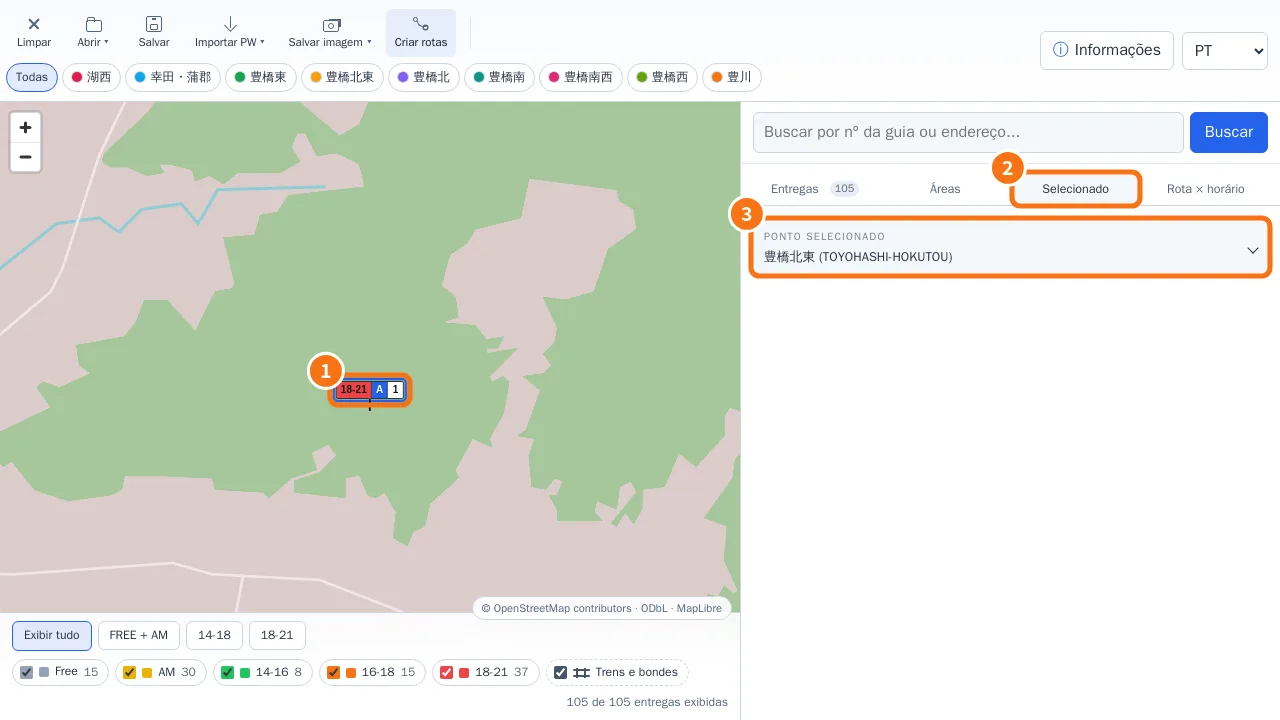 Edit a delivery from the mapQuick editor on pin click, Full edit, AM/PM period with exact time, and the Selected tab.English
- Right-click menu, markers and manual driversThe right-click menu changes with what you click: map background, delivery, marker or driver.English
- Distance and street routeMeasure between two points or build an accumulated route with Ctrl + click; the calculation runs on your own computer.English
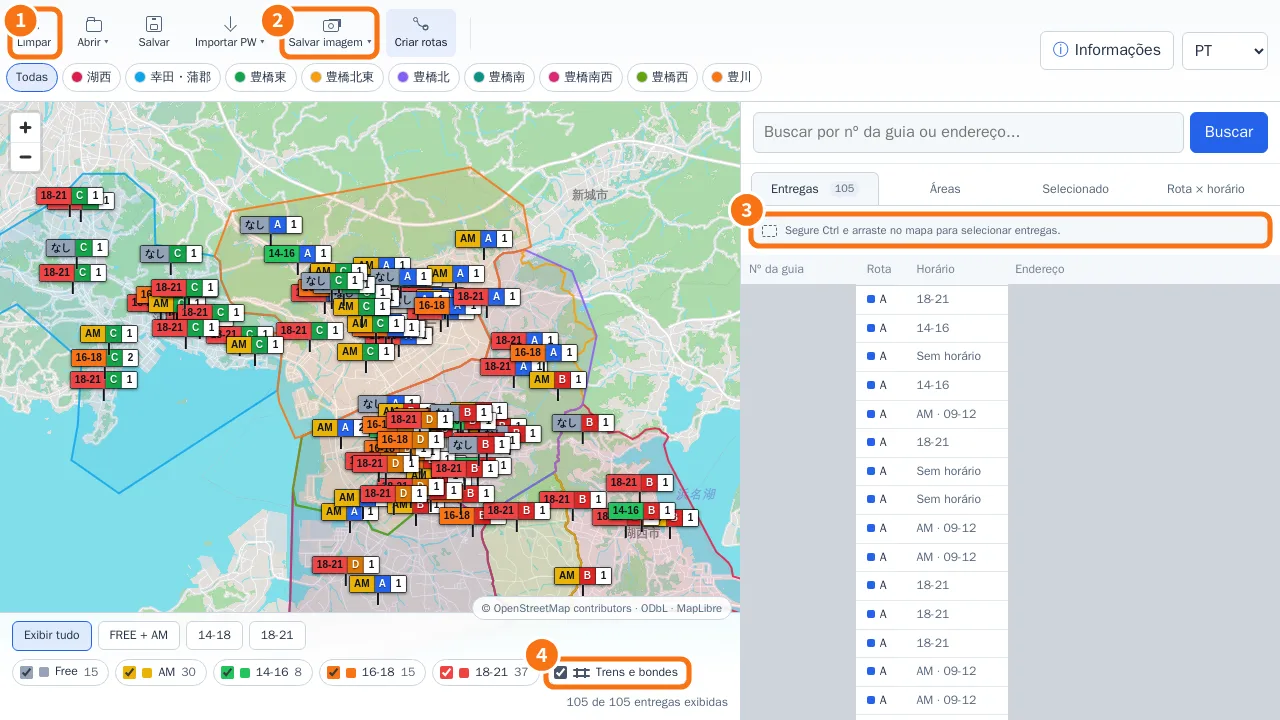 Ctrl selection, Save image (JPG/PDF) and layersSelect only the deliveries inside a rectangle, export the visible map as JPG or A4 PDF, and show or hide rail and tram lines.English
Schedule
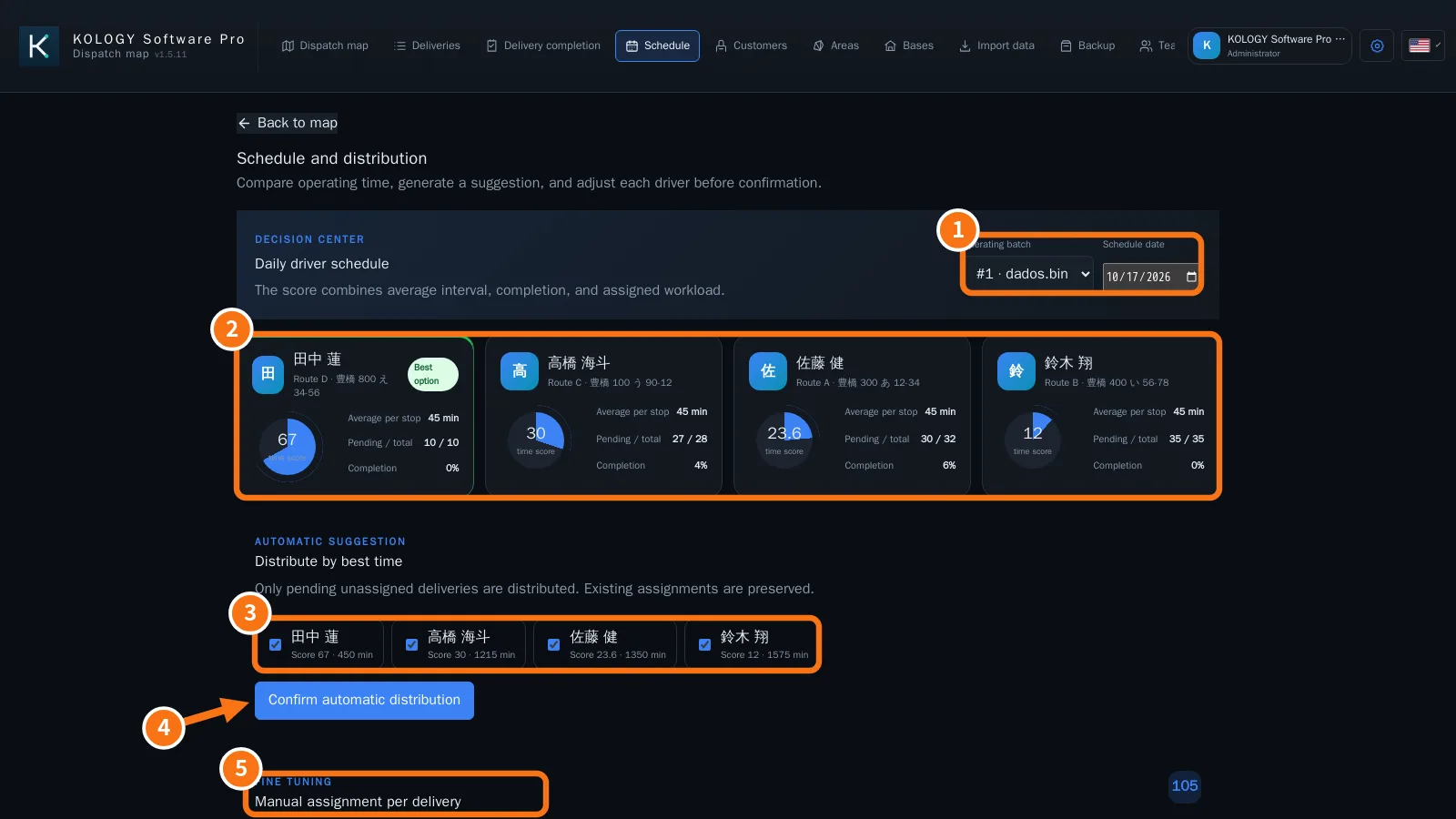
Deliveries and completion
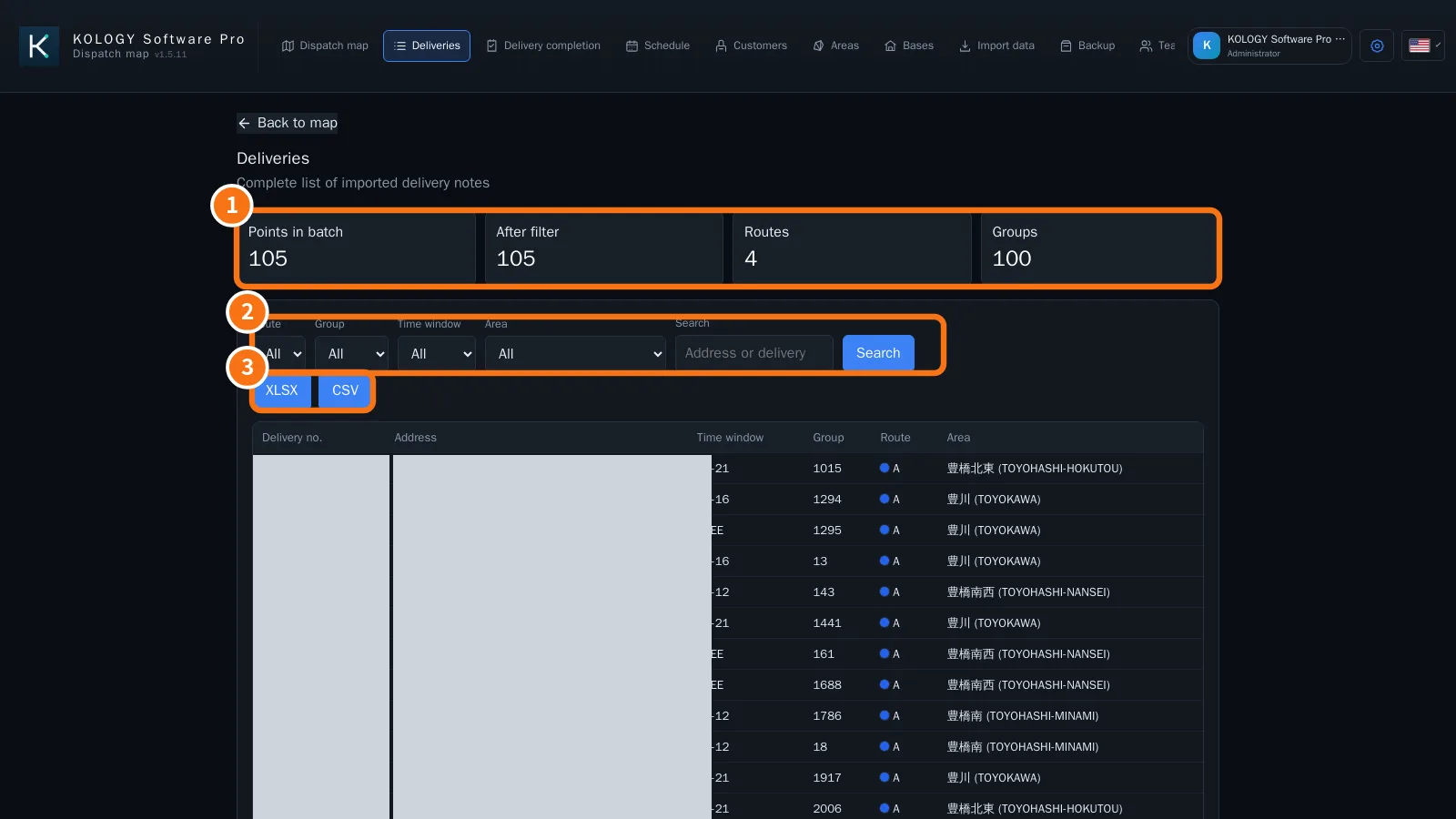 Delivery list and export (XLSX/CSV)The Deliveries screen lists every slip in the batch with filters, counts and export of the filtered result.English
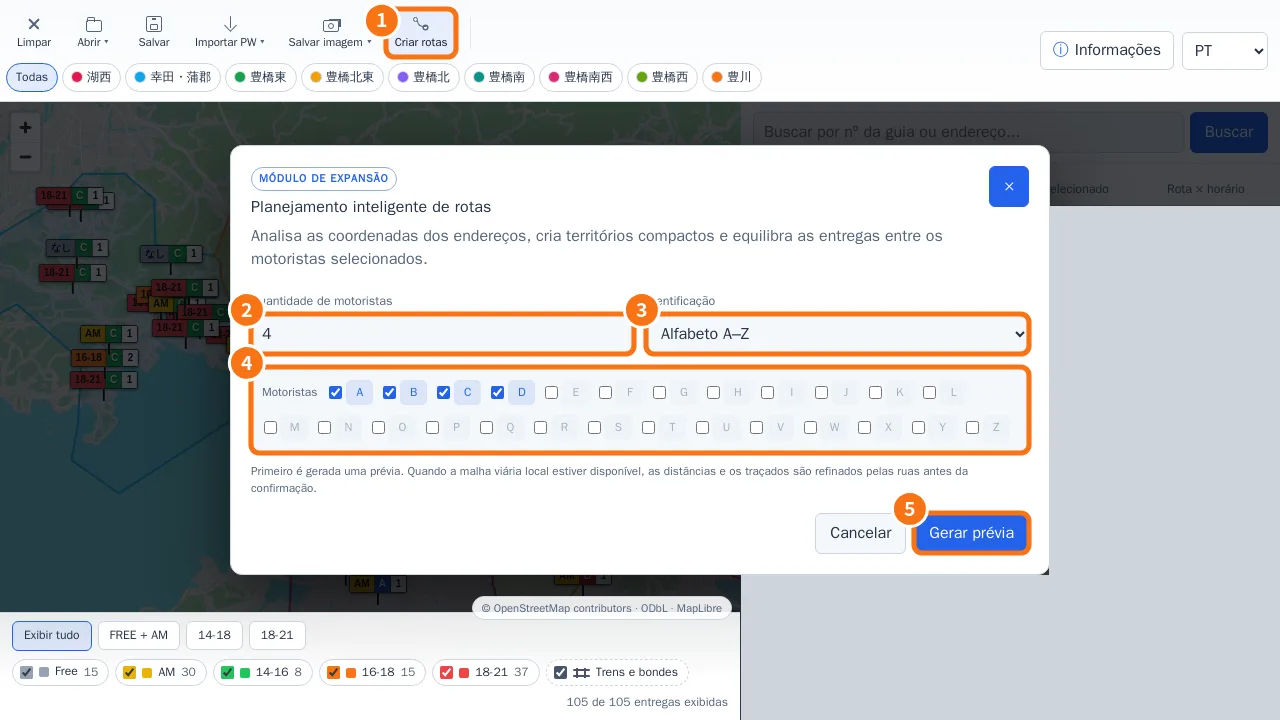 Intelligent route planning (Build routes)Split deliveries among the drivers you pick, check the street paths, and only then apply.English
Drivers and completion
- Team: drivers, vehicles, users and emailThe Team screen registers drivers with vehicle and route, creates role-based access accounts and sets up route emails.English
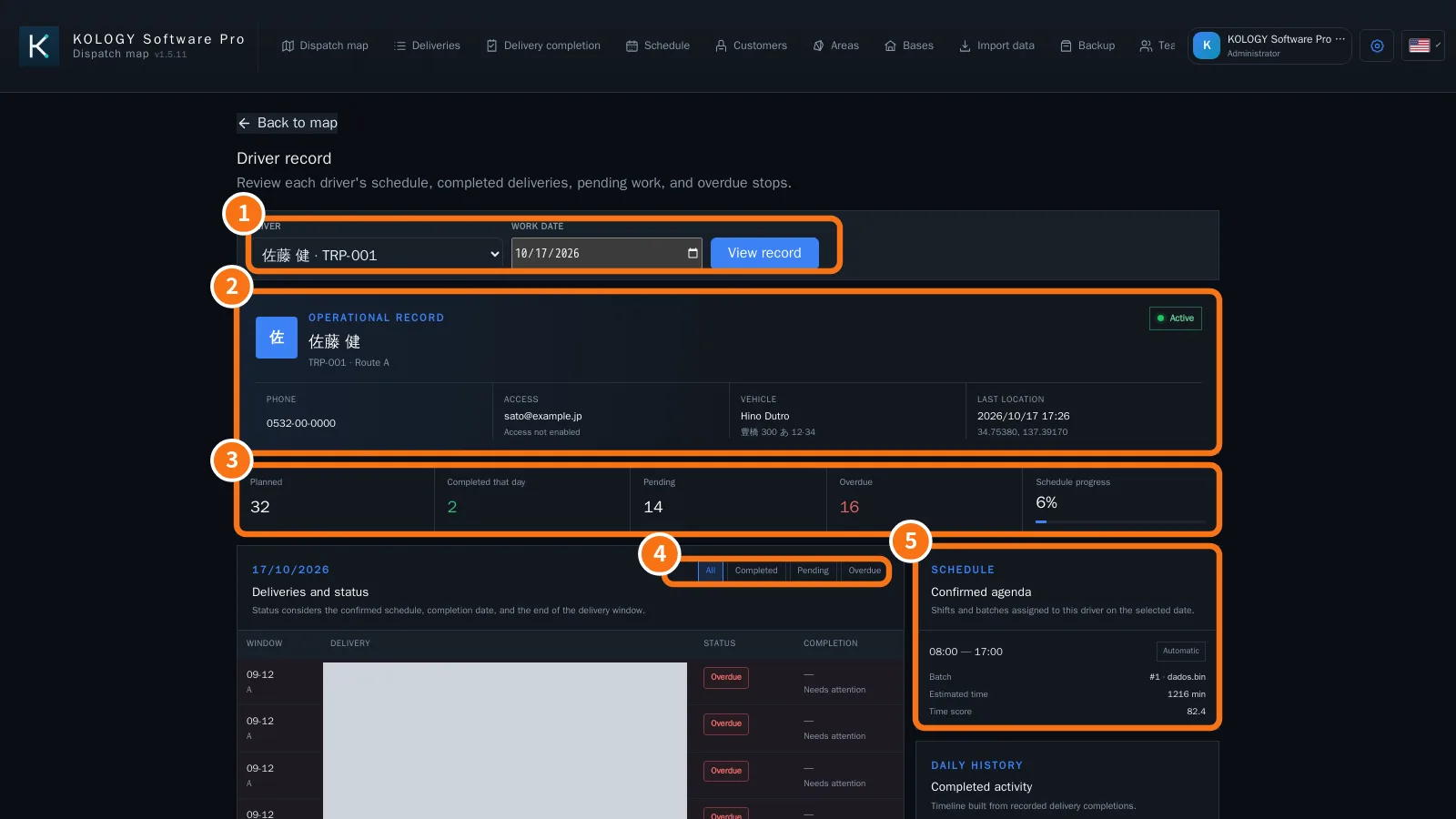 Driver record (operational record)A driver's agenda, planned, completed, pending and overdue deliveries for a day, with a timeline of completions.English
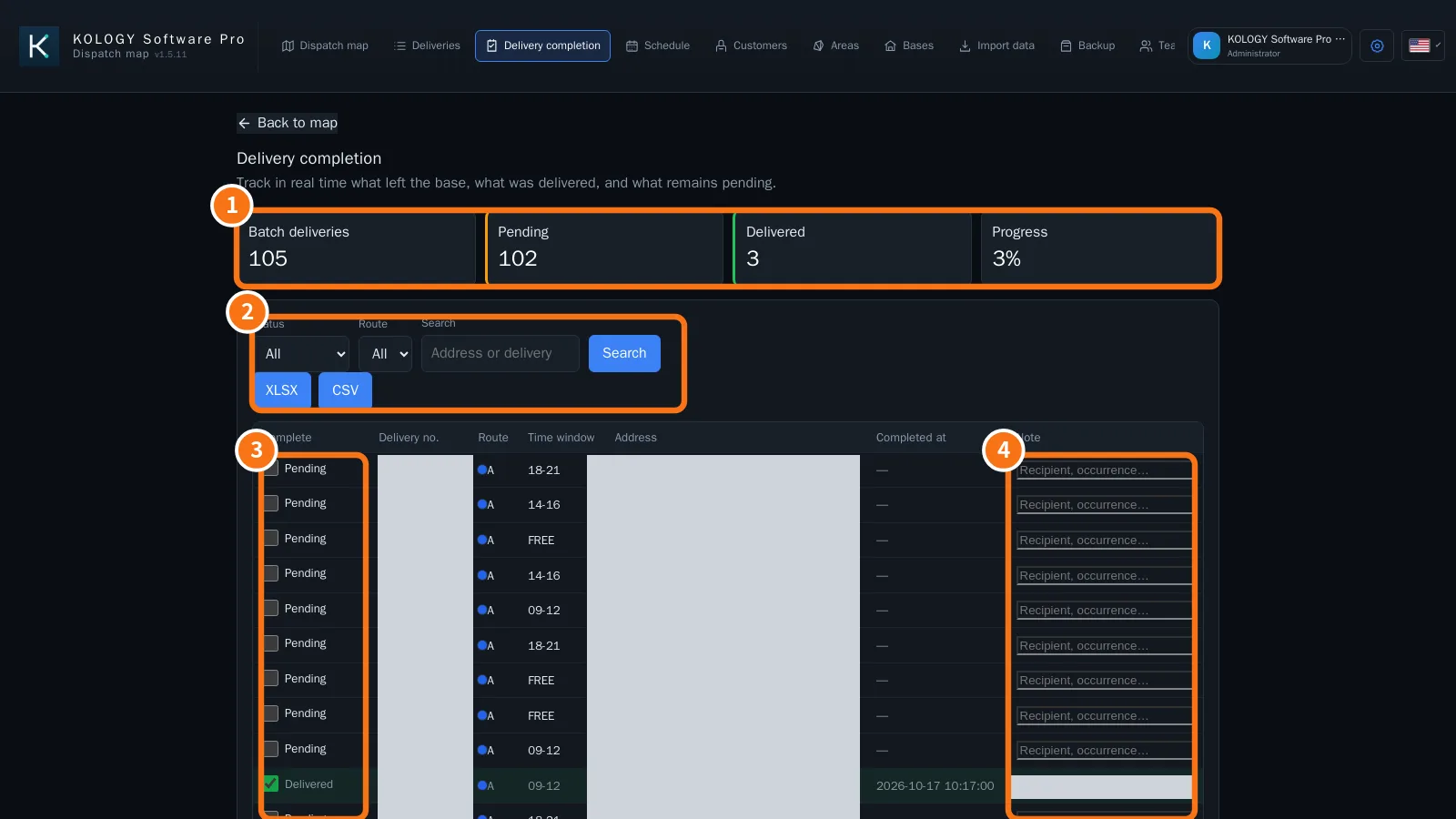 Delivery completion and proofTrack the batch, record completions in the office, view completions and photos sent by drivers, and export the report.English
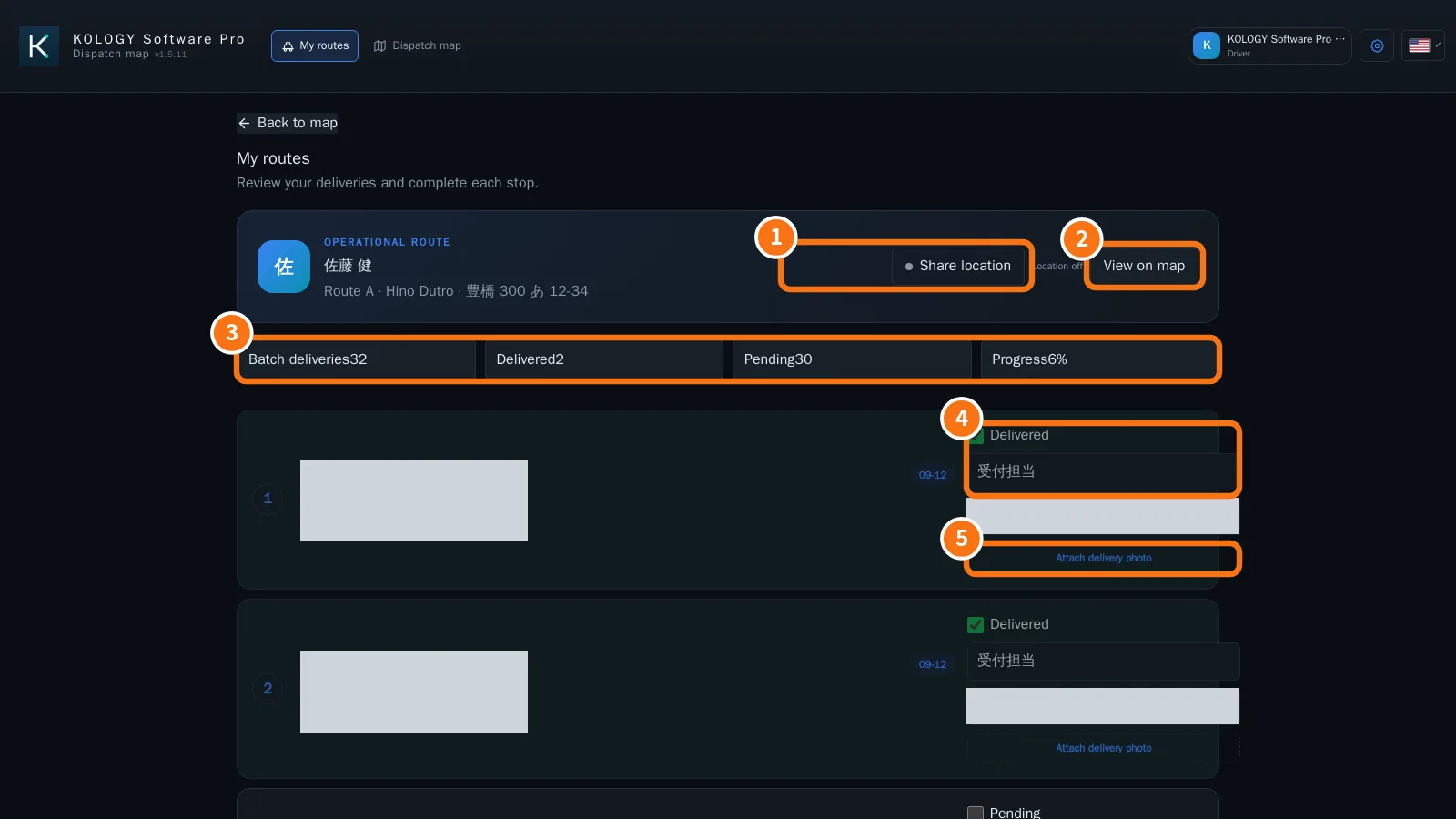 Driver portal: My routesDrivers see only their own stops in order, share their location and record each delivery with recipient, note and photo.English
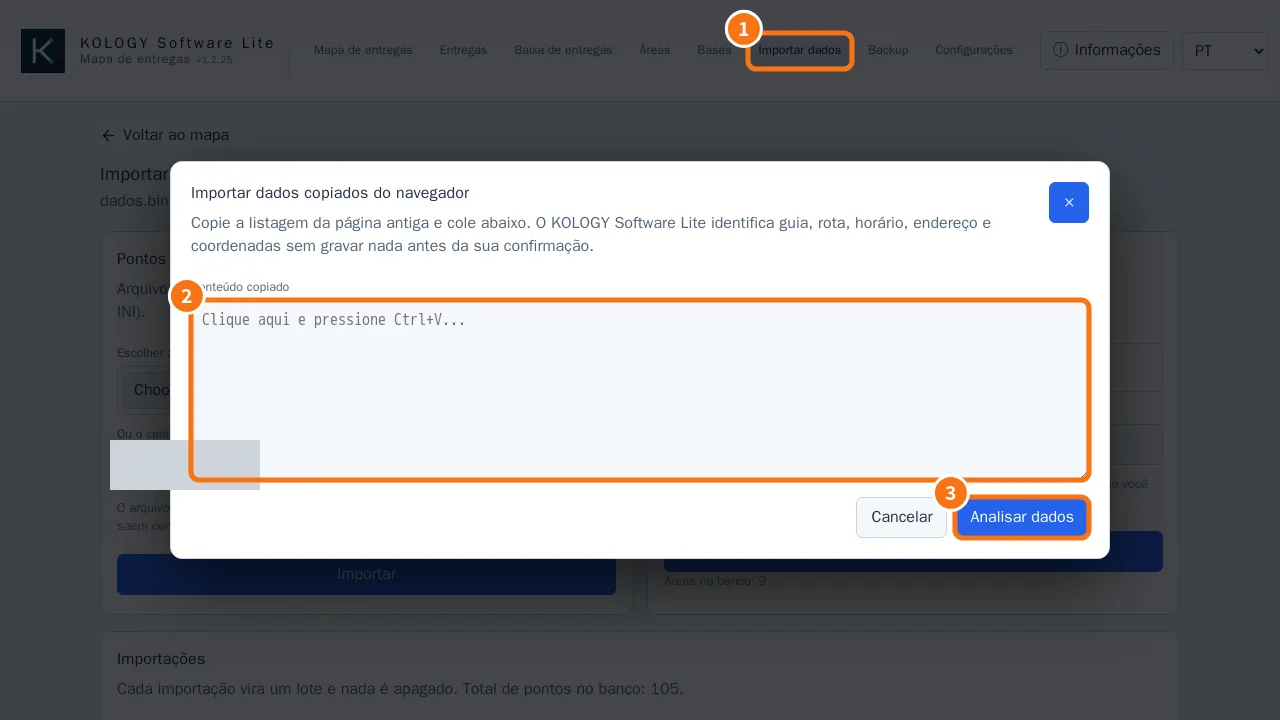
Import data
Customers
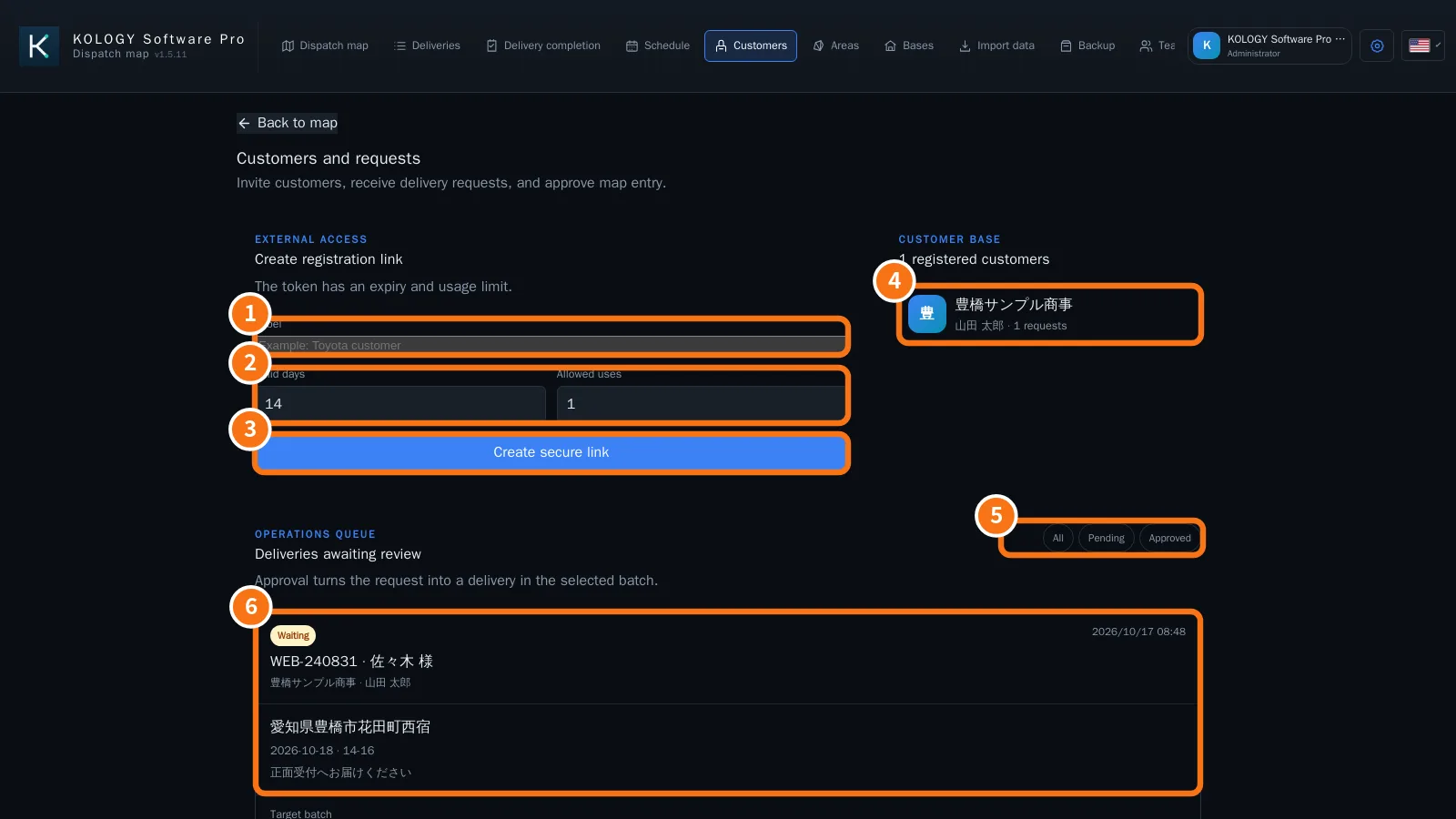 Customers and requests: invitations and approvalCreate a registration link with expiry and usage limit, receive customers' requests and approve them into the right batch.English
- Customer portal: requesting deliveriesWhat an invited customer sees: creating the account, sending a new delivery request and following the history.English
Areas and bases
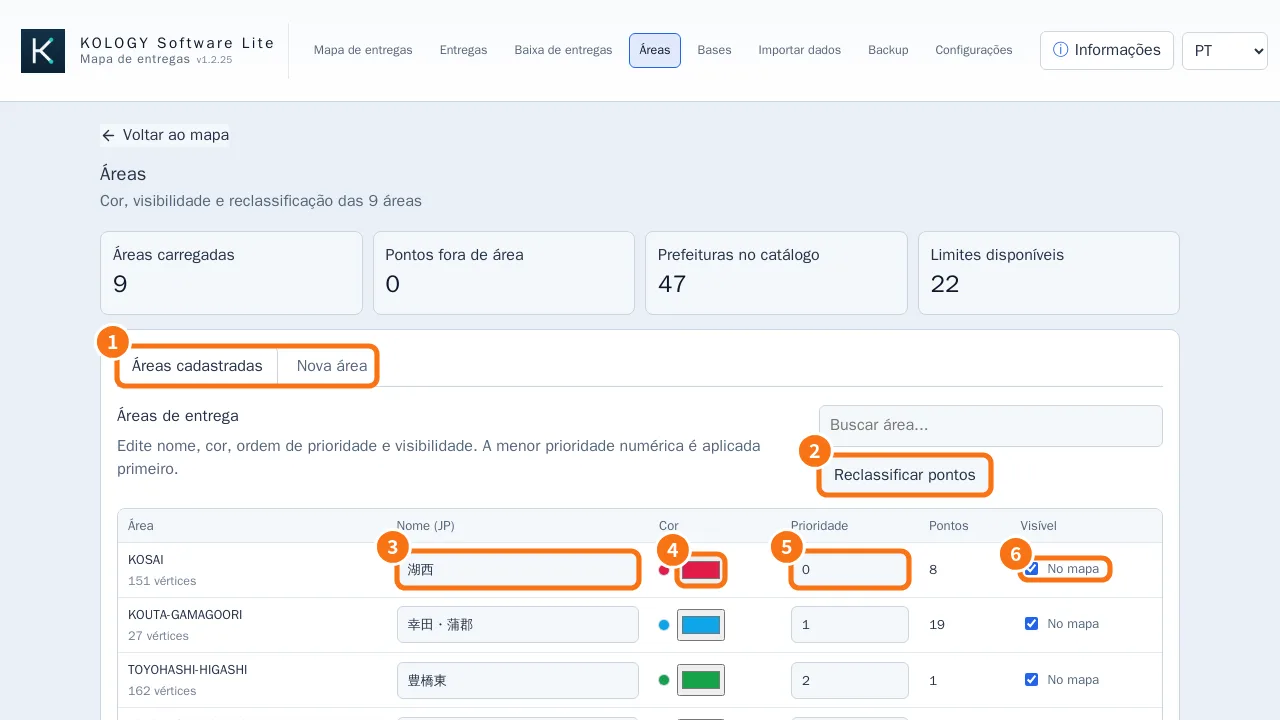 Delivery areas: colours, priority and new areasAdjust area name, colour, priority and visibility, reclassify deliveries, and create new areas from the catalog, from addresses or by drawing.English
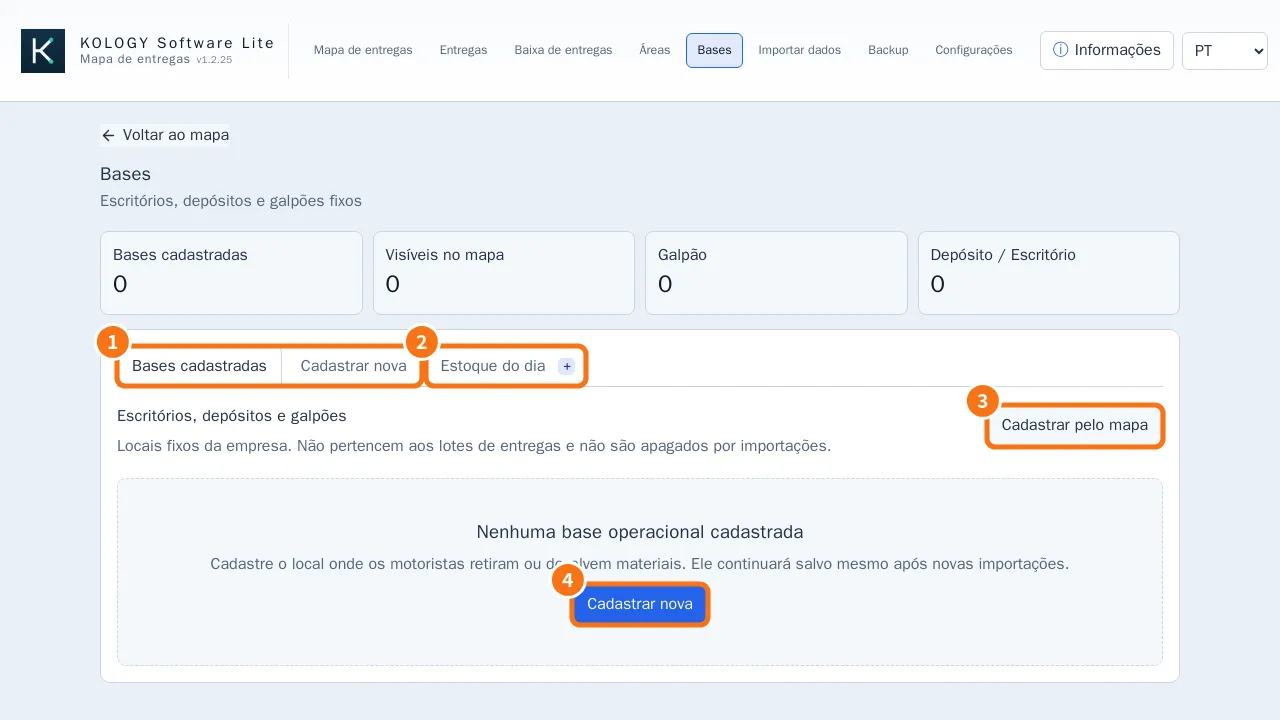 Bases, cargo and daily stockRegister fixed offices, depots and warehouses on the map and, with cargo enabled, track stock and expected balance per base.English
Sign-in and profile
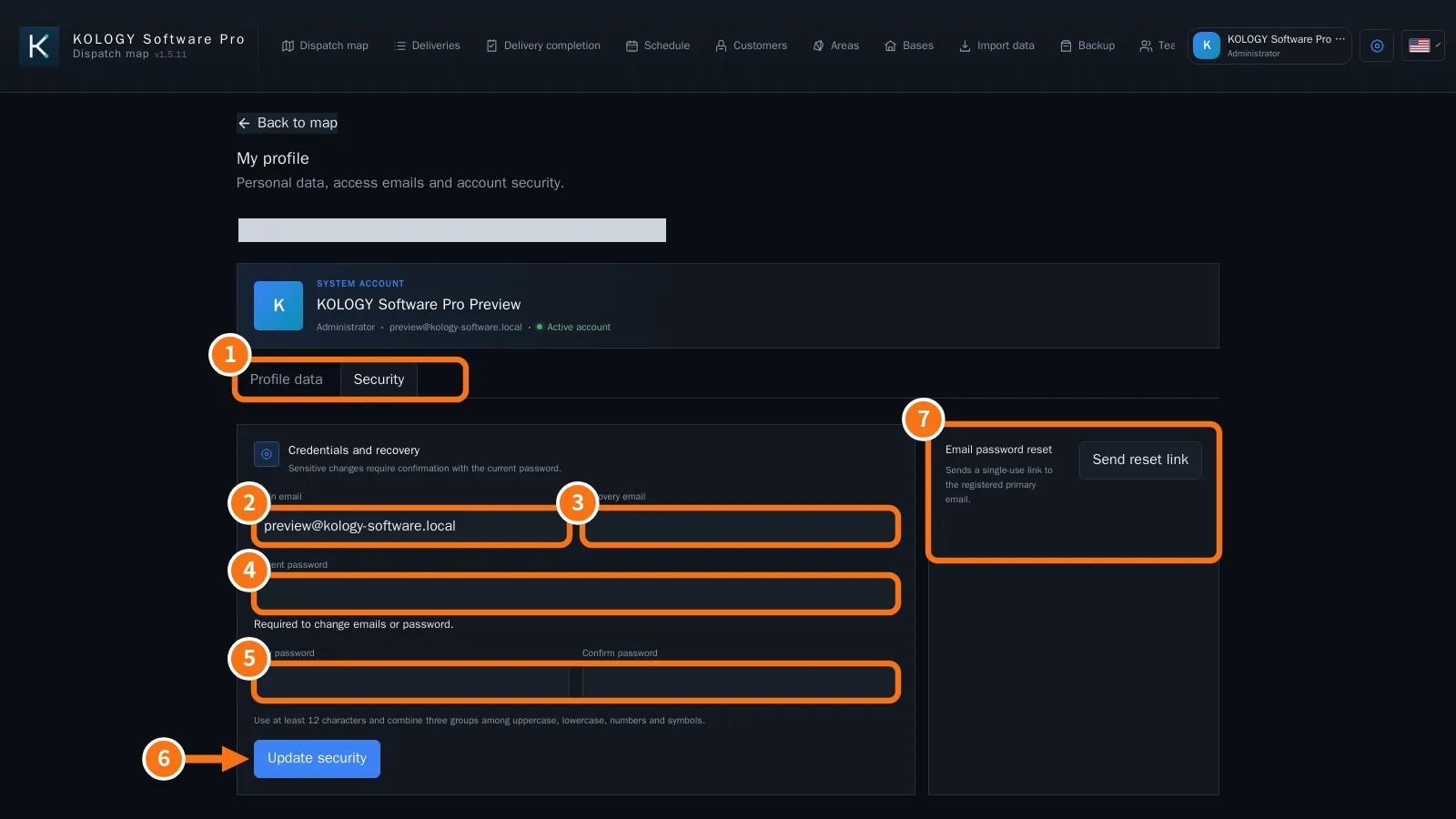 Sign-in, first access and password recoverySign in with email and password, activate access through the first-access link, recover a password and change emails and password safely.English
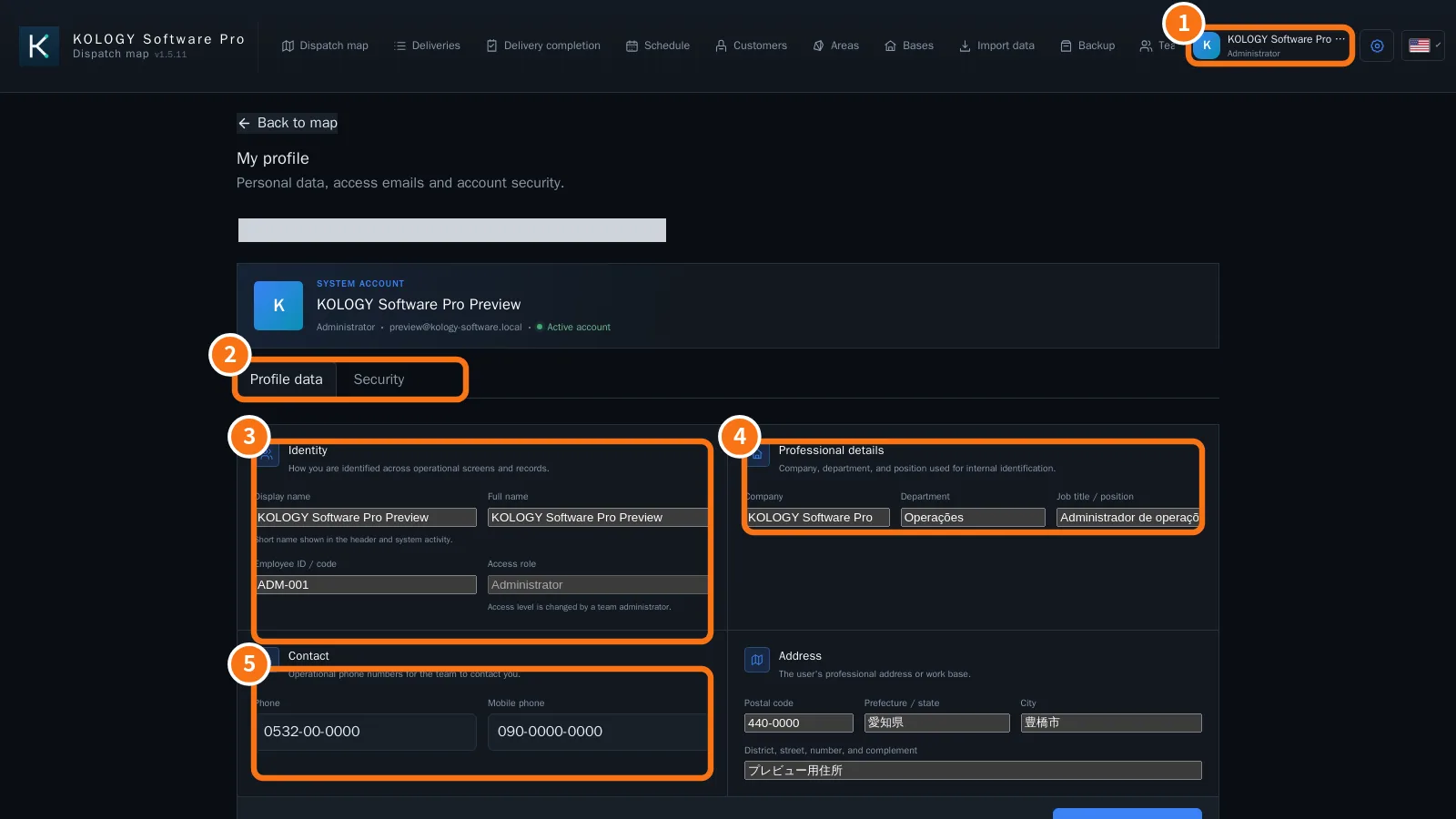 My profile: personal and work detailsUpdate display name, employee code, company, department, job title, phones and address, kept apart from sign-in credentials.English
Backup, updates and settings
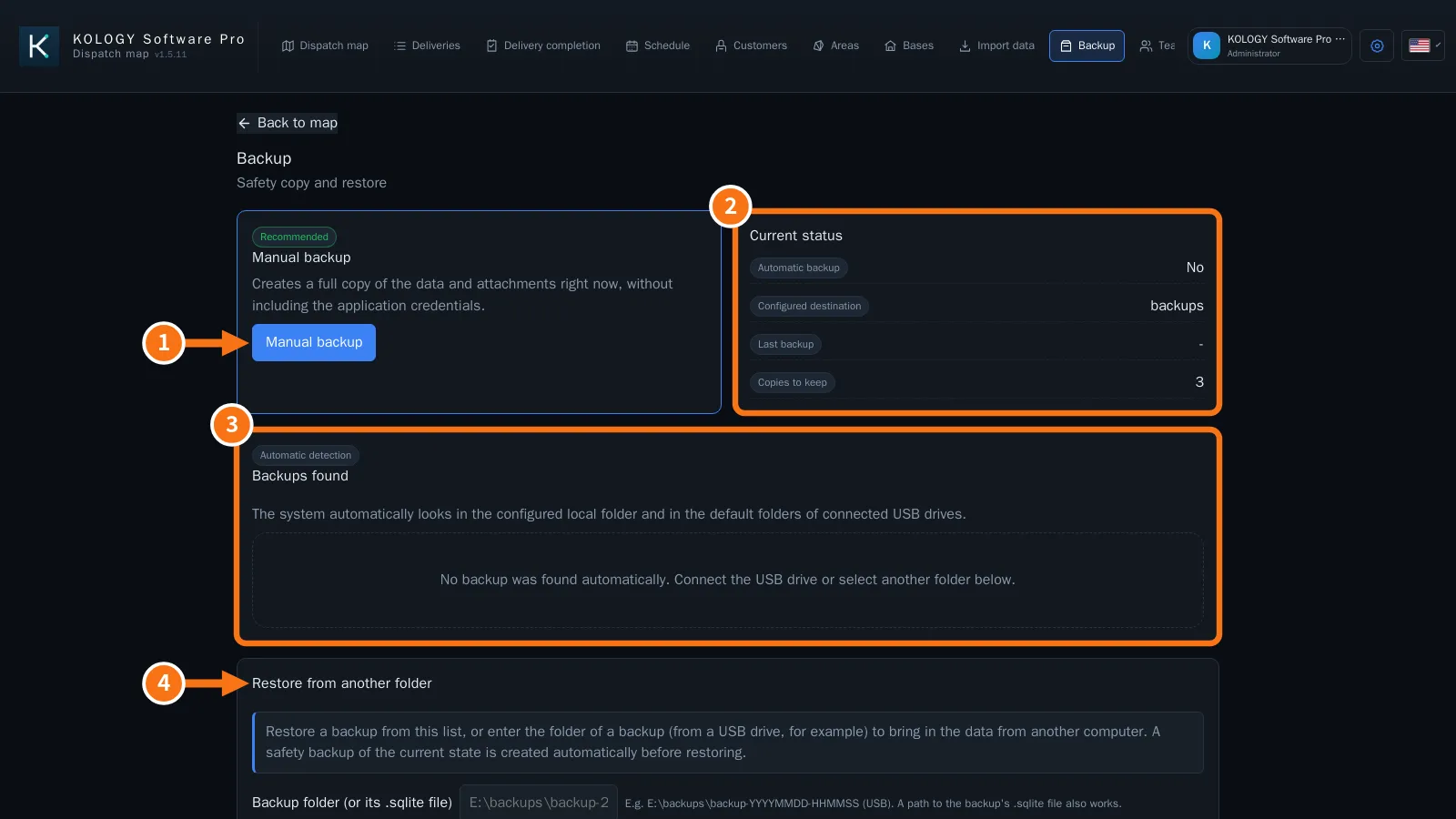 Backup, restore and safe updatesManual and automatic backup (USB drives too), restore with a safety copy, and updates that only restart when you confirm.English
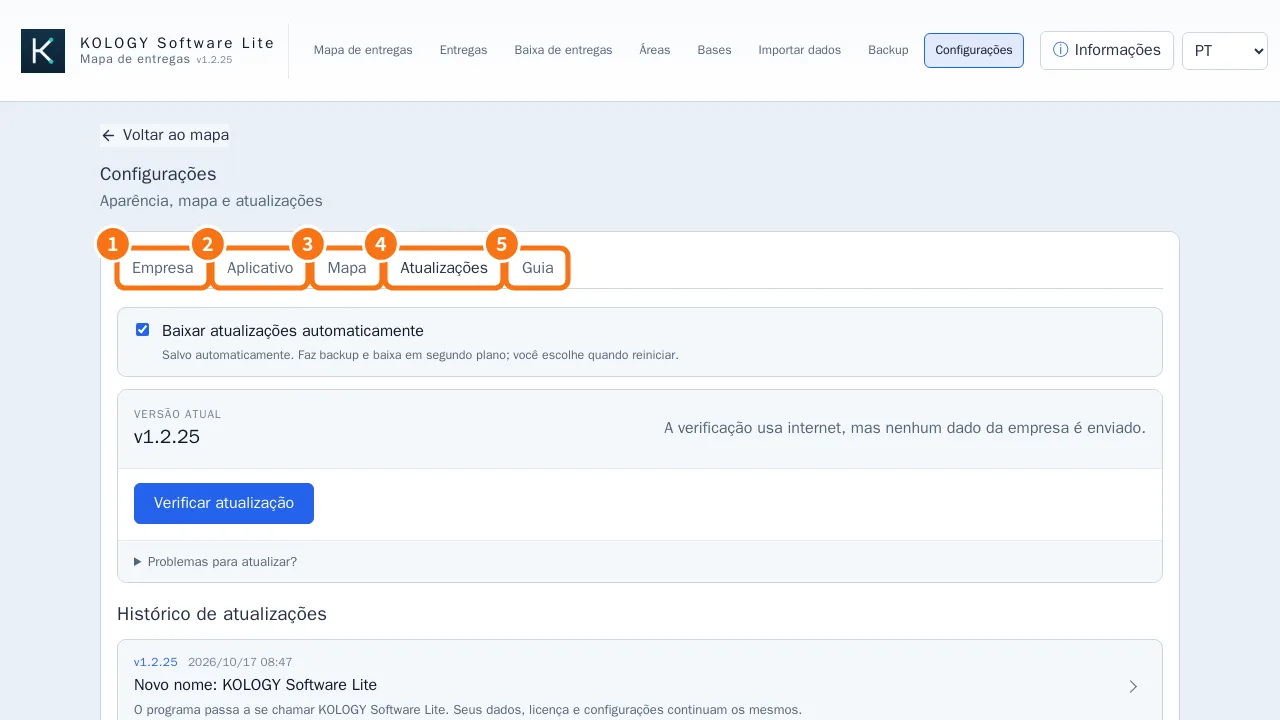 Settings: company, application, map, updates and guideCompany details and logo, theme and text size, start with Windows and tray, map and the illustrated guide.English
- Offline maps by prefectureAichi is pre-installed; download other prefectures or the whole of Japan in the background without disturbing work.English
- Sync and working offlinePro saves to the computer first and syncs with the cloud when connected; without internet, work goes on.English
How to — operator
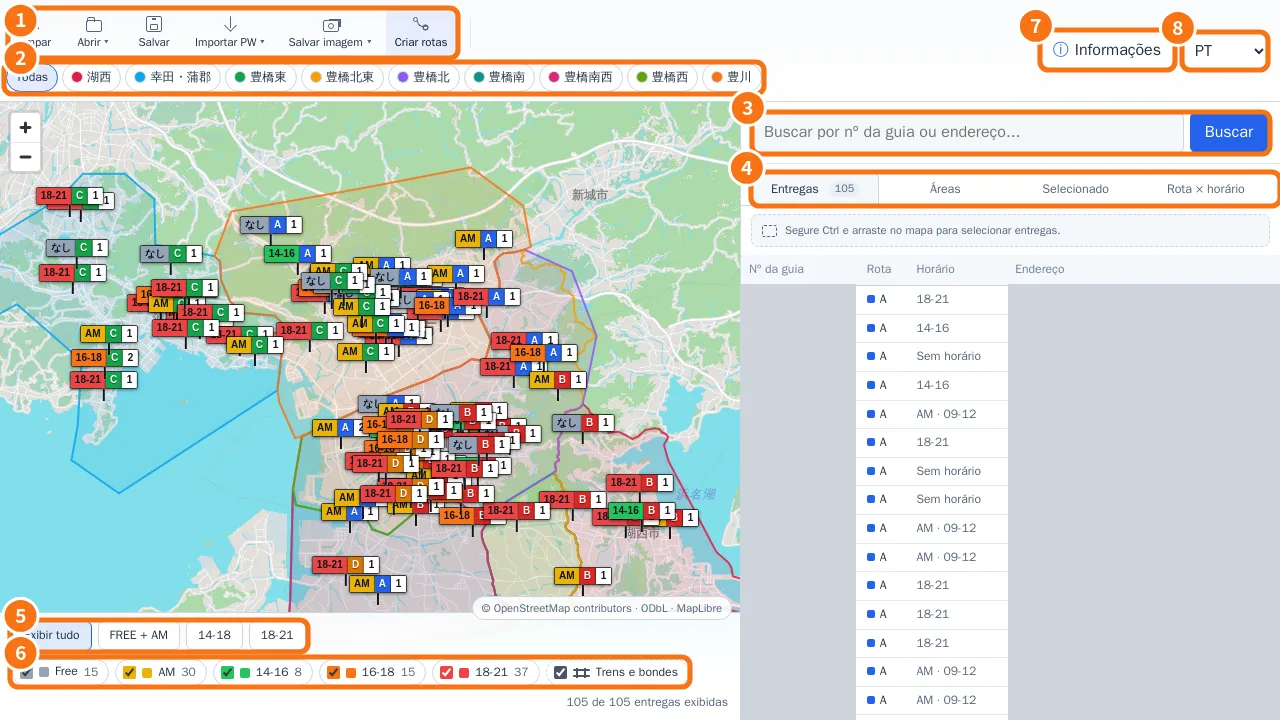 How to prepare the delivery day, from file to printed mapThe full daily routine: import, check, fix, split by route, produce PDF/spreadsheet and save.English
- How to create a new area (catalog, addresses or drawing)Three ways to create a delivery area and how to apply it to deliveries already imported.English
- How to move your data to another computerBack up to a USB drive, install and activate on the new PC, and restore the data without losing anything.English
How to — administrator
- How to enable a driver's portal accessFrom the record to the driver's first sign-in: email, Enable access, one-hour link and a check with View as driver.English
- How to assign a delivery to a specific driverUse the delivery's Assignment section to follow the route, reserve the stop for one driver or leave it unassigned.English
- How to invite a customer and approve the first requestThe full path, from the invitation link until the request shows on the map as a delivery of the batch.English