











KOLOGY Software Lite · Pantallas y funciones
Ctrl selection, Save image (JPG/PDF) and layers
Select only the deliveries inside a rectangle, export the visible map as JPG or A4 PDF, and show or hide rail and tram lines.
Este artículo aún no está traducido a su idioma: se muestra la versión en English.
En esta página
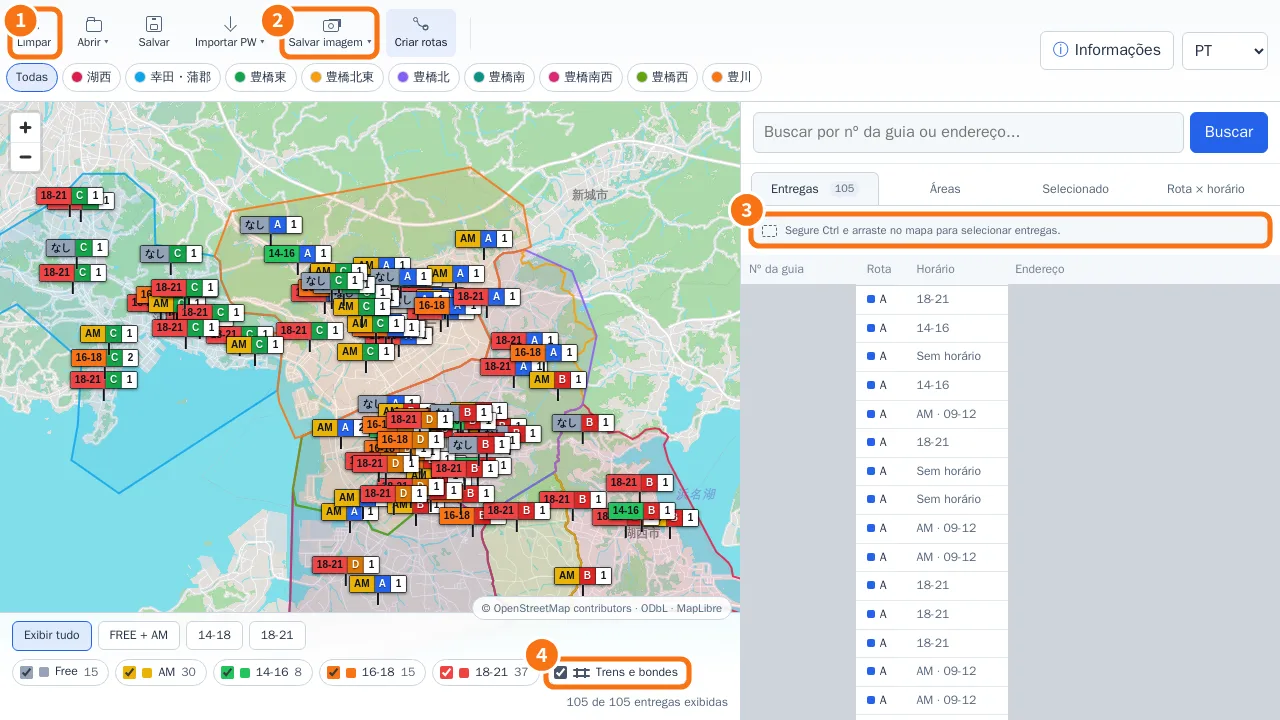
Three map tools help you split and share the work: Ctrl selection, the Save image button and the Rail and tram layer.
Select deliveries inside a rectangle
- Hold Ctrl and drag over an empty part of the map. The hint “Hold Ctrl and drag on the map to select deliveries.” is in the panel (③).
- The Selected deliveries window opens with the delivery number, route, time window and address of every delivery inside. Click a row to centre it.
- Map, table, matrix and counts now show only the selection (keeping any filters already active).
- To return to the full batch, use Clear selection, click normally on the map background, press Esc, or click Clear (①).
Save the map as an image or PDF
- Frame the map the way you want it (zoom, filters, visible areas).
- Click Save image (②).
- Choose Save as JPG (map, areas, routes, pins and markers in one image) or Save as PDF (one landscape A4 page).
- Wait for “Preparing the map with its pins...”. The file downloads with bases, drivers and map credits.
Rail and tram
The Rail and tram box (④) in the footer shows or hides railway, urban train and tram lines. The choice is saved on this computer. In Pro, the same option is under Filters → Map layers.
Map shortcuts
- Shortcut · What it does
- Ctrl + drag · Selects deliveries in a rectangle
- Ctrl + click on a pin · Builds the accumulated route
- Ctrl + click on the background · Starts or continues drawing an area; Enter finishes
- Esc · Closes the selection window; a second press clears the selection
Common mistakes
- “Save image is not available in reduced mode.” Without WebGL the map uses the raster base and cannot export. See “Common problems”.
- “No deliveries were found in this area.” Drag a larger rectangle or clear the filters first.
Related questions
- Dispatch map: the main screen
- Distance and street route
- Delivery areas