











KOLOGY Software Lite · Pantallas y funciones
Dispatch map: the main screen
Toolbar, area buttons, the panel with Deliveries, Areas, Selected and Route × time window, and the footer filters.
Este artículo aún no está traducido a su idioma: se muestra la versión en English.
En esta página
The Dispatch map is where you spend most of the day. Each delivery is a pin showing its time window, route and quantity. Map, list and counts share the same filter: change one and all of them follow, without reloading.
Where it is
It is the screen that opens when the program starts. From other screens, come back with Back to map or the Dispatch map menu item.
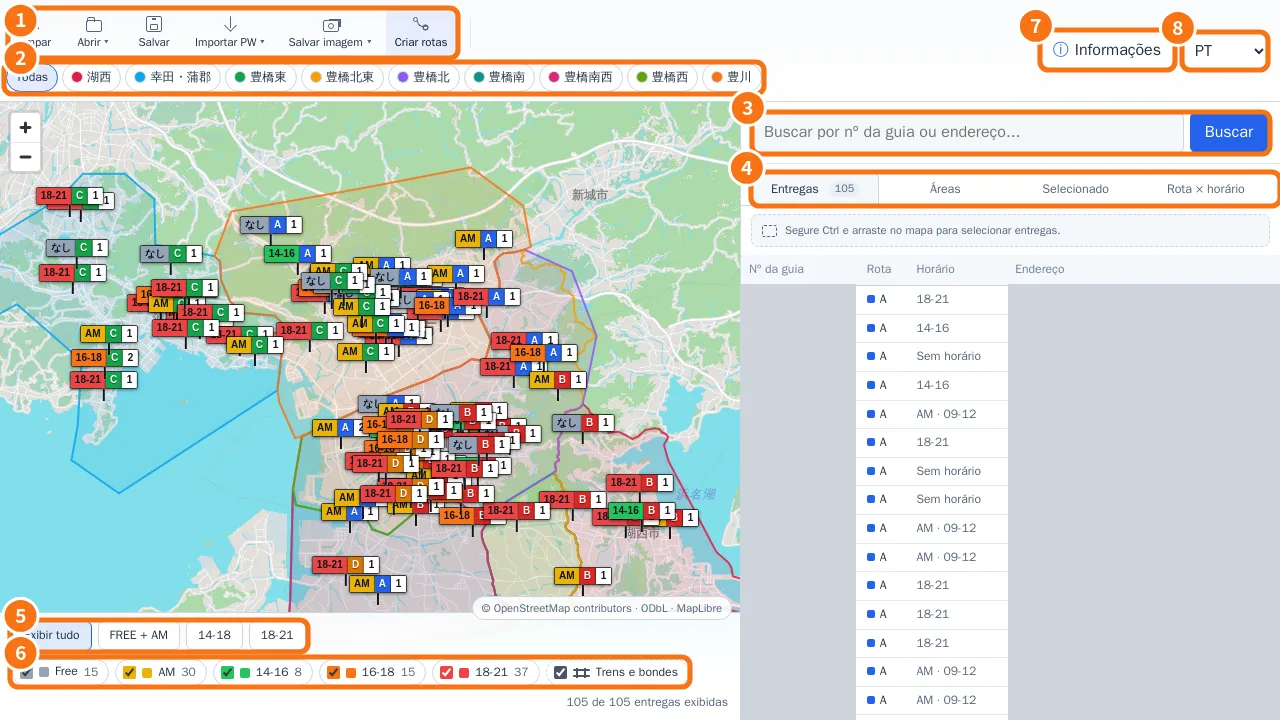
Parts of the screen
- Toolbar: Clear (removes filters and selection), Open, Save, Import PW, Save image and Build routes (planning extension).
- Area buttons: All or a single area, each with its colour.
- Search: type the delivery number or part of the address and click Search.
- Right panel, with four tabs: Deliveries: table with delivery no., Route, Time window and Address. Click a row to centre its pin. Areas: colour legend with a box to show or hide each area. Selected: details of the pin or marker you clicked. Route × time window: a matrix counting deliveries per route and time window. Use Show all / Hide all.
- Time shortcuts: Show all, FREE + AM, 14-18 and 18-21.
- Time-window boxes (Free, AM, 14-16, 16-18, 18-21) with counts, and the Rail and tram layer. Below, “X of Y deliveries shown”.
- Information: shortcuts to the other screens, appearance (theme, text size) and version.
- Language.
How to read a pin
Each pin has three blocks: the time window (for example 18-21, AM, or なし for “no scheduled time”), the route letter and the quantity. The time-window colour matches the footer legend.
Step by step: see only what matters
- Click an area button at the top (for example a single region).
- In the footer, untick the time windows you don't need, or use a shortcut such as FREE + AM.
- On the Route × time window tab, check how many deliveries remain per route.
- To go back to the full batch, click Clear or Show all.
Common mistakes
- “Nothing on the map yet”: import the points file and the area files.
- Deliveries are missing: check whether an area, time or selection filter is still on and click Clear.
- “Reduced mode (raster map)”: the computer has no WebGL, so a simpler map is used and Save image is unavailable. See “Common problems”.
Related questions
- Edit a delivery from the map
- Right-click menu, markers and manual drivers
- Ctrl selection and Save image (JPG/PDF)
- Import deliveries