











KoChiken · 入门
Driver app manual (complete, with pictures)
Every screen and button of the driver app, step by step: sign-in, profile, the 6 home buttons, departure, navigation, refuelling, receipts, arrival, chat and FAQ.
此文章暂无您的语言版本,以English显示。
Complete manual for the driver app “KOMORI 成鶏輸送”: from sign-in to departure, refuelling, arrival, chat and receipts, with screenshots.
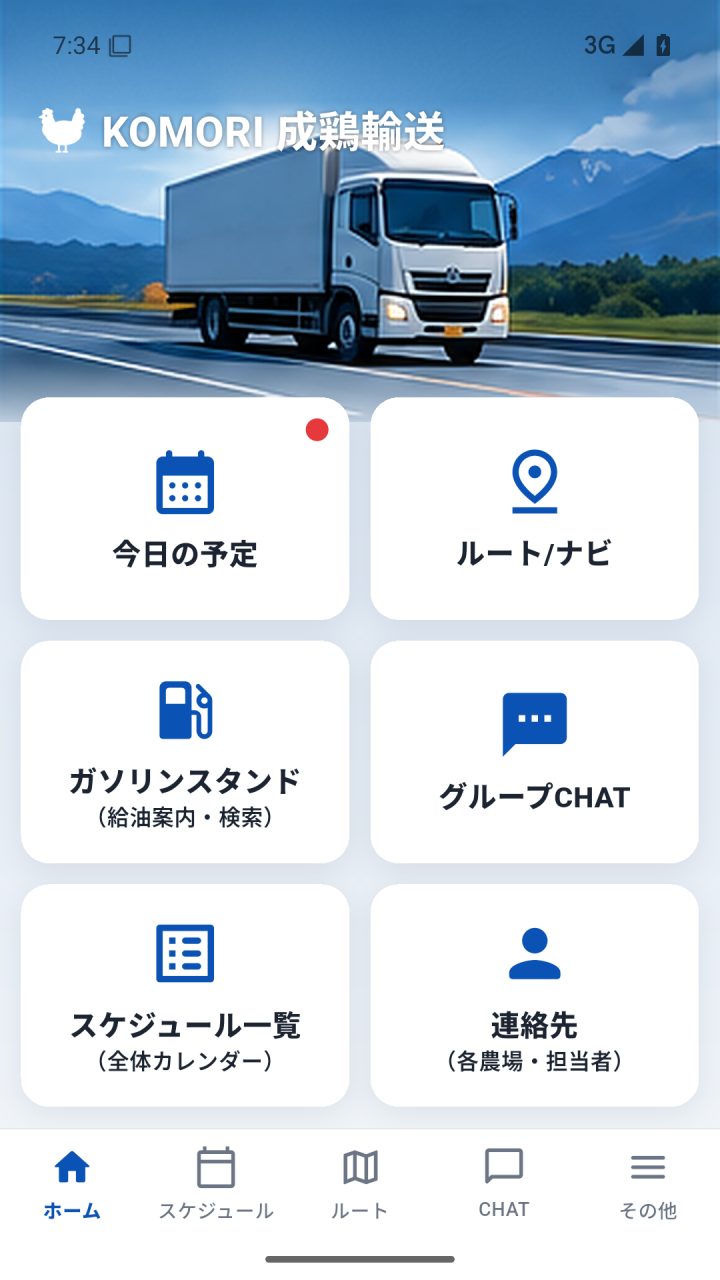
- Getting started (install and sign in)
- Fill in your profile
- Home screen (6 buttons)
- Today's plan (how to depart)
- Route/Navigation
- Refuelling
- Sending receipts
- Arrival
- Group CHAT
- Schedule and contacts
- More (account, trip history, driver's license, profile, problems, language, sign out)
- Driver's license (front/back, expiry date, expiry status)
- FAQ
Driver's license (More → Account → Driver's license)
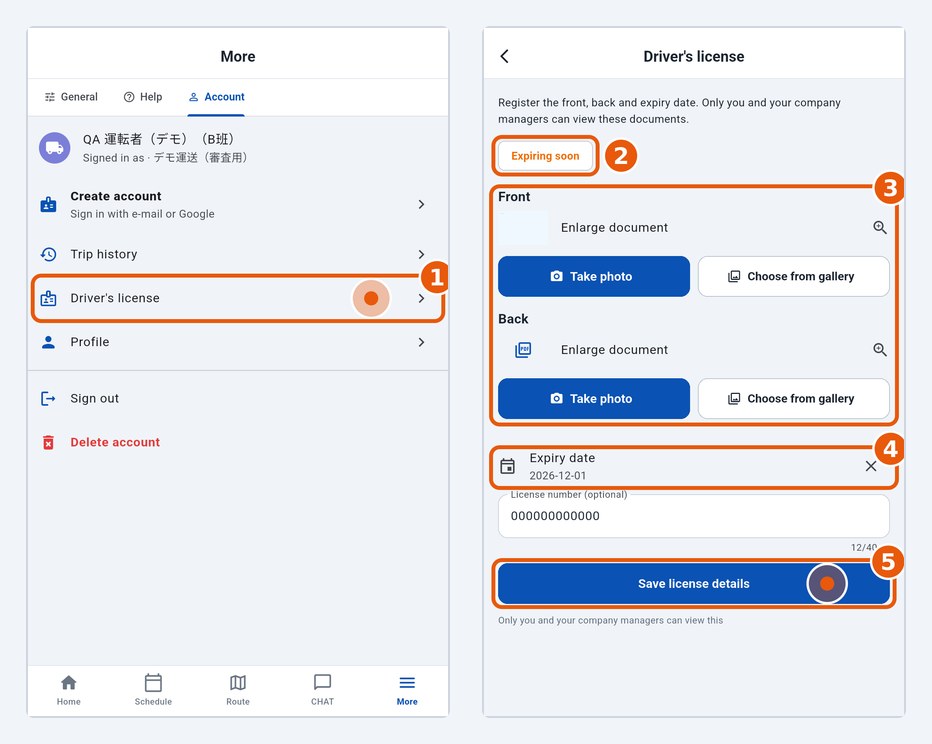
- Tap More → Account → Driver's license (1).
- The badge shows the status (2): Not registered, Registered, Expiring soon (orange, from 60 days before) or Expired (red).
- Under Front and Back, tap Take photo or Choose from gallery (3). The photo is saved right away; Enlarge document shows what was uploaded.
- Tap Expiry date and pick the date (4). The license number is optional.
- Tap Save license details (5). The office sees the data in its dashboard.