











KoChiken · Getting started
Driver account (create, history, delete)
Sign in with your code once and create an account; then use e-mail/Google. See your trip history, receipts and profile, and delete the account.
On this page
Create the account
- Sign in with the 8-digit code from your company (article “Sign in”).
- The Create account screen opens: enter your e-mail and a password (8+ characters) and tap Create account. To use your Google account, tap Continue with Google.
- Not now? Tap Later. The code works until you create the account. You can create it later under More → Account → Create account.
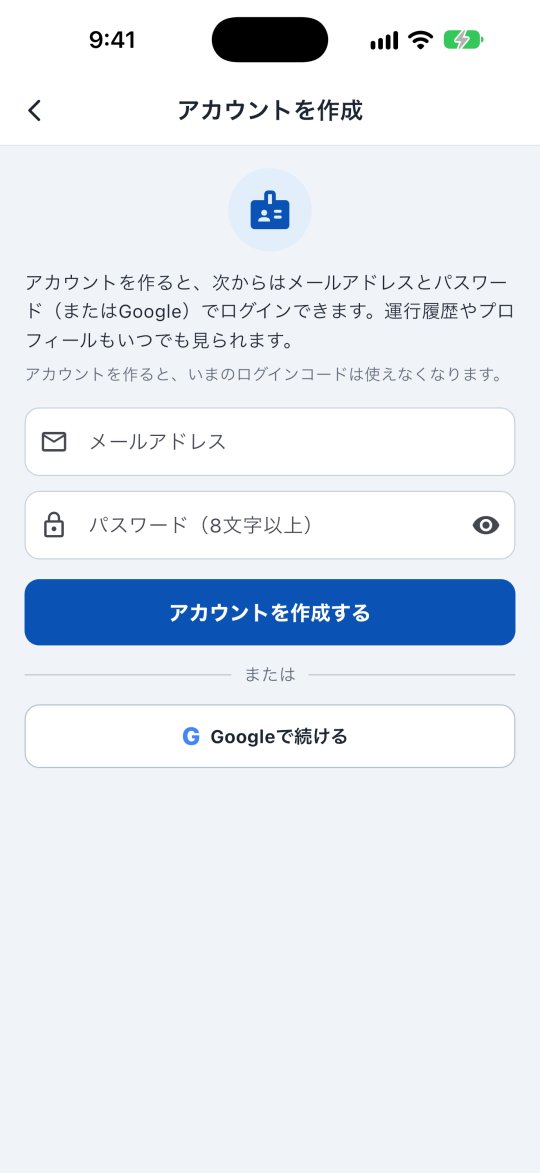
Once the account exists, the old code stops working (you see “This code already has an account”).
Signing in next time
On the sign-in screen tap I'm a driver (login code) → Sign in with email and use your e-mail and password (or Google).
Trip history and profile
Open More → Account.
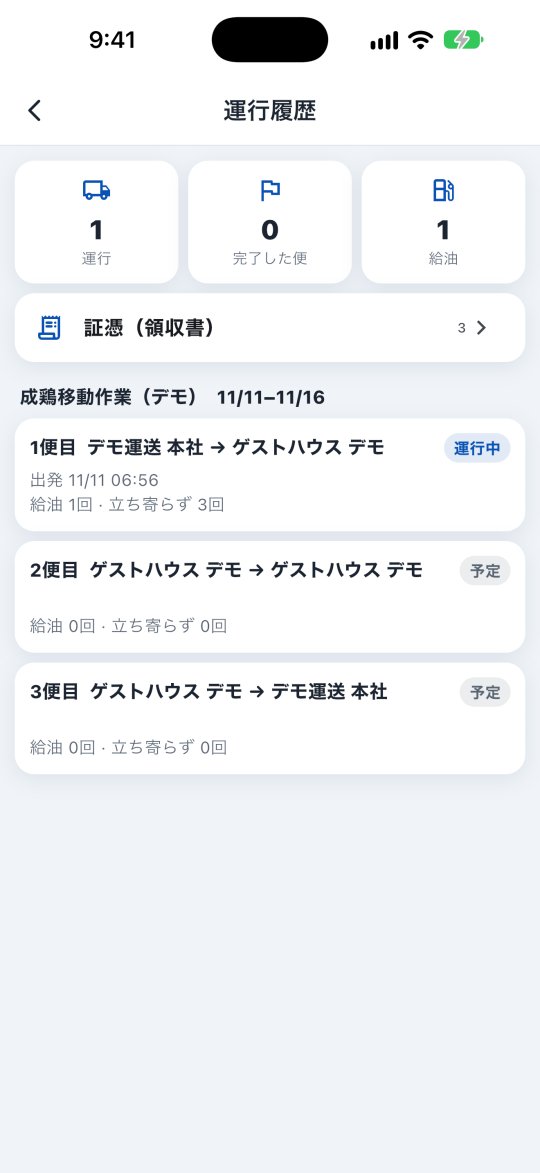
- Trip history: your operations, completed trips and fuel stops, and the receipts you sent (waiting, approved, returned).
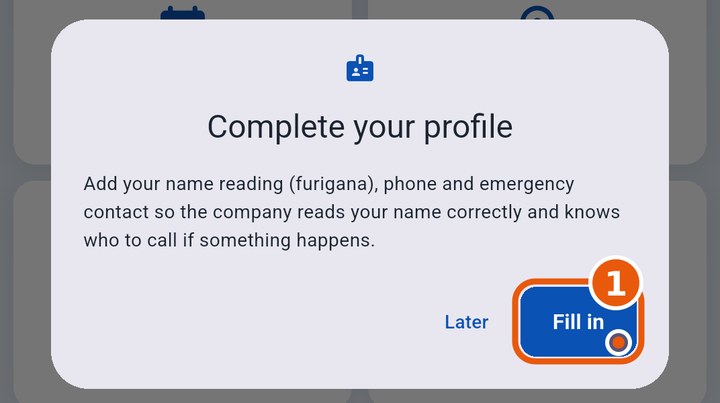
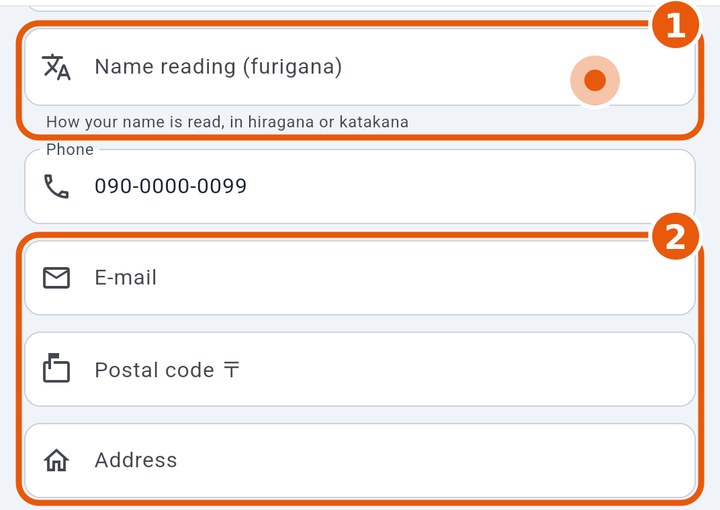
- Profile: change photo, name, name reading (yomi / furigana), phone, e-mail and password. The reading accepts hiragana or katakana, so the office can read your name correctly. If your profile is incomplete, the app reminds you once.
Driver roster (名簿)
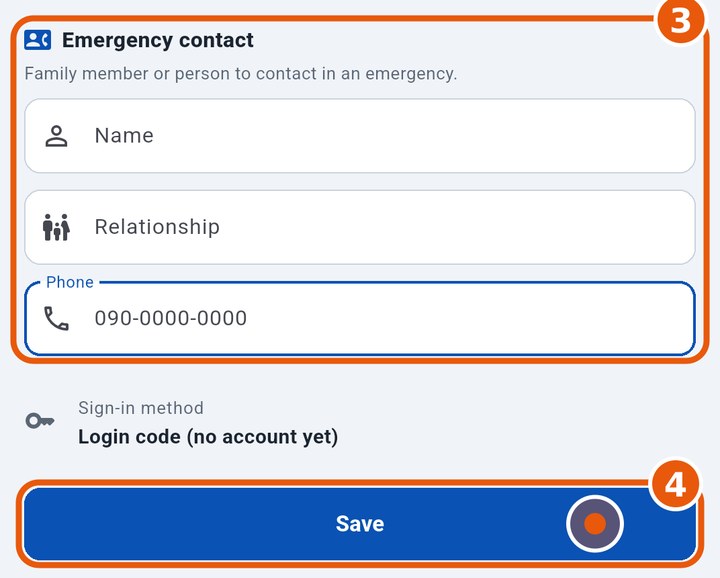
Further down in Profile, fill in Basic info (e-mail, postal code, address) and the Emergency contact (name, relationship, phone) and tap Save. Only what you change is sent to the company.
Forgot your password
Ask your manager for a new code. Sign in with it and set a new password in Profile.
Delete the account
More → Account → Delete account. Your personal data (name, phone, e-mail, photo…) is deleted. Trip records (departure, arrival, fuel, receipts) stay with the company without your name. This cannot be undone.
Managers
Drivers can be registered and invited without being assigned to an operation (KOREOS, the kochiken.its-komori.com panel, e-mail/SMS/link/QR). The list shows the status (invited, account created, deleted…).
Register your driver’s license
On the web, open More → Account & history → Profile → Driver license.
- Under Front and Back, tap Take photo or Choose image / PDF. Each image or PDF may be up to 12 MB. Choosing a file uploads and saves it immediately.
- Choose the Expiry date, optionally enter the 12-digit Number, and tap Save.
- Tap an image to enlarge it. Check the status: not registered, registered, expiring soon or expired. The expiry warning starts 60 days before the date.
In app version 1.0.6 or later, open More → Account → Driver’s license. Under Front and Back, use Take photo or Choose from gallery, choose the Expiry date and tap Save license details. PDFs uploaded on the web can also be viewed inside the app.
The documents are private: only you and your company managers can view them. A manager can also register a license through the driver list.
The camera and photo library are used when you tap Take photo or Choose from gallery. If a permission prompt appears on first use, read the explanation about registering your license photo and choose the desired option.