











KoChiken · Screens & features
Send receipts
Photograph a receipt (fuel, toll, parking…) and send it to the office. See the status of each one: waiting, approved or returned.
On this page
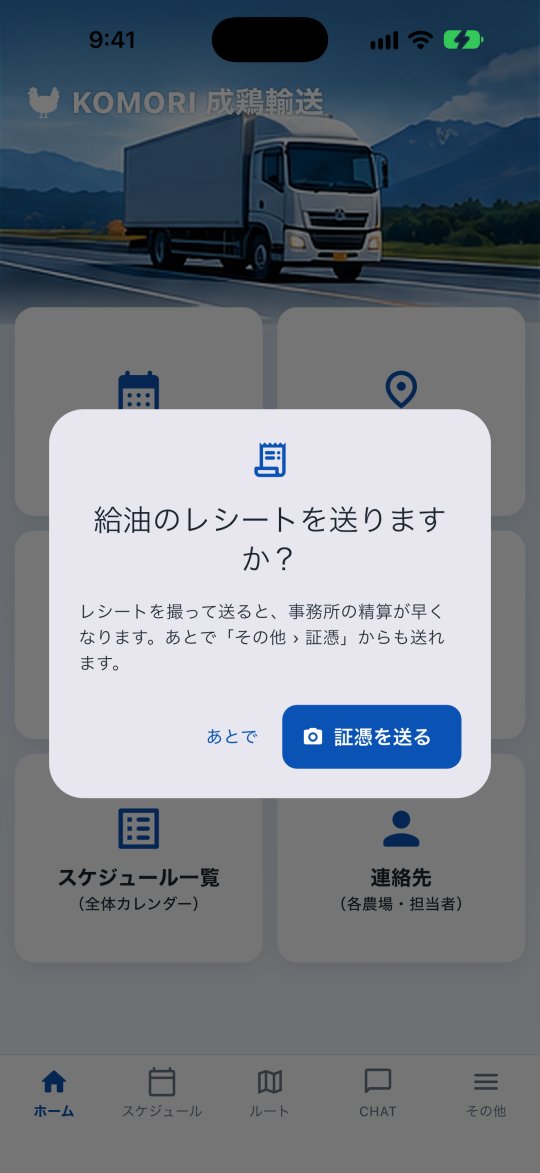
After refuelling
- At the station, tap I refuelled.
- The app asks Send the fuel receipt? Tap Send receipt. To do it later, tap Later.
Send any time
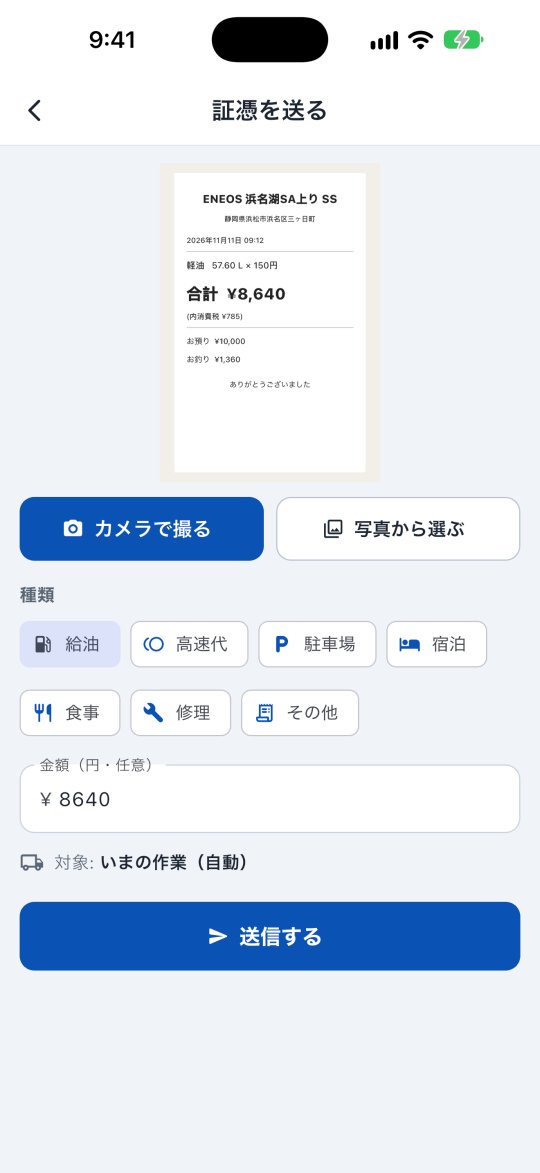
Open More → General → Receipts and tap Send receipt.
- Tap Take photo and photograph the receipt (if the photo is already on your phone, use Choose from gallery).
- Pick the Type: Fuel (selected by default), Toll, Parking, Lodging, Meal, Repair or Other.
- Amount: when you pick the photo, the amount read from the receipt is filled in — fix it if it is wrong. An amount you already typed is never replaced (amount is optional).
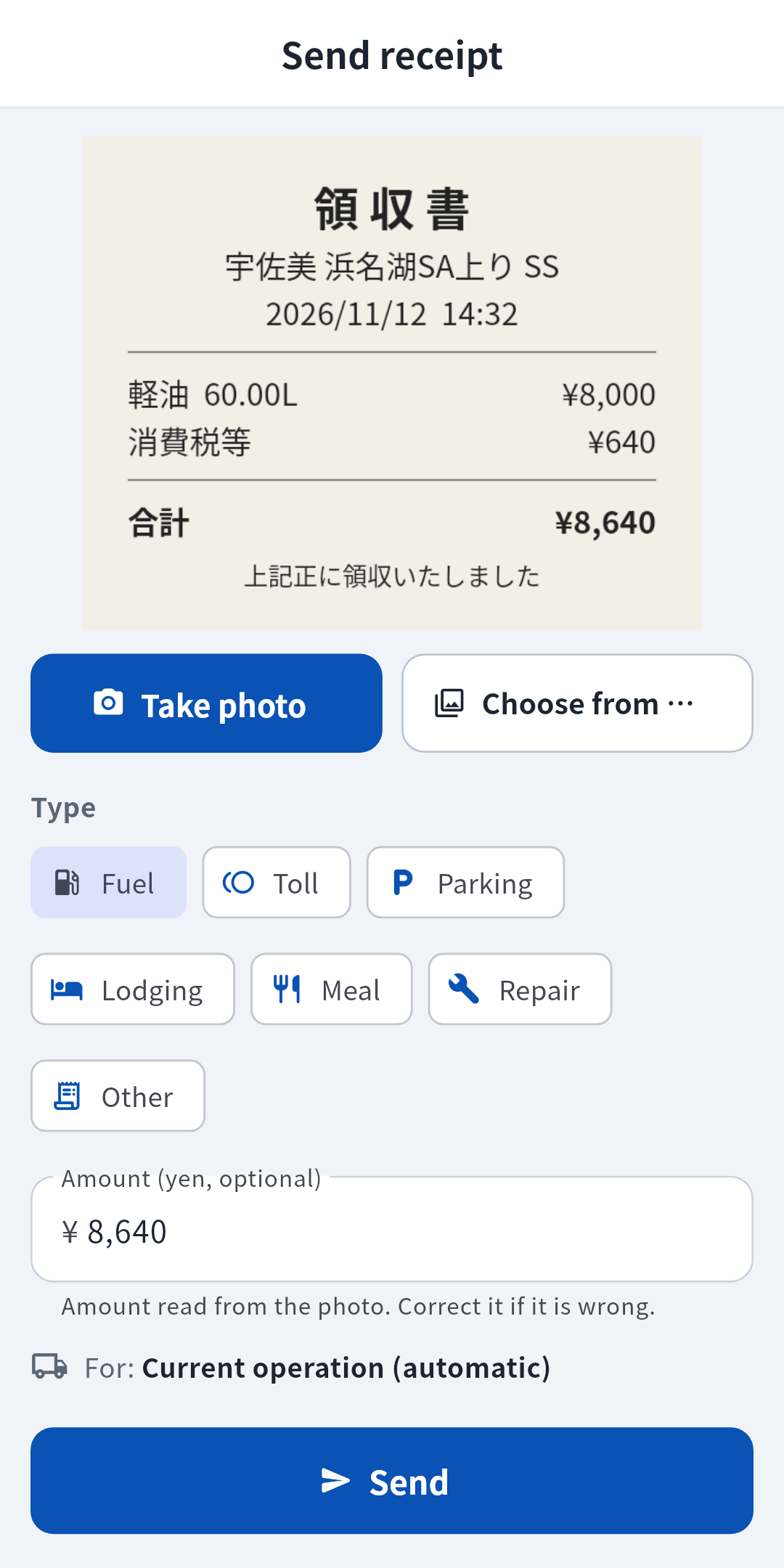
- Tap Send. Done when the confirmation appears.
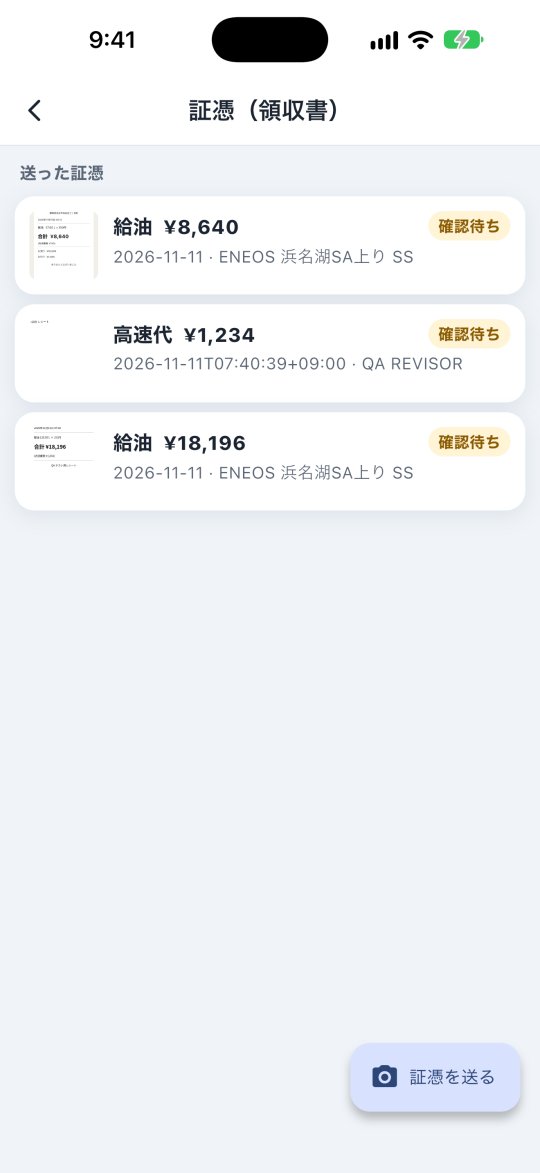
Check the receipts you sent
On the Receipts screen, Sent receipts lists each one:
- Waiting for review: the office has not checked it yet.
- Approved: all good, nothing to do.
- Returned: the reason written by the office is shown. Read it, take a new photo of the receipt and send it again.
With weak signal sending can fail. Move to a place with better signal and tap Send again.