











KoChiken · Screens & features
Today's plan and departure
Check stops in Today's plan and tap Depart for destination to leave; the office and the group (CHAT) are notified automatically.
On this page
Today's plan
Today's plan shows the day's trip (e.g. Trip 1 (1/3)) and the stops in order. A pending fuel stop shows just the pump icon, without a ✓; the ✓ appears only after you tap I refuelled (給油しました). ✓ also marks finished stops; the glowing blue dot is where you are.
Note: Schedule times and notes ("En route", "Daytime", loading start…) are displayed in the language selected in the app and update immediately when you change the language.
Depart
- At your current stop, tap Depart for destination (1) at the bottom of the screen. There is no confirmation screen: the tap records the departure right away.
- The app briefly shows Departure sent and opens the next step (2): the Refuel guide when the next stop is a fuel stop, otherwise navigation.
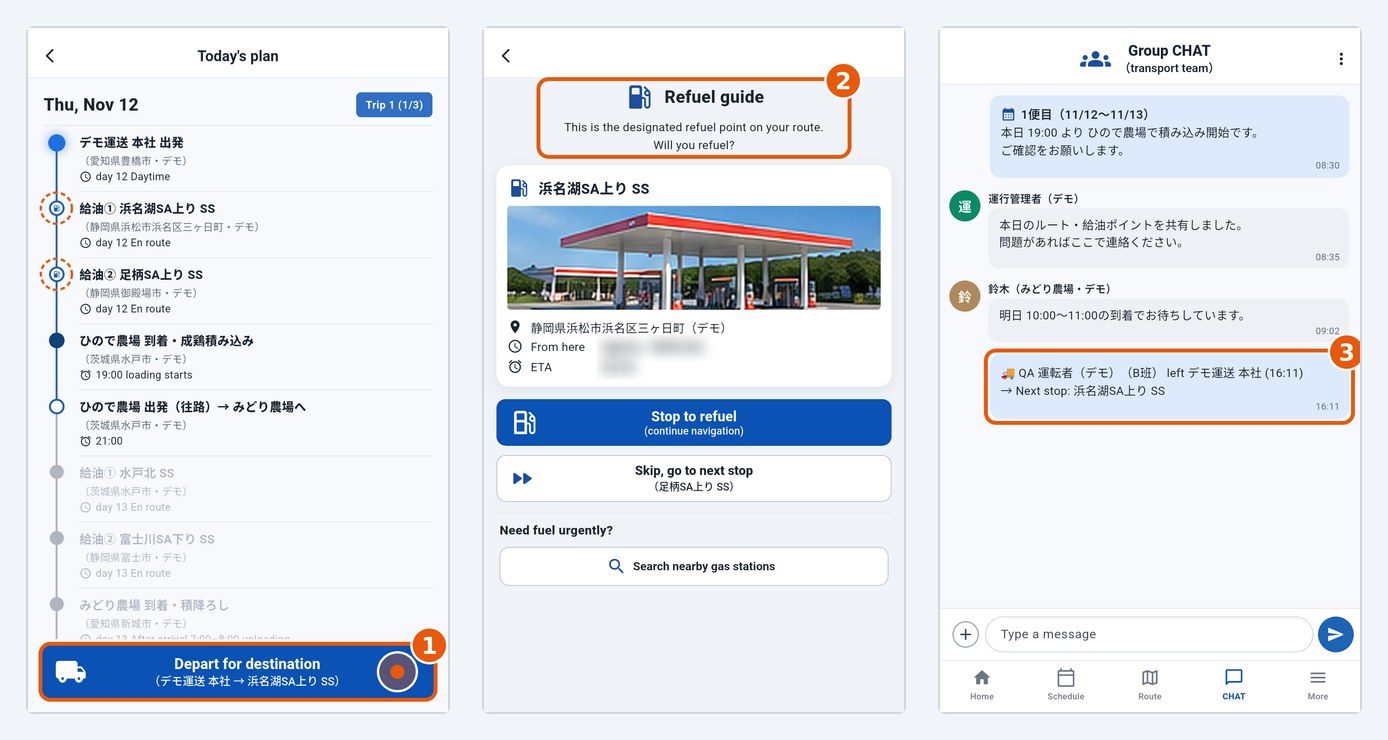
When you tap it, the office and the group (CHAT) receive the notice automatically (3) — no extra action from the driver.
Arrive
- Before you arrive, the stop shows the planned time (e.g. 19:00 loading starts) (1).
- When you get there, tap I've arrived on the Navi screen and confirm with I've arrived (2).
- The app shows Arrival sent and goes back to Today's plan. The stop now shows the real arrival time (e.g. Arrived 06:51) instead of the planned time (3).
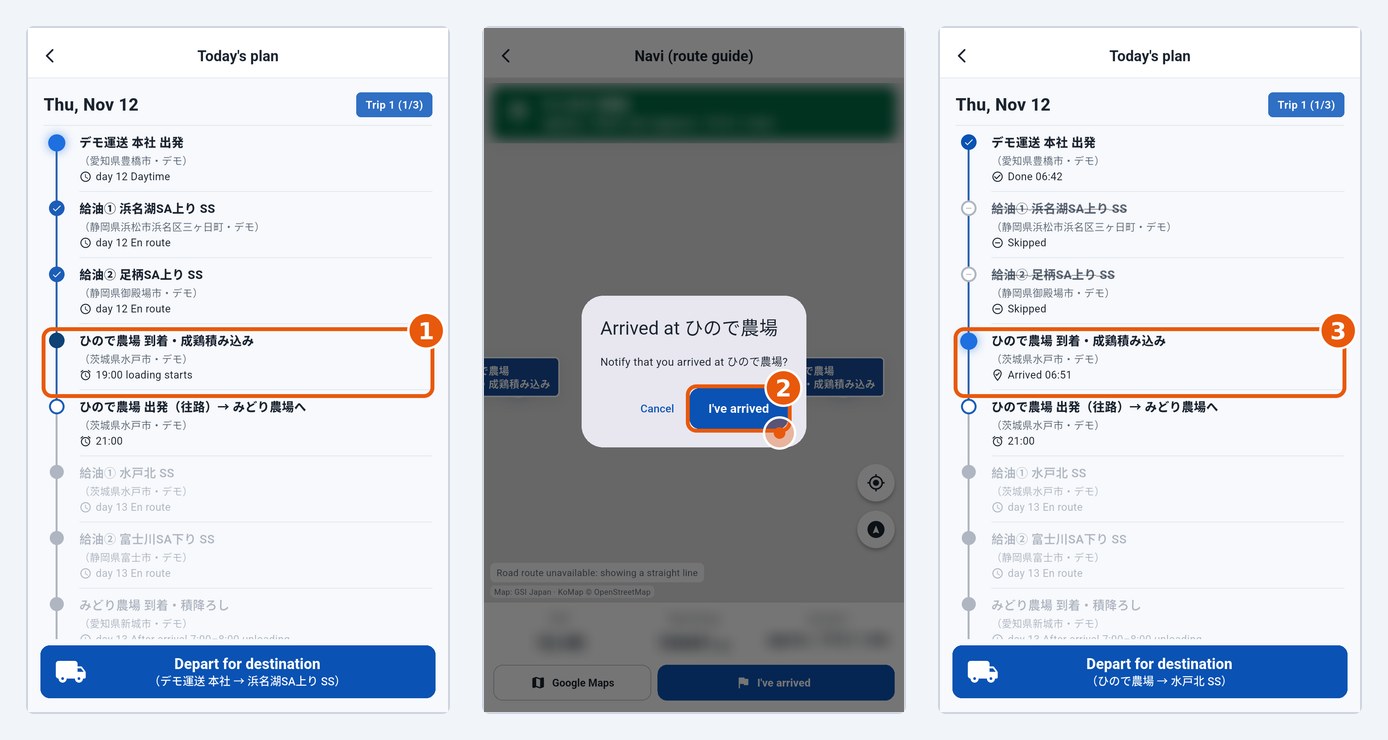
The arrival time stays on the stop until you tap Depart for destination; then it turns into ✓ Done with the departure time.