Kenten · Pantallas y funciones
Monthly sheet, reports and printing
See each day's answers for the month in one grid, fix answers and questions, and print or download a PDF.
Este artículo aún no está traducido a su idioma: se muestra la versión en English.
En esta página
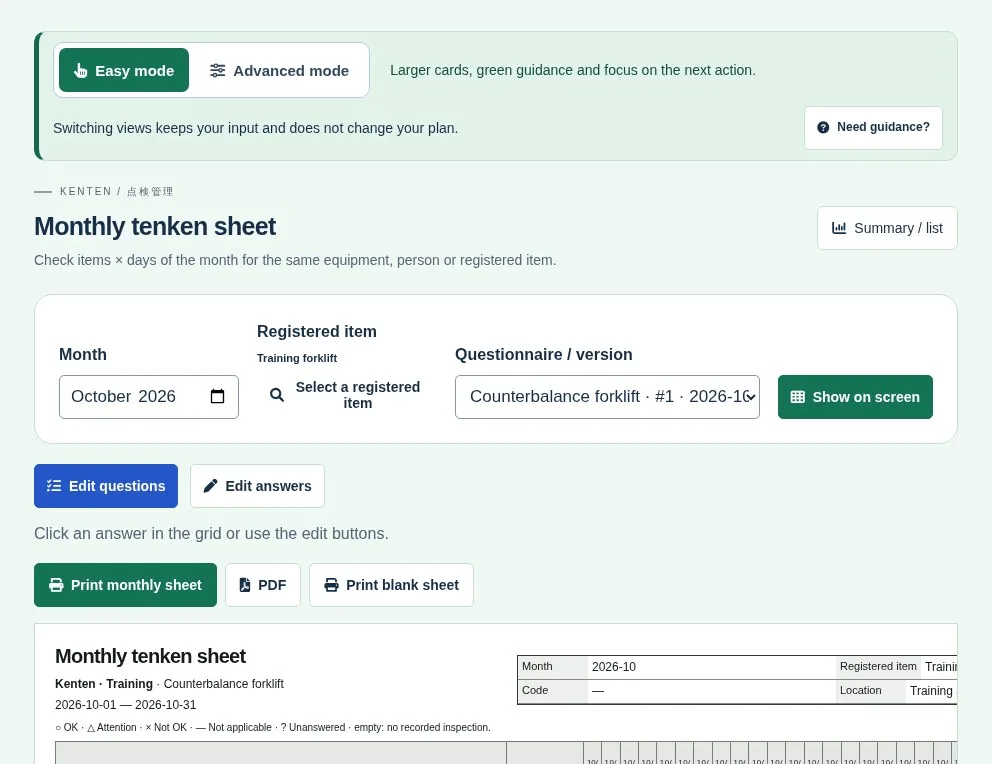
Read the monthly sheet
- Open the monthly sheet from the inspection or from Reports. Check the item, questionnaire and month, then tap Show on screen.
- Read the day columns and symbols: ○ OK · △ Attention · × Not OK · — Not applicable · ? Unanswered. An empty day means no recorded inspection.
- Click a recorded cell to view or correct that visit's answers. If the day has more than one visit, choose which.
- Below the grid you find the observations (per-question explanations and general notes), with each inspection's day.
Edit questions without leaving the sheet
- Click Edit questions above the grid.
- Fix text, add questions or activate/deactivate them. A locked trash button means the question has answers and can't be deleted.
- Save the changes. Earlier visits keep their answers.
Print or download a PDF
- Print monthly sheet or PDF: the results and observations recorded that month.
- Print blank sheet: an empty form with the active questions, without answers or signatures.
Before printing, check the preview, month, paper size and orientation.
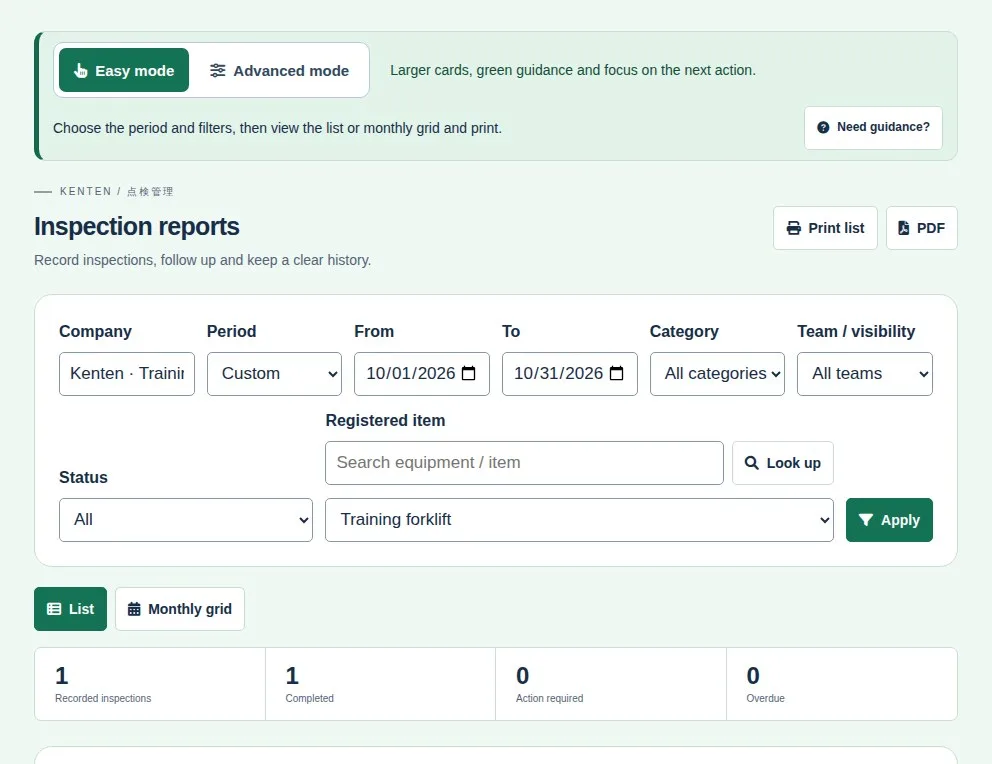
Reports
In Reports, filter by period, category, team, status and item, then apply. View as a list or monthly grid and print the list or save it as PDF.