











KoMail · Screens & features
Read a message and open attachments
Reply, archive, open attachments safely and use AI while reading.
On this page
Tap a message to open it in the reader.
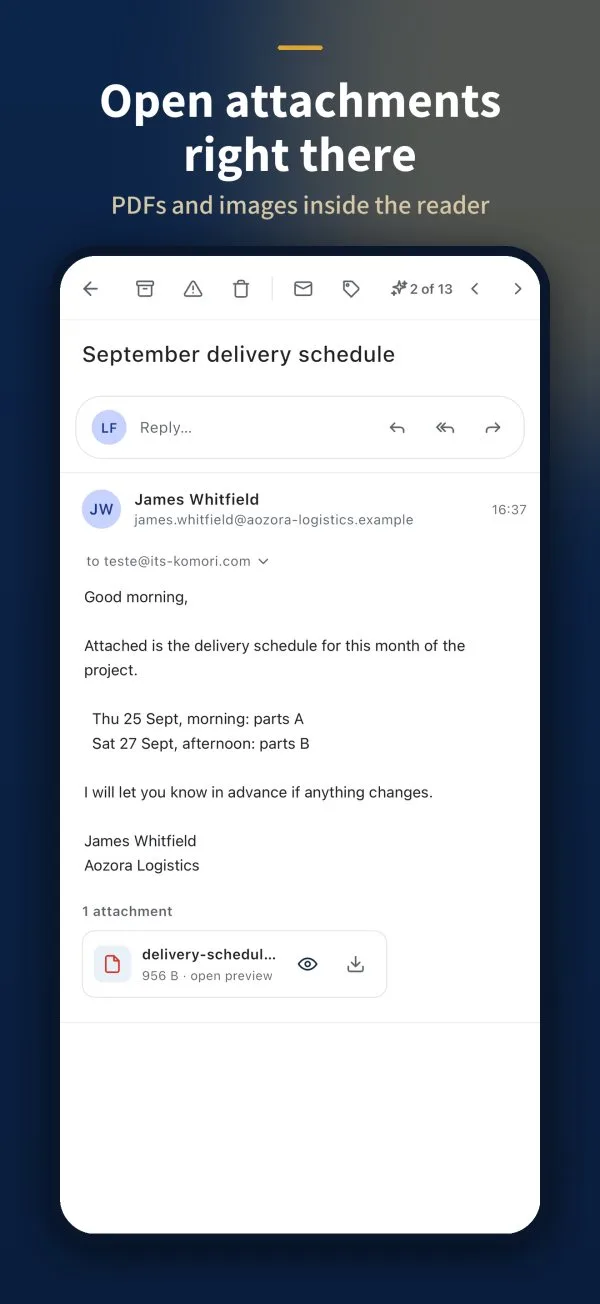
What is on the screen
- Top bar: back, Archive, Report spam, Delete, read/unread, label, and arrows to the previous or next message.
- Reply…: a quick field with Reply, Reply all and Forward.
- Attachments: at the end of the message, with the eye (open preview) and the arrow (download).
Open an attachment
- Tap the eye to preview without leaving the email (PDFs, images and Office files).
- To keep the file, tap the download arrow.
Attachment safety badge
- Green — Verified: checked and safe to open.
- Yellow — Can’t verify (e.g. a password-protected zip): the app asks before opening.
- Red — Possibly dangerous (program, macro, PDF with script, virus): the preview is blocked and you can only download after ticking I understand the risk.
AI while reading
If AI is turned on in Settings › AI, you see Summarise with AI, Translate with AI and Reply with AI. The AI acts only when you ask.