











KoMail · Mga screen at feature
Write and send an email
Recipients, attachments, signature and scheduled sending.
Hindi pa naisasalin ang artikulong ito sa inyong wika: ipinapakita ang bersyong English.
Sa pahinang ito
- In the inbox, tap Compose.
- Start typing in To: KoMail suggests contacts. Use Cc and Bcc if needed.
- Write the subject and text. The toolbar has bold, italic, underline and lists.
- To attach, tap the paperclip (up to 10 files, up to 25 MB each).
- Tap Send.
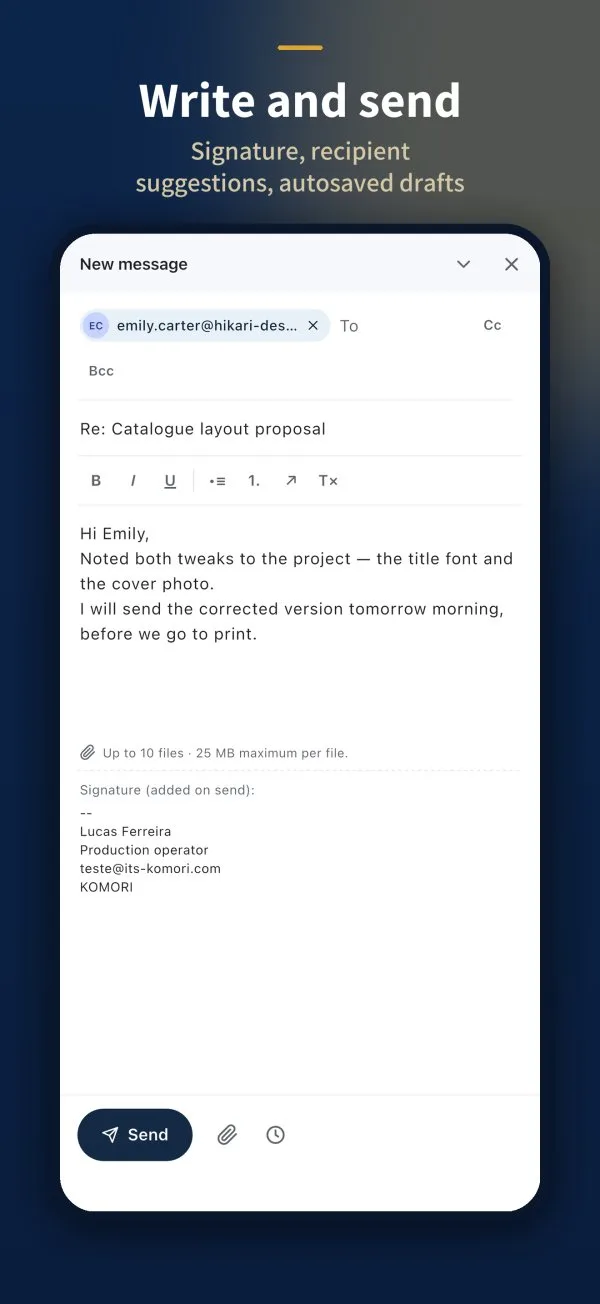
Signature
The signature shows at the end of the message and is added when you send. To change it, go to Settings › Signature.
Schedule the send
- Write the message as usual.
- Tap the clock next to the paperclip (Schedule send).
- Pick the date and time.
The message waits in the Scheduled folder until it goes out. You can Reschedule it there.