











KOLOGY Software Lite · Screens & features
Delivery list and export (XLSX/CSV)
The Deliveries screen lists every slip in the batch with filters, counts and export of the filtered result.
On this page
The Deliveries screen shows all imported slips in a table, away from the map. It is the best place to check totals, find one slip and produce a spreadsheet to file or send.
Where it is
On the map, open Information → Deliveries (or the Deliveries item of the top menu on inner screens). To go back, click Back to map.
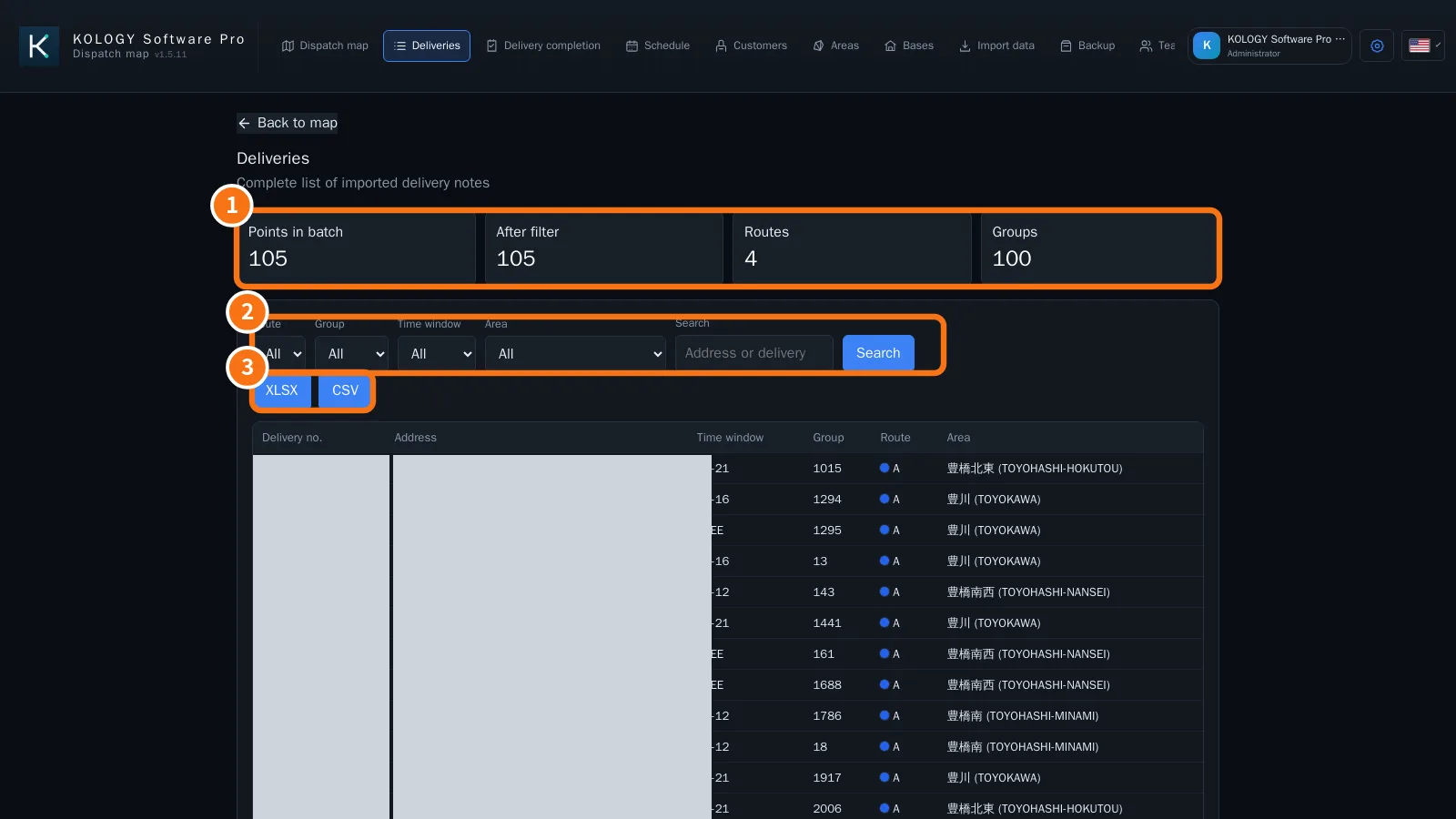
Example from KOLOGY Software Pro (dark theme). Lite shows the same fields.
What is on the screen
- Counts: Points in batch, After filter, Routes and Groups. They follow the current filter exactly.
- Filters: Batch, Route, Group, Time window, Area and Search (address or delivery number).
- XLSX and CSV: export only the filtered result.
The table shows delivery no., Address, Time window, Group, Route and Area. Deliveries without an area show as Outside all areas.
Step by step: a spreadsheet for one route
- Under Batch, confirm the day's batch.
- Under Route, pick the route (for example A).
- Optionally narrow by Time window or Area and click Search.
- Check the number under After filter.
- Click XLSX (Excel) or CSV. The file downloads named after the product.
In KOLOGY Software Pro
Search also finds driver and status, and each delivery shows whether the driver link comes from the route or is direct. To fix a slip, open it from the map (see “Edit a delivery from the map”).
Common mistakes
- “No point matches these filters.” A filter is too narrow. Set them all back to All.
- Total differs from the map: the map may have a Ctrl selection or area filter on. Click Clear on the map.
- Spreadsheet shows garbled characters: prefer XLSX, which opens in Excel with Japanese text intact.
Related questions
- Edit a delivery from the map
- Delivery completion
- Import deliveries