











Karta · Màn hình & chức năng
Set up the company: users, existing contacts, companies and plan
Checklist for the administrator who puts Karta into use at a company. Follow the order: account and plan first, then users, then the contacts that already exist in other services. That way everyone joins the right workspace and contacts arrive without duplicates.
Bài viết này chưa được dịch sang ngôn ngữ của bạn: đang hiển thị bản English.
Trong trang này
What this is for
Checklist for the administrator who puts Karta into use at a company. Follow the order: account and plan first, then users, then the contacts that already exist in other services. That way everyone joins the right workspace and contacts arrive without duplicates.
Step by step
- Sign in to the web version with the company administrator account and check the company name at the top.
- Open Settings and Plans and limits: check the plan, how many cards exist and how many users are included.
- If you need more people, remember that extra user seats exist only on Start; the owner checks the terms on the web before confirming.
- Open the Users tab and add each colleague with their own name and email; never share a single account.
- Ask each colleague to install the app and sign in with the registered email (see Install the app and sign in to your company).
- Export the old contacts from the other service as vCard (.vcf) or CSV, open Import, analyse the file and tick only the contacts you want before confirming.
- Open Companies, search for variations of the same name and correct the Company field on the cards so each organisation appears once; review name and logo when you have permission.
- In Settings, review language and notifications; plan and limit notices help you act before you run out.
- When someone leaves the company, deactivate that person’s access in the Users tab instead of reusing the account.
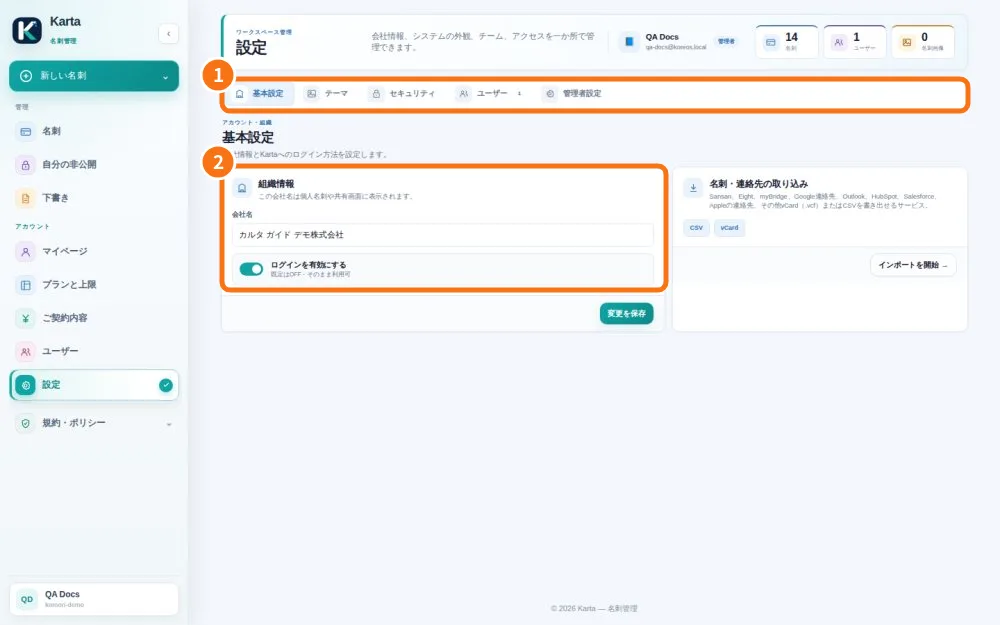
Demo screen. Numbered highlights mark the controls discussed; the image language may differ from yours.
Tip
If something goes wrong
No Users tab: your account is not an administrator; ask the owner. No seat for a new user: check the plan; Free and Lifetime include 1 user by default. Import shows duplicates: leave existing ones unticked. A colleague signed in and sees nothing: they may have created another company; check the email used.
Related articles
- FAQ: 20 answers