











Karta · Màn hình & chức năng
Set team visibility and an expiry
Visibility decides who can find a card in your company. It differs from your public digital card link.
Bài viết này chưa được dịch sang ngôn ngữ của bạn: đang hiển thị bản English.
Trong trang này
What this is for
Visibility decides who can find a card in your company. It differs from your public digital card link.
Step by step
- Open a card you may edit.
- Find visibility and choose Only me or My team.
- Check the end date when using time-limited sharing.
- Save and confirm the result before telling a colleague.
- Return later to adjust the expiry or make it private again.
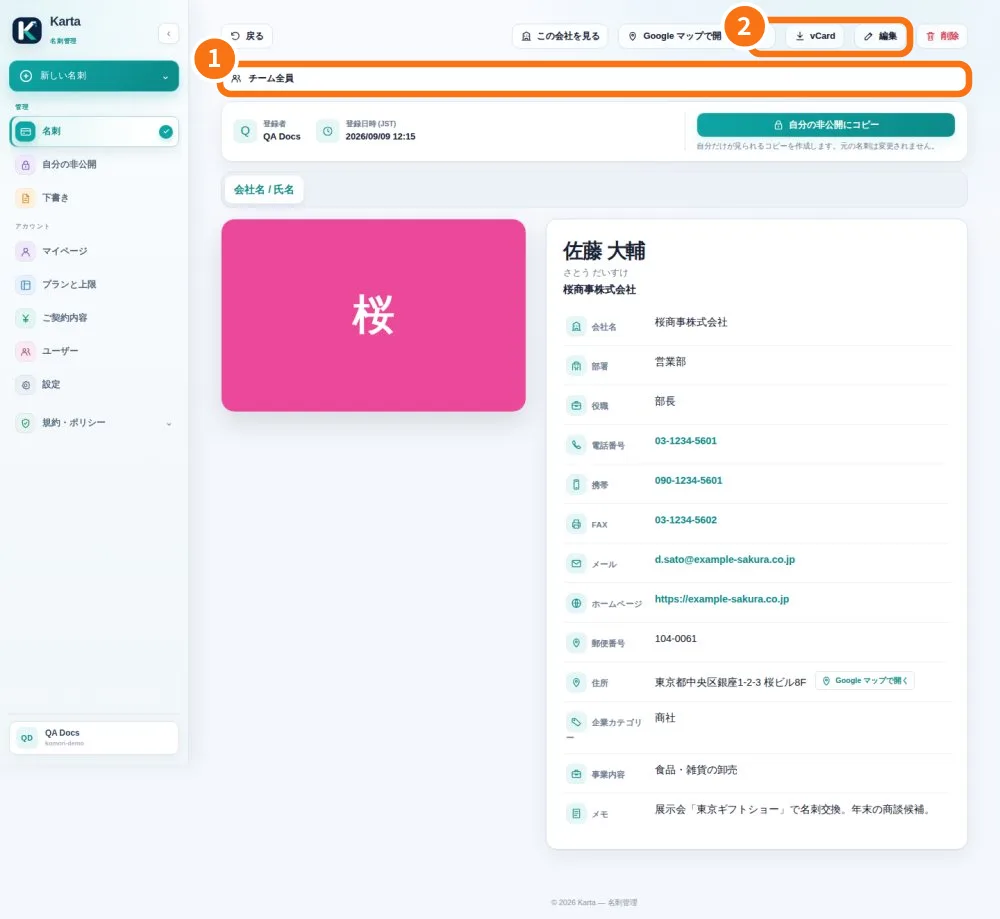
Demo screen. Numbered highlights mark the controls discussed; the image language may differ from yours.
Tip
If something goes wrong
If a colleague loses access, check the expiry. If the action is absent, ask the owner to check permissions.
Related articles
- Add or correct a contact
- Find, filter and export a card