











k-TV · Mga screen at feature
Choose and change the TV screen
Settings → Screen: what is on the TV now, the screen picker, 1–9 shortcuts and light or dark theme.
Hindi pa naisasalin ang artikulong ito sa inyong wika: ipinapakita ang bersyong English.
Sa pahinang ito
Each TV shows one screen at a time. You choose which one in Settings, Screen tab.
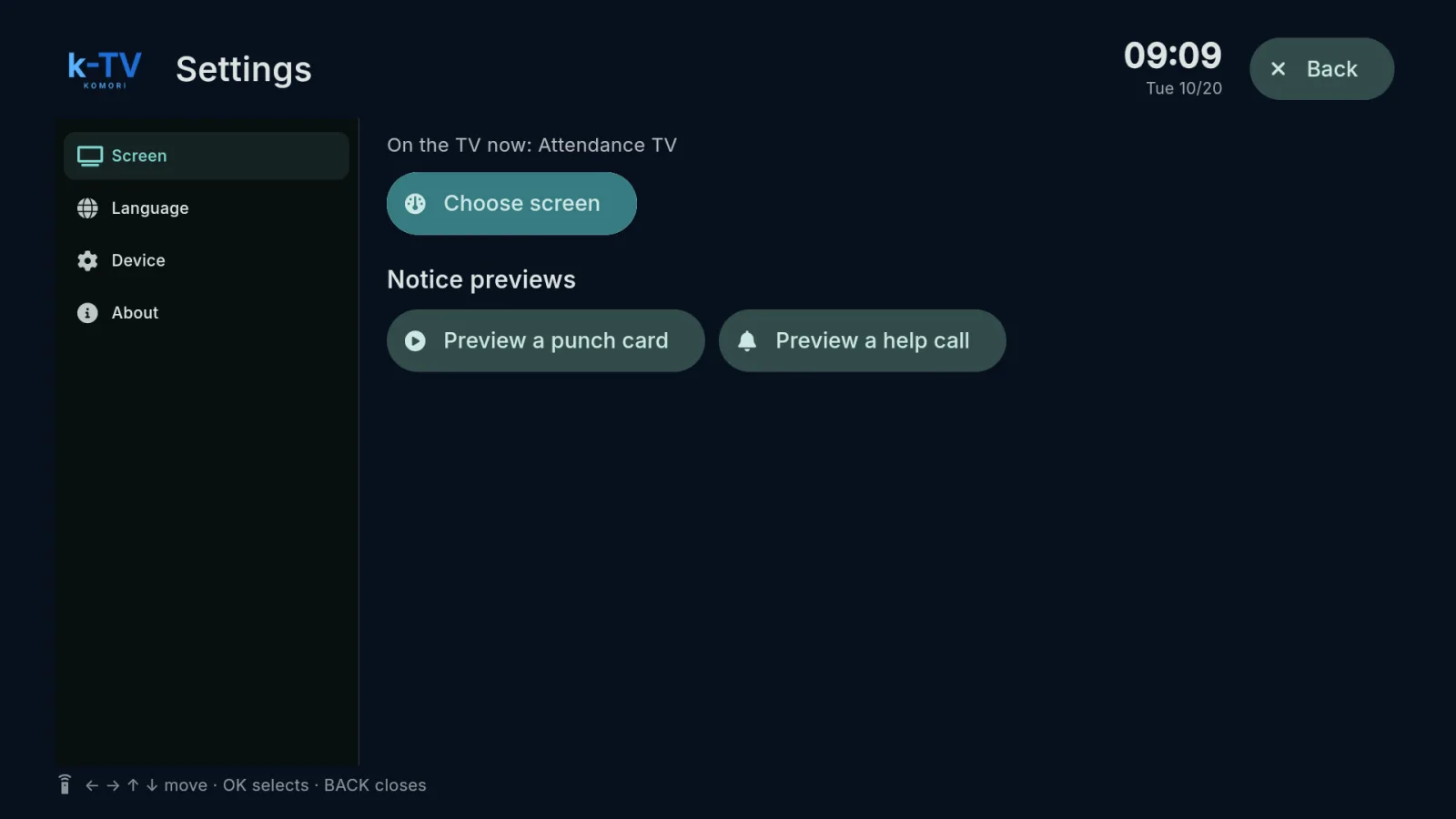
Change the screen
- Press MENU on the remote (or hold BACK for 1 second).
- On the Screen tab, On the TV now shows the current screen. Select Choose screen.
- Screens appear as cards with a thumbnail, split into tabs by group plus an All tab. Recent screens carry a new badge.
- Move with the arrows and press OK on the one you want. BACK closes the picker without changing.
Other options on the Screen tab
- Theme: light / Theme: dark — switches the colors of screens that have both themes.
- Notice previews — shows how a notice looks on top of the screen, without recording anything. Some screens have no notices.
Only screens enabled for this TV’s account appear. The person in charge of the service can also change the screen remotely. After a restart, the TV returns to the same screen by itself.