











KOREOS MENT · Getting started
Get started with KOREOS MENT
What KOREOS MENT is, how to install it, sign in for the first time and open the first case.
On this page
What KOREOS MENT is
KOREOS MENT organizes machine maintenance and repairs in the factory, from the request to the approval of the work. The same workflow runs on Windows PCs and Android tablets, and records stay on the device or on your company’s local server.
Install
- Windows: run the official installer.
- Android tablet: install the official file provided to your company and follow the system confirmation.
First sign-in, step by step
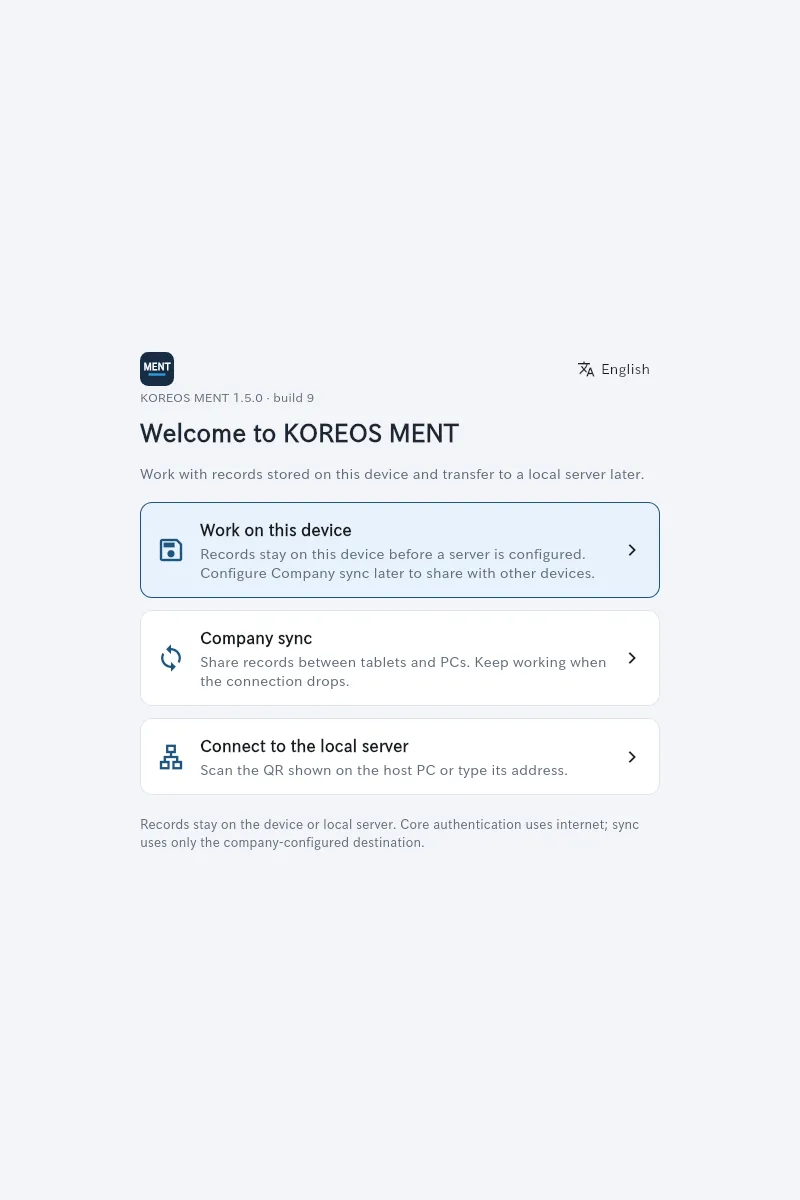
- Open KOREOS MENT. On the welcome screen, tap “Work on this device”. No server or shared folder is needed yet.
- On the sign-in screen, use login admin and password admin (new installations only).
- The app recommends changing the password: enter the current password and a new one with at least 8 characters, including a letter and a number. You can tap “Not now” and change it later in Settings → Account.
First task: prepare and open a case
- In Settings → Departments, add your factory’s departments.
- In Equipment, tap “Add equipment” and enter the name, location, manufacturer, model and serial number.
- In Settings → Users, create an account for each person and choose the role (requester, staff, manager) and department.
- In Cases, tap “New request”, describe the issue and choose priority, location, department and equipment. Attach photos if they help.