











KOREOS MENT · Màn hình & chức năng
Equipment, QR labels and scanning
Add equipment, review maintenance history, print QR labels and open a record by scanning.
Bài viết này chưa được dịch sang ngôn ngữ của bạn: đang hiển thị bản English.
Trong trang này
Equipment
Each piece of equipment has a record with its details, related cases, photos and files, and history.
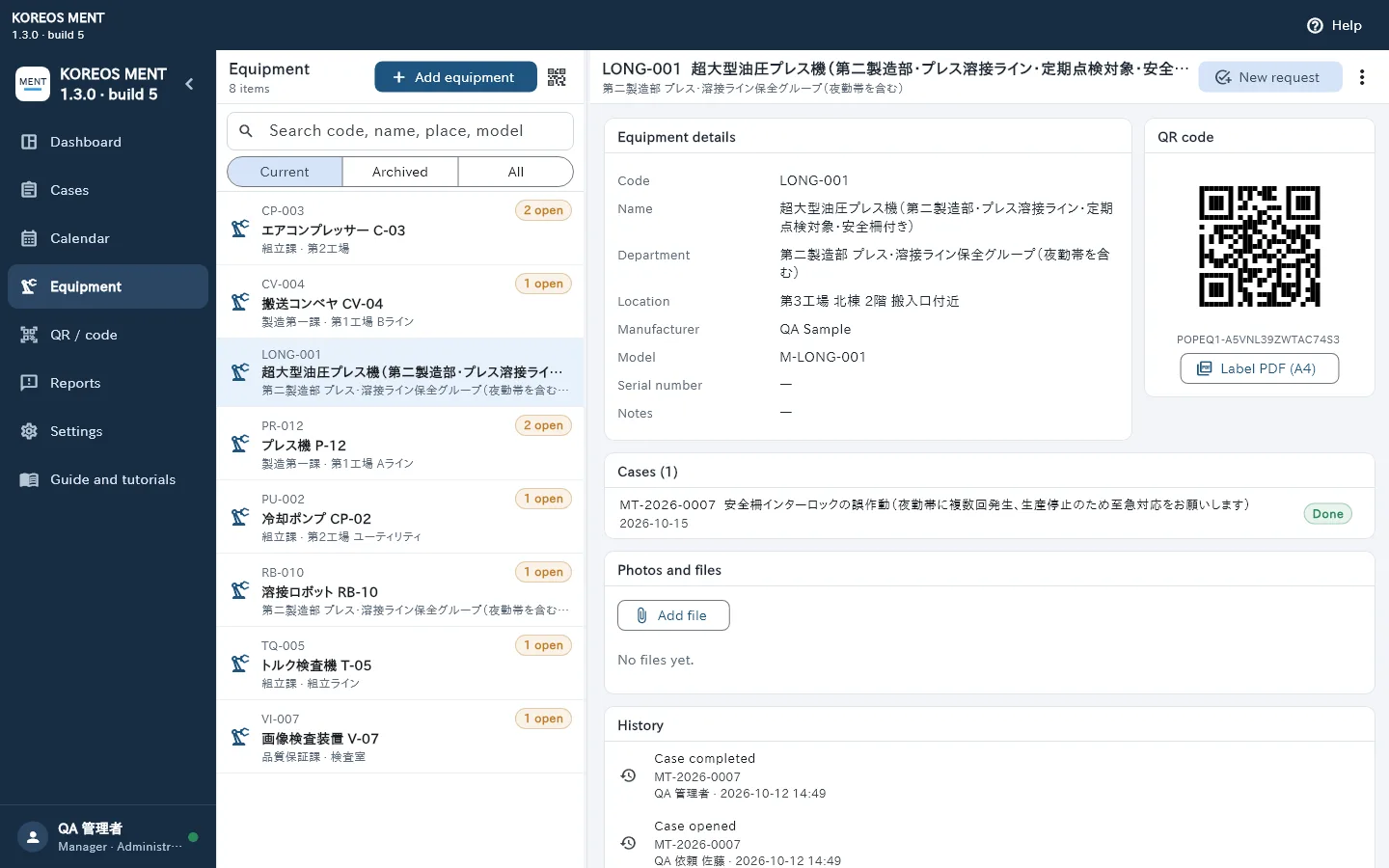
- Search by code, name, place or model. Use Current, Archived or All to filter.
- With permission, tap “Add equipment” and enter the name, location, manufacturer, model and serial number.
- Open the record to review earlier cases and attach photos or manuals.
- From the record, “New request” creates a case already linked to that equipment.
QR labels
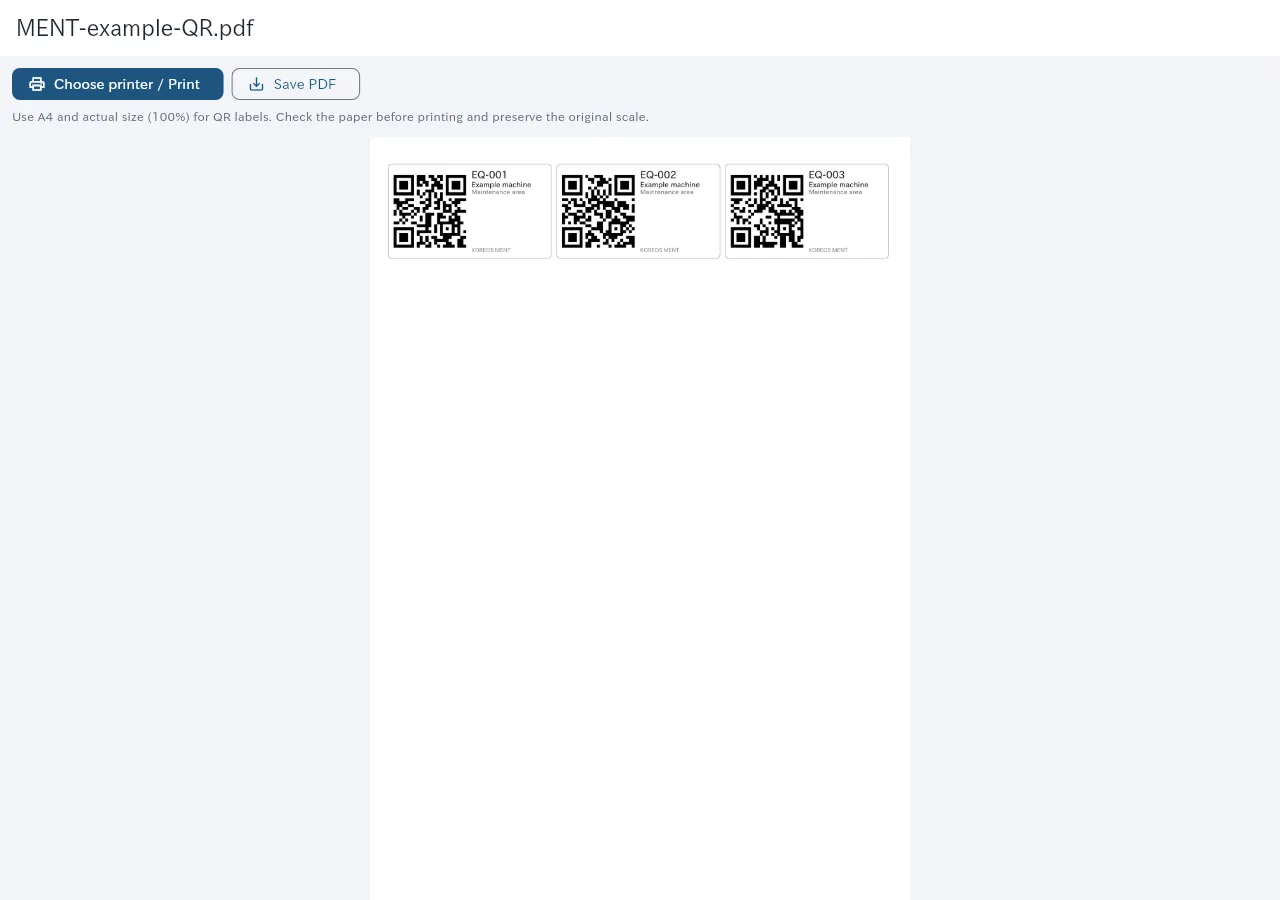
- For one label, tap “Label PDF (A4)” in the record. For several, tap the QR icon in the list and select the equipment.
- In the preview, check the QR, code, name and location. Opening the preview does not print anything.
- Tap “Print” or “Save PDF”. Use A4 paper at actual size (100 %), without “Fit to page”.
- After printing, scan the QR and check that it opens the right equipment before sticking it on.
Scan a QR
- Open QR / code and allow the camera. Keep the whole code inside the frame.
- Without a camera, type or paste the QR content, or search by equipment code.