KOREOS HOME · Screens & features
Tasks and requests
Track who does what, change the status and see each request’s history.
On this page
Open Tasks in the bottom bar. It shows the status of each request at home.
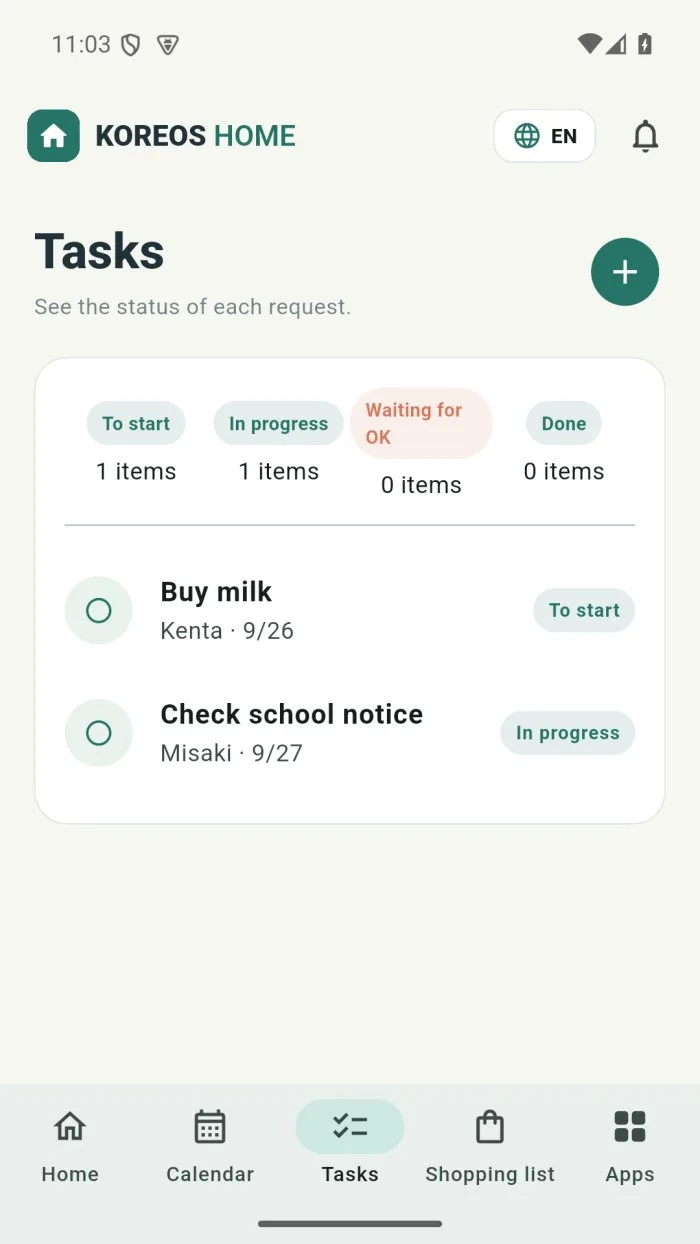
The four statuses
- Status · When to use it
- To start · Requested, nobody has started.
- In progress · Someone is on it.
- Waiting for OK · Done; the person who asked still has to check.
- Done · Finished.
Create and follow a task
- Tap + and write the task. You can attach a photo, voice or a file.
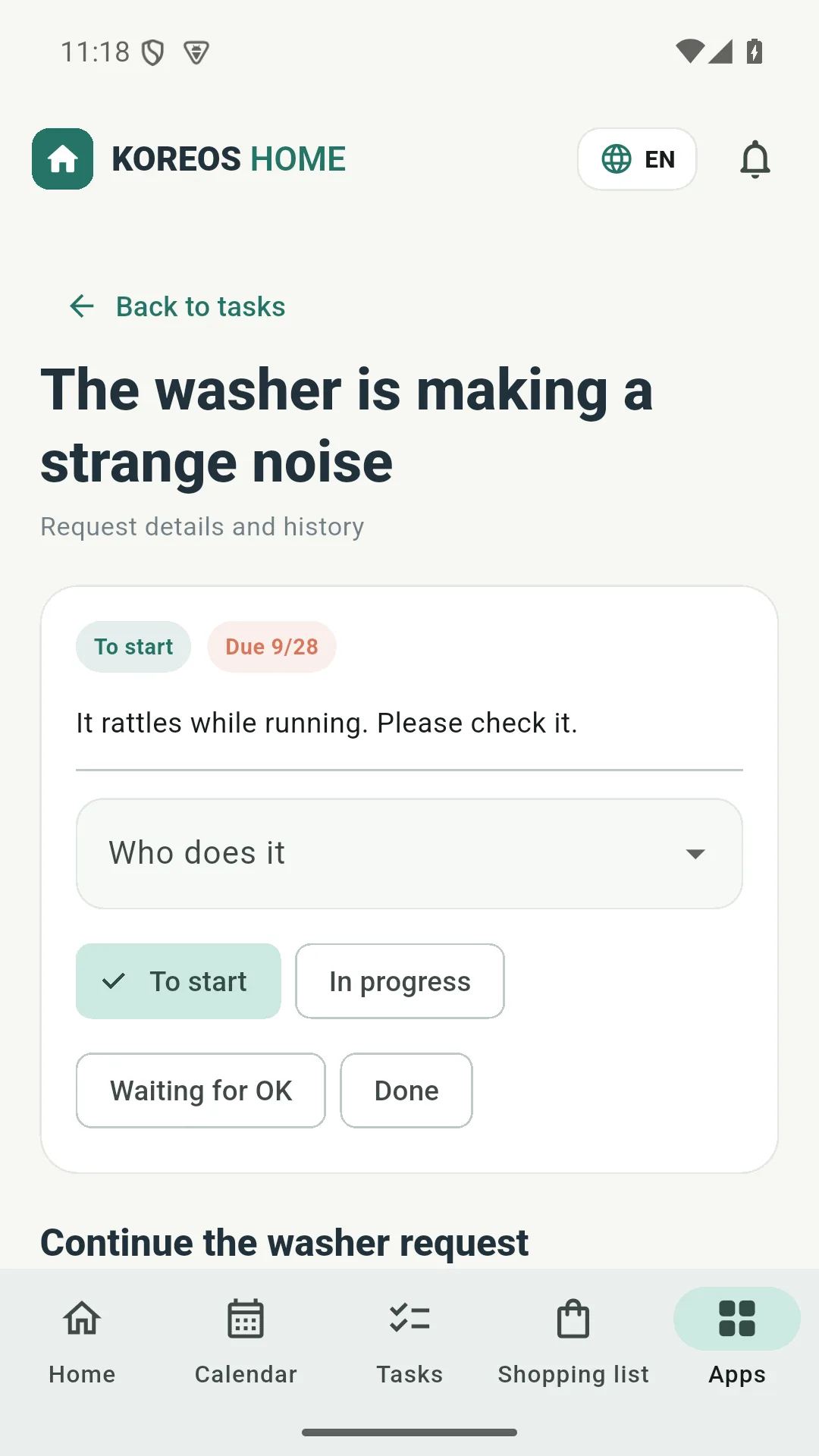
- Tap the task to open Request details and history.
- Under Who does it, pick the person.
- Tap the new status (for example, In progress).