











KOLOGY Software Lite · Bắt đầu
Getting started with KOLOGY Software Lite
What the program is, what the first screen shows, and a safe routine for a delivery day.
Bài viết này chưa được dịch sang ngôn ngữ của bạn: đang hiển thị bản English.
Trong trang này
KOLOGY Software Lite is a delivery program for Windows, installed on your company's own PC. It shows every destination of the day on the map, splits them by area, route and time window, and helps you organise the run. There is no sign-in and no monthly fee: once activated, it works even without internet.
Who uses it and where to find it
It is meant for the person who plans deliveries in the office (operator or manager), on one PC. After installing, open the KOLOGY Software Lite shortcut on the desktop or in the Start menu. The program opens straight on the Dispatch map.
What the first screen shows
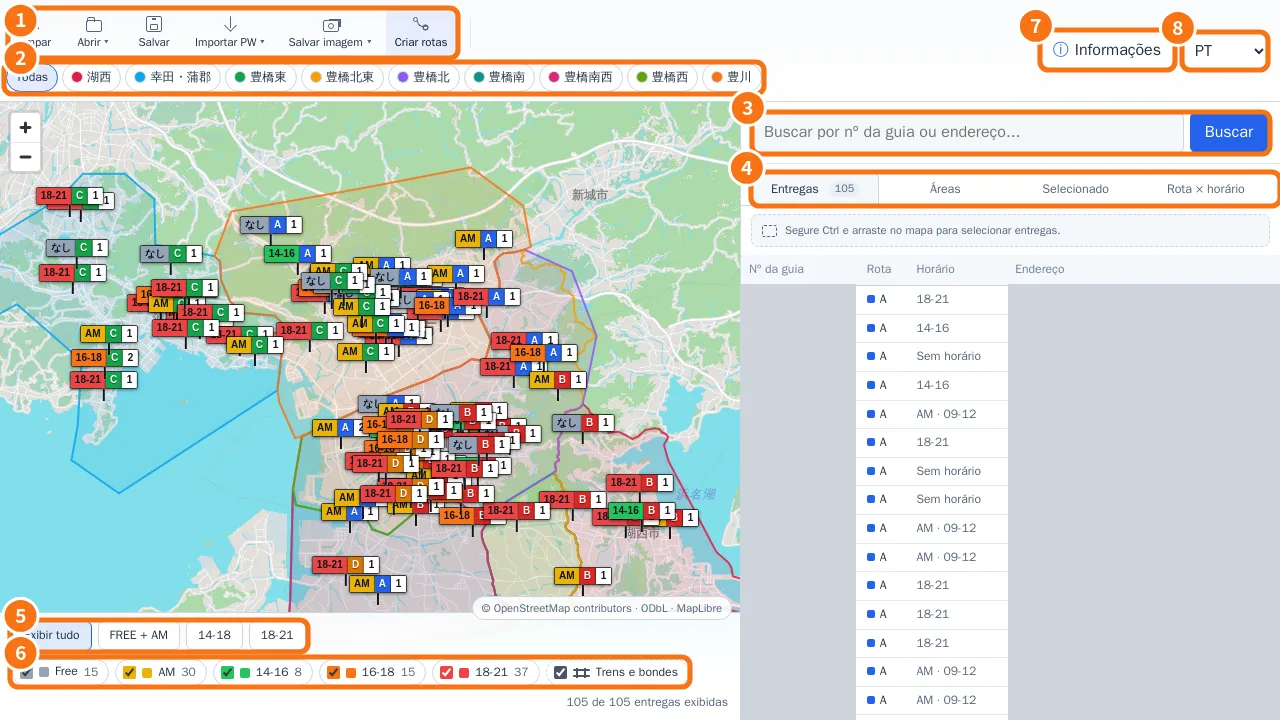
- Toolbar: Clear, Open, Save, Import PW, Save image and Build routes.
- Area buttons: show all areas or a single region.
- Search by delivery number or address.
- Panel tabs: Deliveries, Areas, Selected and Route × time window.
- Time shortcuts: Show all, FREE + AM, 14-18 and 18-21.
- Time-window filters and the Rail and tram layer.
- Information: opens the other screens (Deliveries, Areas, Bases, Import data, Backup, Settings, Extensions), appearance and version.
- Language: PT, JA or EN. The choice is remembered.
Recommended routine for a working day
- Open the last saved work or import the day's file (Open → Select dados.bin, or Import PW → Paste from browser).
- On the Deliveries tab, check how many deliveries were recognised.
- Review addresses, times, areas and drivers. Click a pin to fix it on the spot.
- Use the filters to see a single area, route or time window.
- Click Save after important changes. The original file is kept.
- At the end of the day, record completions (if your licence has the Delivery completion and reports extension) and run a Manual backup before closing or updating.
Requirements
- Windows 10 or 11 (64-bit). The window needs at least 1024 × 768 pixels; the program is not made for phones or tablets.
- Internet only to activate, check for updates, sync extensions and download extra maps. The Aichi prefecture map is included.
Common mistakes
- A code screen appears on opening: this is activation, done once per computer. See “Buy, install and activate”.
- The map is empty: no batch has been imported yet. Import the day's file.
- A button mentioned in the guide is missing: it may belong to an extension you have not purchased. See “Extensions”.
Related questions
- Buy, install and activate
- Dispatch map: the main screen
- Import deliveries
- Backup and restore