K-Units · Getting started
Use the same inventory on several devices
Turn a Windows PC into your company’s network server and connect tablets and other PCs to it.
On this page
For several tablets and PCs to share the same inventory, one Windows PC that stays on keeps the data on its own disk and serves the other devices over the company’s private network. Traffic is encrypted.
1. Create the server on a Windows PC
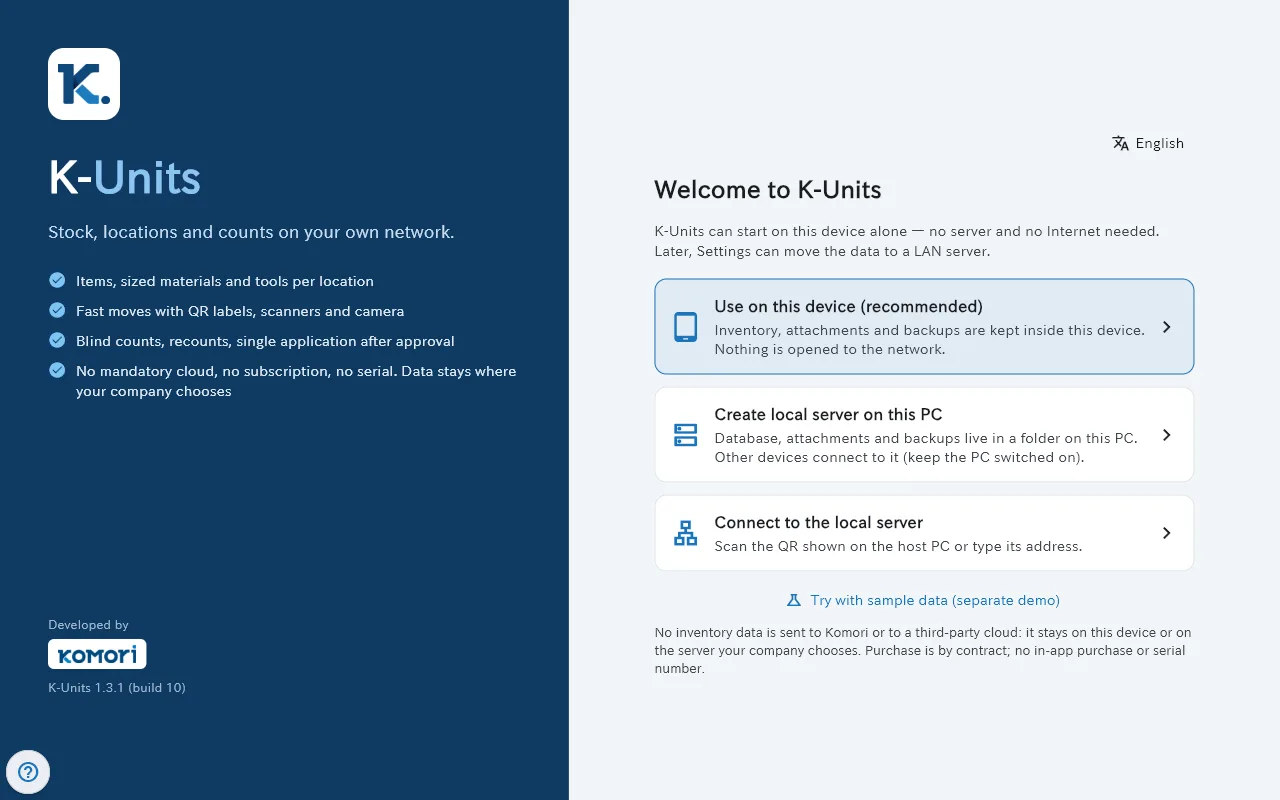
- On the PC that will stay on, open K-Units and choose “Create local server on this PC”.
- Under “1. Data folder”, pick a folder on a local disk (C: or D:). Network folders are refused because they can corrupt the data.
- Under “2. Network”, choose this PC’s local network address. With “This PC only”, tablets and other PCs cannot connect.
- Tap “Create and start the server”. If Windows Firewall asks, allow it on “Private networks”.
- Sign in with admin / admin (works only on that PC), change the password and create a user for each person in Settings → Users.
2. Connect a tablet or another PC
- On the server PC, open Settings → Local server and tap “Show pairing QR”. The code is valid for a short time and only once.
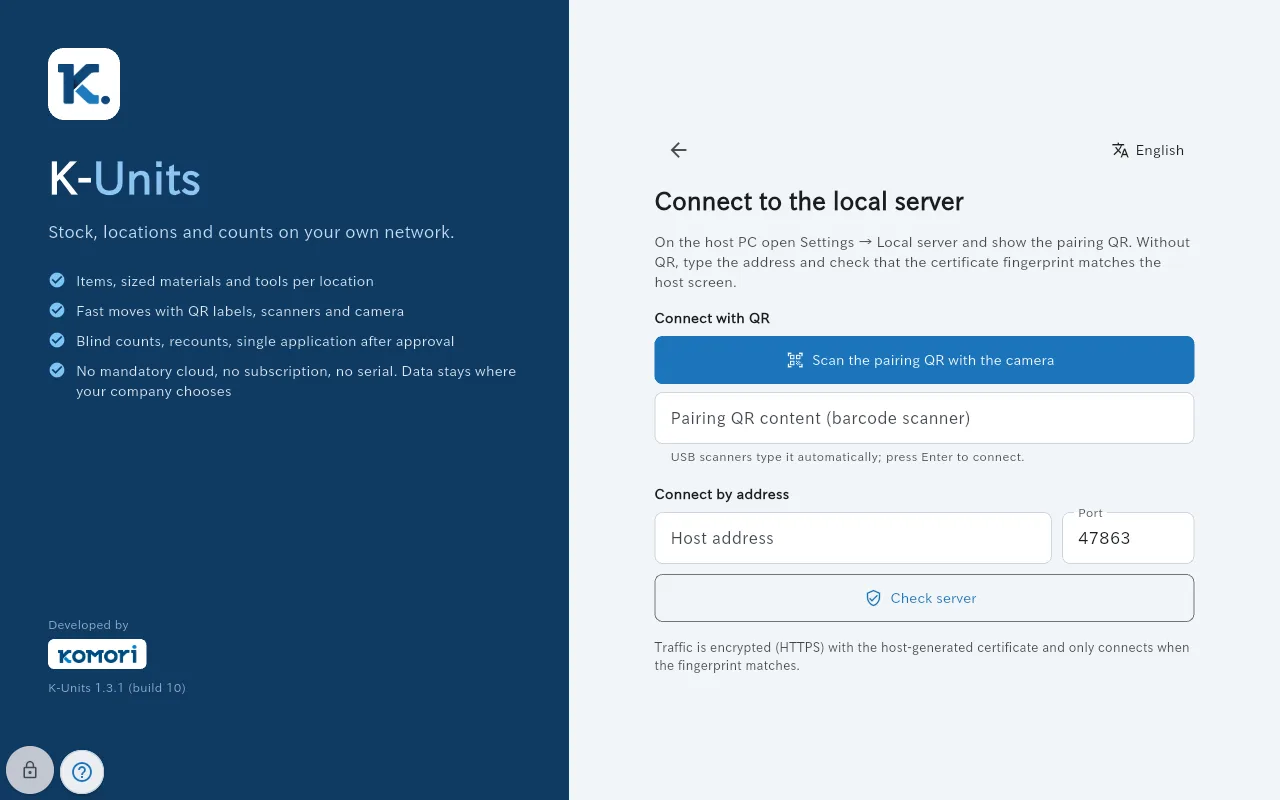
- On the tablet, choose “Connect to the local server” and tap “Scan the pairing QR with the camera”. On a PC, a USB scanner types the QR content into the field and Enter connects.
- Without a QR, use “Connect by address”: enter the address and port and tap “Check server”. Confirm only if the fingerprint matches the one on the server screen.
- Sign in with the user your administrator created.