











KOREOS QUALITY VISION · Pagsisimula
Getting started with QUALITY VISION
What the product is and the path from first sign-in to recording the first inspection.
Hindi pa naisasalin ang artikulong ito sa inyong wika: ipinapakita ang bersyong English.
Sa pahinang ito
What QUALITY VISION is
A visual inspection system that checks foreign objects, defects and dimensions by camera, shows the verdict on a large screen and records everything. It runs on a line-side PC (browser) and on the Android tablet app — both judge with the same part setup and criteria. Each company uses its own separate environment.
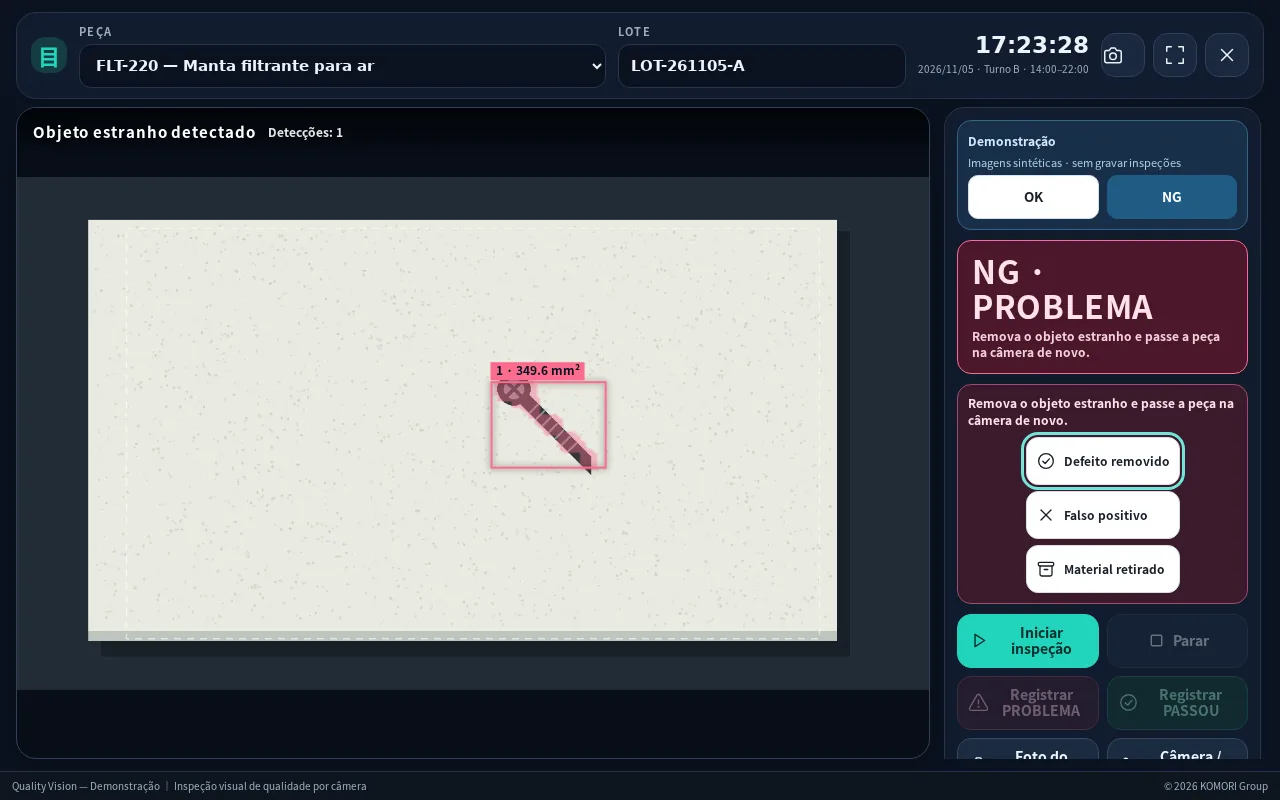
First use, step by step
- Sign in: open the invite link sent by your administrator and choose a user name and password. From then on, sign in with them.
- Register the part (Administrator or Quality): code, name and the real size of the area the camera sees (width and height in mm). With the real size, findings are recorded in mm².
- Adjust the camera: with the station’s camera button, set the zoom and the inspection area (the square) on the part.
- Register the reference (good part): place a GOOD part under the camera and tap “Register reference (good part)”. Without a reference the station shows NO REFERENCE and does not judge.
- Start: pick the part and lot and tap “Start inspection”. The verdict fills the screen: PASSED (green) or PROBLEM (red).
Roles
- Administrator: everything
- Quality: criteria, parts, reference, calibration and users
- Operator: inspection station and records
- Viewer: read-only (cannot record or change anything)
Accuracy depends on the part, camera, lighting and installation. The final call and what to do with the part stay with the responsible person.